EasyManua.ls Logo

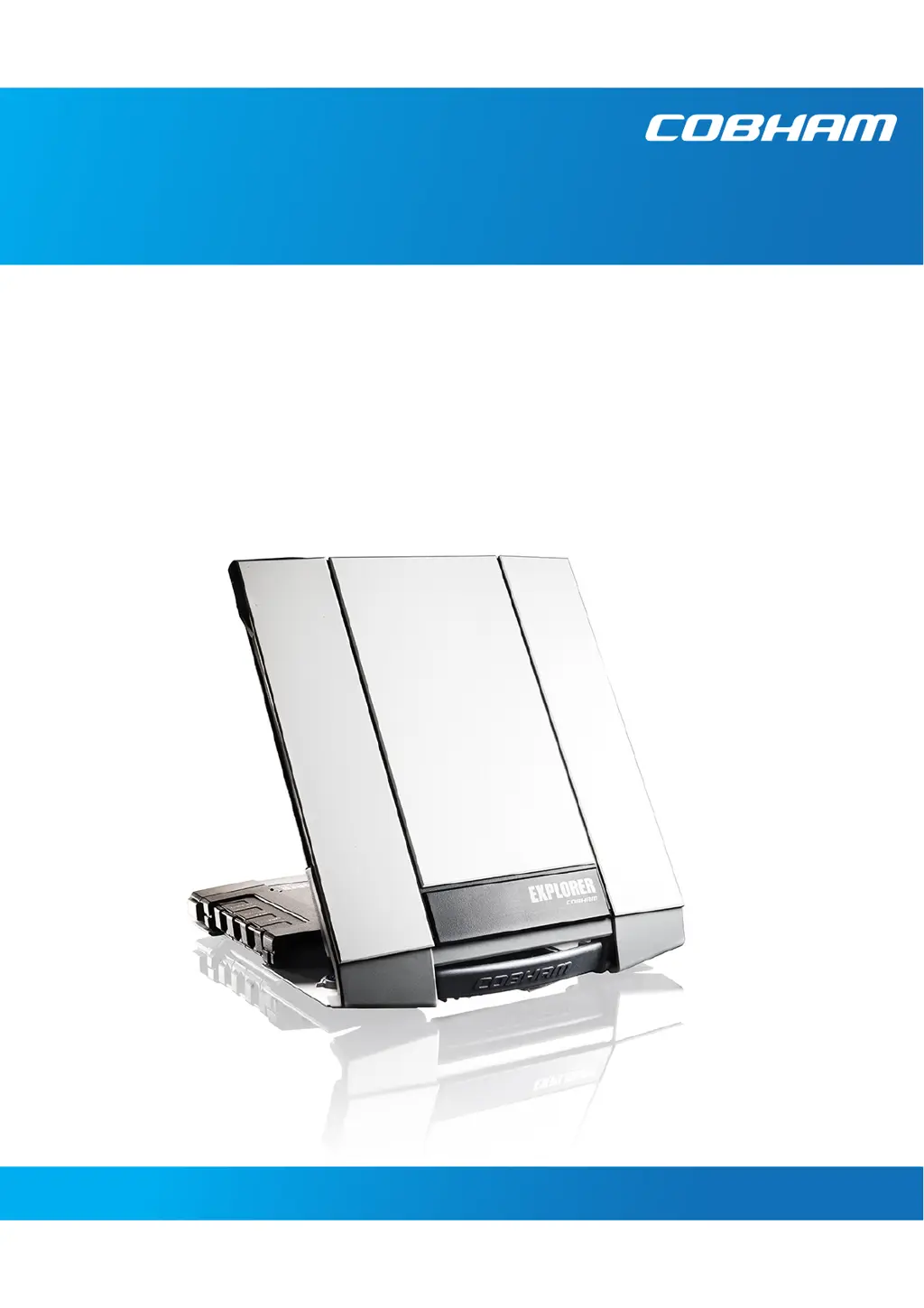
COBHAM Explorer 710 - User Manual

COBHAM Explorer 710
181 pages
Print Icon
To Next Page IconTo Next Page
Loading...
EXPLORER 710
User manual

Table of Contents

Other manuals for COBHAM Explorer 710

Questions and Answers

  • M
    mariaburtonAug 29, 2025
    How to fix ISDN connection problems on COBHAM Antenna?
    • C
      conwaycurtisAug 29, 2025
      If you're unable to establish an ISDN connection with your COBHAM Antenna, check the following: * **Interface Status:** Ensure the ISDN interface is enabled via the display icon or the web interface. * **Cable Connection:** Verify the cable is properly connected. * **Interface Connection:** Make sure the cable is connected to the ISDN interface, not the LAN interface. * **Cable Type:** Confirm you're using the correct type of connector and cable. * **Call Type Selection:** For incoming phone calls, ensure the correct call type is selected in the web interface under Control panel > ISDN.
  • V
    Valerie BrewerAug 28, 2025
    How do I troubleshoot phone connection issues with my COBHAM Antenna?
    • S
      Stephanie ShortAug 29, 2025
      If a phone connection cannot be established with your COBHAM Antenna, consider the following: * **Interface Status:** Enable the interface by selecting the Phone interface icon on the display or through the web interface. * **Cable Connection:** Ensure the cable is properly connected. * **Cable Type:** Verify the cable and connector type are correct. * **Call Type Selection:** For incoming calls, ensure the correct call type is selected in the web interface under Control panel > Phone.
  • Z
    Zachary BennettAug 28, 2025
    What causes a charging error on COBHAM Antenna?
    • Q
      qlewisAug 28, 2025
      If you're experiencing a charging error with your COBHAM Antenna, it might be due to: * **Temperature:** Only charge the battery within a temperature range of 0°C to 40°C. * **Charging Voltage:** Wait for charging to begin (the Status indicator should flash yellow). If the battery is fully discharged and hasn't been used for a while, charging may take a long time to initiate. If charging doesn't start within 2-3 hours, contact your local distributor or purchase a new battery.
  • B
    Bradley MorseSep 9, 2025
    How to fix 'Insert SIM' message on COBHAM Explorer 710?
    • M
      Michelle RiveraSep 9, 2025
      If the display of your EXPLORER 710 shows 'Insert SIM', it means the SIM card is either missing or not properly inserted. Remove the battery and insert the SIM card in the SIM slot. If already inserted, remove the SIM card and re-insert it.
  • R
    Raymond JacksonSep 12, 2025
    What to do if COBHAM IP Phone EXPLORER 710 cannot be switched off?
    • R
      Rhonda WyattSep 12, 2025
      If your EXPLORER 710 won't switch off, ensure you hold the power button until the light indicator flashes rapidly yellow. In some cases, it may take up to 10 seconds to switch off the EXPLORER 710.
  • D
    Danny Brown DDSSep 16, 2025
    How to fix no signal or weak signal on COBHAM IP Phone from BGAN satellite?
    • M
      Matthew LoweSep 16, 2025
      If you're experiencing no signal or a weak signal from the BGAN satellite on your COBHAM IP Phone, it could be due to a blocked view of the satellite. Ensure the EXPLORER 710 has a clear line of sight, keeping in mind that window glass can reduce the signal level. Alternatively, the antenna may be pointed in the wrong direction. Verify that the antenna is oriented according to the position data, and adjust it to achieve the highest possible signal strength.
  • R
    Regina ColeSep 23, 2025
    What to do if my COBHAM IP Phone won't switch off?
    • L
      Lisa MunozSep 23, 2025
      If your COBHAM IP Phone EXPLORER 710 won't switch off, make sure you hold the power button until the light indicator flashes rapidly yellow. In rare cases, it may take up to 10 seconds to switch off the EXPLORER 710.
  • A
    Angela BeckerAug 26, 2025
    How to fix 'Insert SIM' message on COBHAM Antenna?
    • J
      Jeremy HardingAug 26, 2025
      If the display of your COBHAM Antenna shows 'Insert SIM', it indicates that the SIM card is either missing or not properly inserted. Remove the battery and insert the SIM card into the SIM slot, following the instructions provided.
  • N
    Nicole HansenAug 26, 2025
    Why does my COBHAM Antenna display show 'Emergency calls only'?
    • C
      Christopher WilsonAug 26, 2025
      If your COBHAM Antenna display indicates 'Emergency calls only', the BGAN network may only be available for emergency calls due to: 1) An expired Airtime subscription. Check your subscription with the Airtime Provider. 2) An invalid SIM card. Verify your SIM card is valid for BGAN network communication. 3) A missing SIM card. Insert the SIM card. 4) A cancelled PIN code. Enter the PIN code.
  • J
    Joseph CookeAug 25, 2025
    Why COBHAM Antenna EXPLORER 710 cannot obtain its position using GPS?
    • Y
      yfrankAug 26, 2025
      If your COBHAM Antenna EXPLORER 710 is unable to determine its position using GPS, it may be due to a weak or absent GPS signal. If the EXPLORER 710 hasn't been used recently in the same location, acquiring the GPS position could take up to 10 minutes. Check the GPS status on the display or web interface. Place the EXPLORER 710 flat on a level surface, pointing upwards with a clear view of the sky, to help it acquire a GPS fix. Once the GPS fix is obtained, you can orient the antenna towards the BGAN satellite.

Summary

Safety Summary

Keep Away From Antenna Front

Device emits RF energy; maintain a minimum safety distance of 1m from the antenna front.

Only Use Approved Batteries

Use only approved batteries from Cobham SATCOM to avoid explosion or fire hazards.

Safety Note From Battery Supplier

English Translation of Battery Warnings

Provides English translation of battery hazards and safety recommendations.

Antenna Safety Instructions

Antenna Minimum Safe Distance

Maintain a minimum separation distance of 1 meter from the antenna front to a person.

Chapter 1: Introduction to EXPLORER 710

General Description

Overview of the EXPLORER 710's capabilities and features for voice and data communication.

Features and Interfaces

Details on the EXPLORER 710's features, including connectivity and hardware specifications.

Your EXPLORER 710 Terminal

Identification of key components and physical parts of the EXPLORER 710 terminal.

Chapter 2: To Get Started

To Unpack and Assemble

Instructions for initial inspection and unpacking of the EXPLORER 710 system.

Cable Connections

Details on connecting various cables to the EXPLORER 710's connector panel and ports.

To Start Up the EXPLORER 710

Steps for powering on and off the EXPLORER 710 terminal and entering the SIM PIN.

To Access the Network

Guidance on connecting to BGAN or cellular networks and pointing the antenna.

To Connect to the WLAN Interface

Procedure for establishing a wireless connection to the EXPLORER 710.

To Connect to the LAN Interface

Instructions for connecting to the EXPLORER 710 via a wired Ethernet connection.

To Connect Your Phone

Steps for connecting smartphones or IP handsets for calls via LAN or WLAN.

Chapter 3: To Use the EXPLORER 710

Chapter 4: To Use the Web Interface

The Web Interface

Accessing and navigating the terminal's built-in web interface.

Chapter 5: Maintenance and Troubleshooting

Software Update

Procedures for updating the terminal's software via web interface or USB.

Recovery Software Update

Steps to perform a recovery software update if the terminal becomes inoperative.

Troubleshooting

A guide to identifying and resolving common problems with the EXPLORER 710.

COBHAM Explorer 710 Specifications

General IconGeneral
BrandCOBHAM
ModelExplorer 710
CategoryIP Phone
LanguageEnglish