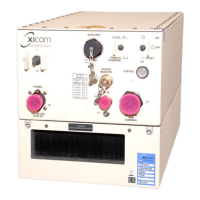
Low Power Outdoor (LPOD) Amplifier/Block Up Converter (BUC)
Revision 15
Firmware Update 3–9 MN-LPOD
3.2.4.4 Use Windows Command-line or Command Prompt to Make a Folder
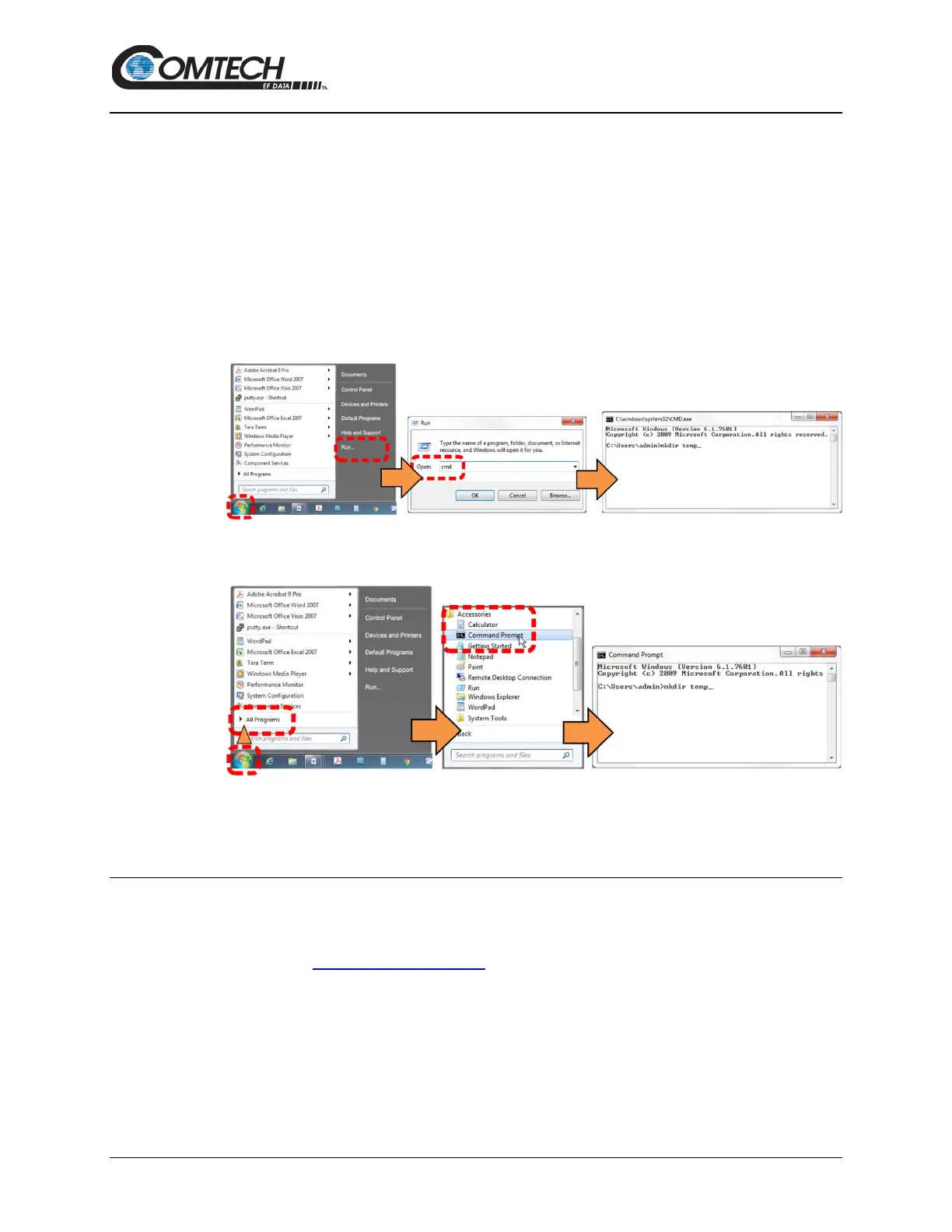
Select Start on the Windows taskbar and then do these steps:
1. Click Run... to open the Run window (or, depending on Windows OS version prior to
Windows 95, click the MS-DOS Prompt icon from the Main Menu).
2. Open a Command-line window:
• For Windows 95 or Windows 98 – type “command”.
• For any Windows OS versions later than Windows 98 – type “cmd” or
“command”.
• Alternately, from Start, select the All Programs > Accessories popup submenu,
and then select Command Prompt:
3. From the c:\> prompt, type either “mkdir temp” or “md temp” (both “mkdir” and “md” mean
“make directory”), and then press Enter.
There will now be a “temp” folder created and available for placement of the firmware file
download.
3.3 Download and Extract the Firmware Update Files
Do these steps:
1. Go online to www.comtechefdata.com
.
2. On the Main page – Under Support Information or the Support tab, select the
Software Downloads hyperlink.
3. On the Software Downloads page – Click Download Flash and Software Update
Files.
4. On the Flash Updates Index page – Select the (Select a Product Line) Amplifiers
hyperlink.


 To Next Page