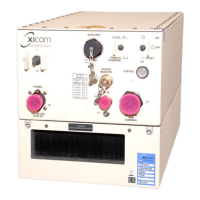
Low Power Outdoor (LPOD) Amplifier/Block Up Converter (BUC)
Revision 15
Firmware Update 3–11 MN-LPOD
• For ZIP files:
o Click [Open] to open the archive file. Use the WinZip features to select
the files for extraction to your destination folder.
o Click [Save] to download the ZIP file to your Windows Downloads folder.
Once the download is complete the dialogue prompts you to either
[Open] the archive file, or to open or view the Windows Downloads
folder for further action.
8. If not already done with File Download > Open, you must extract, at a minimum, these
files (filenames are subject to change):
• FW-0000078X_LPOD_bulk_v#_#_#.bin – The Firmware Bulk Image file
• FW-0000078X_LPOD_Bulk_v#_#_#_Release Notes.pdf – The Firmware
Release Notes PDF file
WHERE: ‘X’ is the firmware revision letter, and ‘#_#_#’ is the
firmware version (e.g., FW Ver. 1.5.6 = “1_5_6”)
9. Confirm availability of the firmware files in the temporary folder. There are several ways
you can view the contents of the temporary folder on a Windows-based PC:
• To use the Windows Desktop, see Section 3.3.1.1.
• To use Windows Command-line or Command Prompt, see Section 3.3.1.2.
10. After you confirm the firmware files are in the folder, proceed to Section 3.4 to upload the
firmware update to the LPOD.
3.3.1.1 Use Windows Desktop to View Folder Contents
From the Windows Desktop:
1. Double-left-click the Windows Explorer icon, and then double-left-click as needed to
locate, and then open, the “temp” folder (directory) created earlier on the Windows
Desktop.
2. Use the Browse window (Start > ...Run > Browse) to locate, and then double-click to
open, the “temp” folder.
3.3.1.2 Use Windows Command-line to View Folder Contents
Using Command-line or Command Prompt:
1. Type “cd c:\temp” at the Windows Command-line prompt to change to the temporary
folder (directory) created earlier using Command-line.
2. Type “dir” to list the files extracted to the temporary folder from the downloaded archive
file.


 To Next Page