82 • Crestron Pyng OS 2 for CP4-R Product Manual – DOC. 8432A
• Use the right screen panel to associate an action with the remote button.
NOTE: The same action or scene may be assigned to multiple remote buttons.
Multiple actions or scenes may also be assigned to the same remote button.
o Use the Select Room Below menu to select the room that contains the
desired action or scene.
o Tap on a room name to display a list of actions that may be selected for the
room. The type of action that is displayed is set using the
Mode drop-down
menu in the center panel.
o Tap the check box next to an action to add or remove that action from the
remote button. A checked box indicates that the action is set to occur when
the button is pressed.
o Tap the back arrow (<) next to the room name to return to the Select Room
Below menu.
NOTE: Only rooms that contain selectable actions appear on the Select Room
Below menu. Once an action is selected from a room, the room name is shown
with blue text in the
Select Room Below menu.
Configure Occupancy Sensors
Select an occupancy sensor from the Select an Item menu to display a configuration
screen for the occupancy sensor.
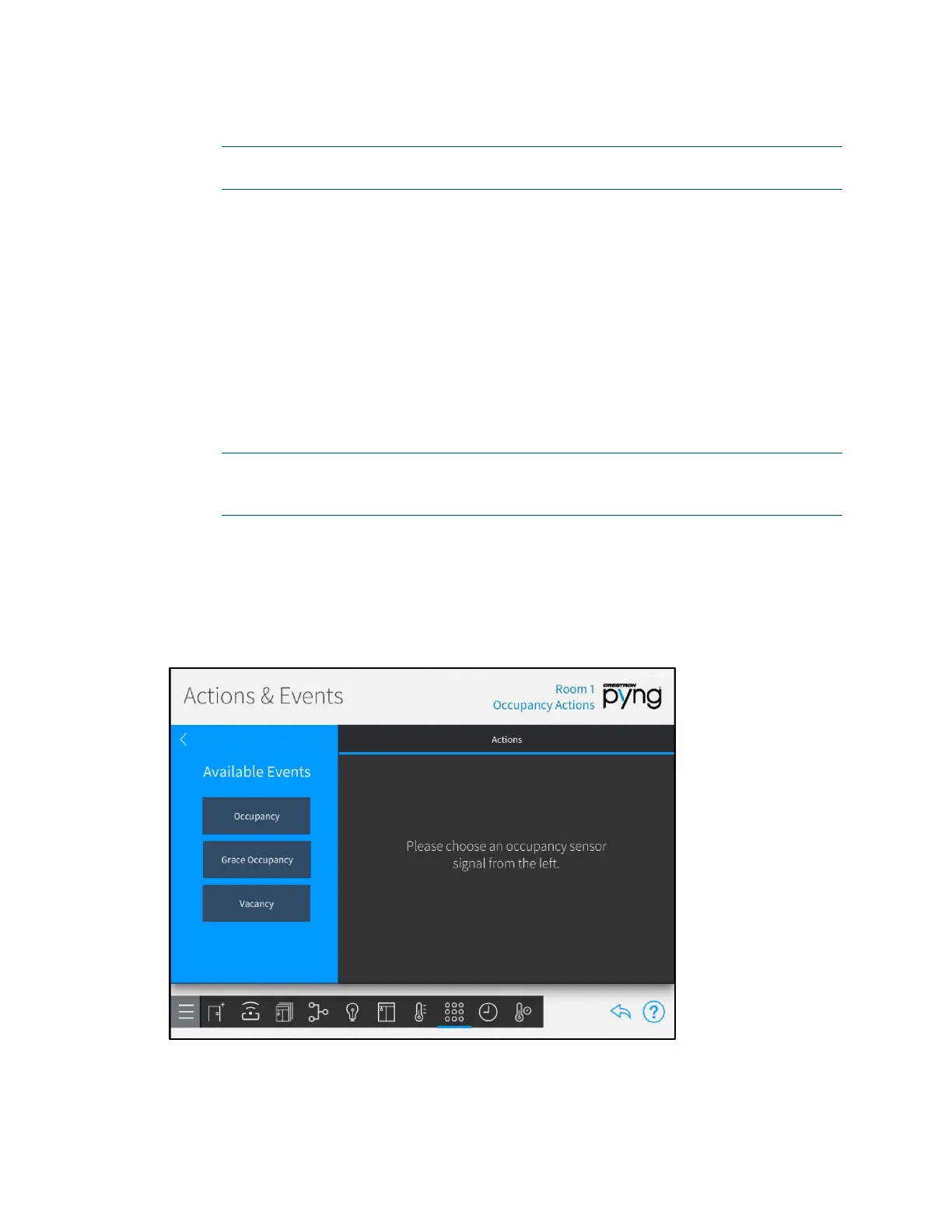
Actions & Events Screen - Room 1 Occupancy Actions
Use the occupancy sensor configuration screen to associate scenes and other actions
with occupancy events.


 To Next Page