94
Operator Panel
8
(Back)
button
• Returns to the previous screen.
9
(Menu)
button
• Moves to the top level of the menu.
10
(Set)
button
• Confirms the entry of values.
NOTE:
Moving to a different menu or returning to a previous screen cancels the current entry or setting. Be sure to press the
(Set) button to save the current entry or setting.
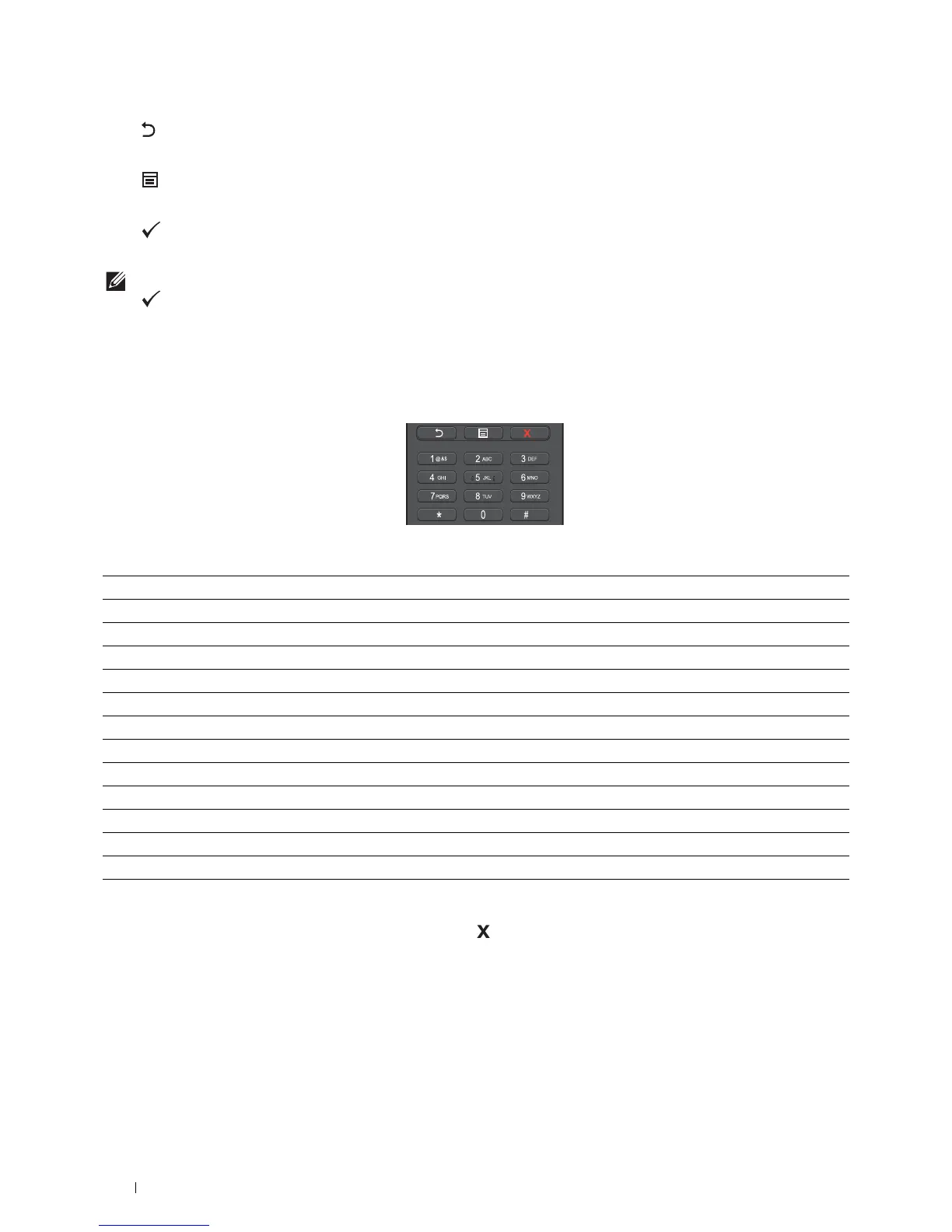
Using the Number Pad
As you perform various tasks, you may need to enter characters and numbers. For example, when you enter the
password or when you setup wireless network.
Number Pad Letters and Numbers
Changing Numbers or Names
If you make a mistake while entering a number, press
the
(Cancel)
button
to delete the last digit or character.
Then enter the correct number or character.
Printing a Panel Settings Report
The panel settings report shows current settings for the printer menus. For details about how to print a panel settings
report, see "Report / List."
Key Assigned numbers, letters or characters
1 1 @ . _ - (space) \ & ( ) ! " # $ % ' ~ ^ | ` ; : ? , + * / = [ ] { } < >
2a b c A B C 2
3d e f D E F 3
4g h i G H I 4
5j k l J K L 5
6m n o M N O 6
7 p q r s P Q R S 7
8t u v T U V 8
9 w x y z W X Y Z 9
00
@ . _ -
# (space) \ & ( )


 To Next Page