DVR Server Manual
【Camera Type】Select camera type from drop-down list. Users can
choose from PAL and NTSC.
【Camera】Enable or disable selected camera.
【Sub Stream Frame Rate(fps)】Set the frame rate of the Sub Stream.
VBR allows each frame to be recorded at a dynamic bit rate depending on
the image complexity, activity and color.
CBR allows each frame to be recorded at fixed bit rate, regardless the
scene activity. In many cases, this limits detail (resolution). The benefit of CBR
is its ability to accurately estimate the total video capacity.
【Frame Rate(fps)】Set the recording rate for selected camera. For
Frames per Second (fps), the frame rate should be from 1 to 30 fps. While
image size is set “704*576”, the frame rate should be set around 1 to 15 frame.
【Sub Stream Image size】Select image resolution to the Sub Stream.
When you set the
【Image Size】as 4CIF(704*576), this configuration is not
available for HC series card, program will select it as 4CIF(“Same as Record”)
automatically because DVR board does not support dual stream when it
records with 4CIF resolution. When you want to use mobile client to access
DVR Server, you must open dual compressing function by not selecting “same
as record”. When you open dual compressing function and the Mobile Client is
online, whatever you select, the Clients, including NVR Client and Mobile
Client, will just receive QCIF format image; when Mobile Client is offline, NVR
Client will receive image as the format you set here.
【Image Quality】Sets the quality of the image to be recorded. Select
from Poorest, Poor, and Medium, Very good and best.
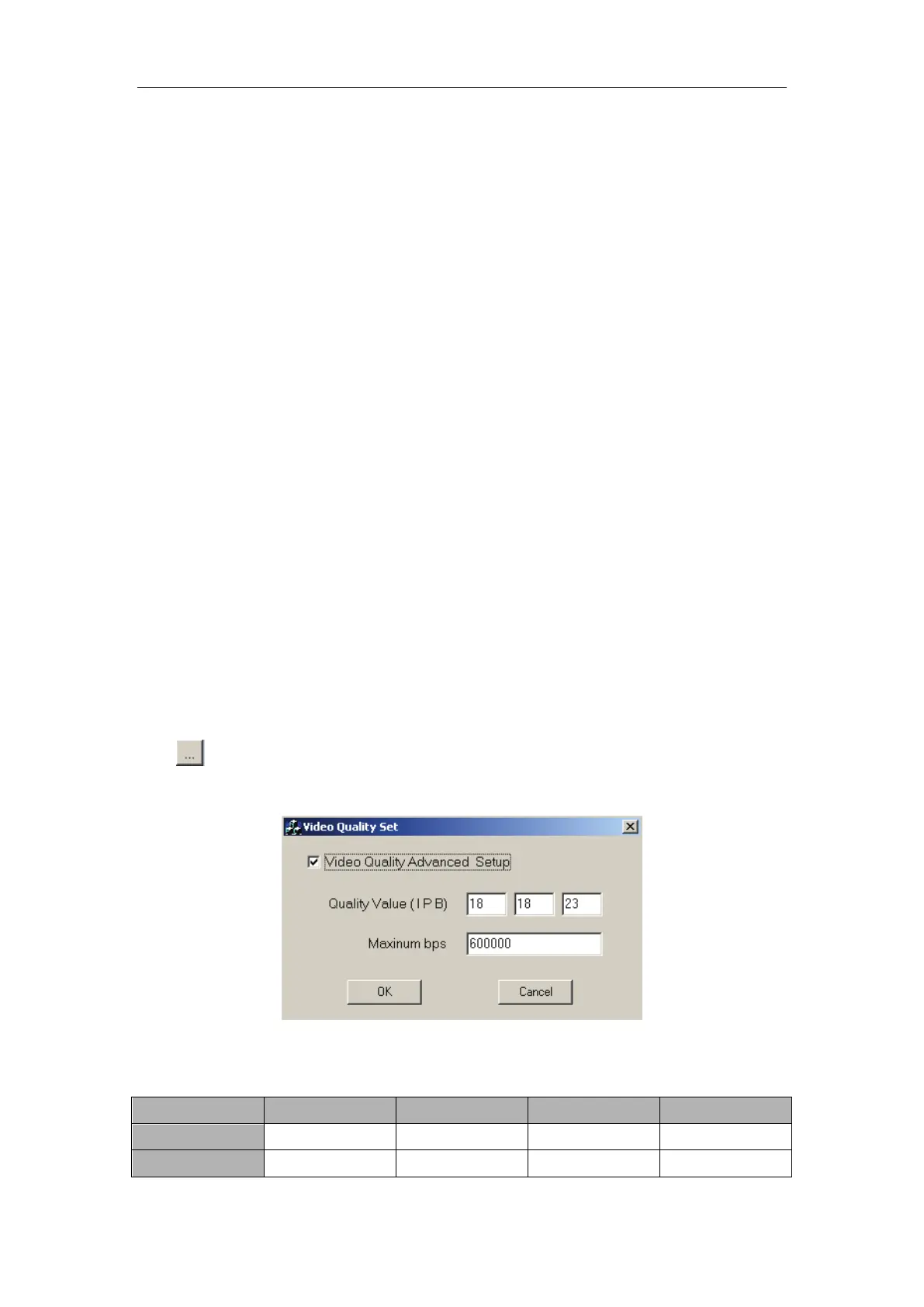
Click this button to make advanced setup for video quality, you can
set I B P frame and maximum bit rate.
Recommend setup:
For CIF:
Image
I frame
P frame
B frame
Max bps
Best 12 12 17 900000
Good 15 15 20 750000



 To Next Page