EasyManua.ls Logo

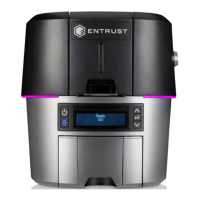
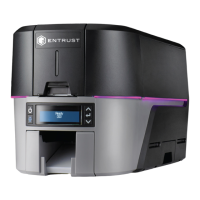
Entrust Sigma DS3 - User Manual

Default Icon
90 pages
Print Icon
To Next Page IconTo Next Page
Loading...
August 2020
528060-001, Rev A
User’s Guide
Sigma DS1, DS2, and DS3 Direct to Card Printers

Table of Contents

Other manuals for Entrust Sigma DS3

Questions and Answers

  • J
    Jasmine CamposSep 10, 2025
    What to do if Entrust Sigma DS3 Printer magnetic stripe data was sent in unsupported encoding format?
    • A
      amanda98Sep 10, 2025
      If the magnetic stripe data was sent in an encoding format not supported by the track on your Entrust printer, review the encoding format setting for the tracks in the Printer Dashboard.
  • J
    Jessica JohnsonSep 9, 2025
    What causes temporary communication problem with Entrust Sigma DS3 Printer?
    • K
      Kenneth WeberSep 9, 2025
      If you are experiencing a temporary communication problem with your Entrust printer, check the following: Avoid using USB extension cables as they can cause communication issues. Ensure that you are using a USB cable that is no more than 6 feet (2 meters) long and rated for USB 3.0 data transmission. If you are using a USB hub, it is recommended to use a self-powered hub.
  • D
    David PerezSep 8, 2025
    Why Entrust Printer cannot use the installed ribbon?
    • A
      Amy CurtisSep 8, 2025
      If your Entrust printer cannot use the installed ribbon, use ribbon specifically designed for this printer model to ensure compatibility and proper function.
  • J
    Jeanette MonroeAug 22, 2025
    What to do if Entrust Sigma DS3 shows available but Message 500 displays?
    • M
      Michael HendersonAug 22, 2025
      If the Printer Properties > Status tab shows the printer is available, but Message 500 still displays after sending a card to print, ensure that you're using the same type of data cable (USB or network) that was used during the initial printer installation, as you cannot switch cable types after setup. Also, verify that both ends of the data cable are securely connected. If necessary, replace a defective USB cable.
  • C
    Caitlin WoodsSep 5, 2025
    Why is printing blurred on Entrust Sigma DS3 Printer?
    • C
      Crystal GraySep 5, 2025
      If the printing appears blurred on your Entrust printer, it might be because the cards have a matte finish instead of a glossy one. Use cards that meet the printer's requirements for optimal print quality.
  • S
    Scott SullivanSep 4, 2025
    What to do if Entrust Sigma DS3 Printer is unlocked?
    • D
      David TaylorSep 4, 2025
      If your Entrust printer is unlocked, make sure that all access doors are closed securely and locked.
  • T
    Thomas SwansonSep 3, 2025
    What to do if Entrust Sigma DS3 is paused while printing?
    • J
      Jennifer Campbell MDSep 3, 2025
      If your Entrust printer is paused while printing, press the printer’s USER button to resume the printing process.
  • J
    Jessica FordSep 2, 2025
    Why Entrust Card Printer Driver sample card does not print?
    • P
      Paul JacksonSep 2, 2025
      If the Card Printer Driver sample card or magnetic stripe test cards do not print on your Entrust printer, ensure that 'Enable bidirectional support' is selected on the Printer Properties > Ports tab to allow printing from the Card Printer Driver.
  • A
    Alexander FosterSep 1, 2025
    Why do cards look faded on Entrust Printer?
    • U
      ucurtisSep 1, 2025
      If your Entrust printer cards look faded, it might be because the image capture system needs adjustment. Adjust the color settings to resolve this issue.
  • J
    Jocelyn MackAug 30, 2025
    What to do if Entrust Sigma DS3 Printer data cable is damaged?
    • P
      Patrick RodgersAug 30, 2025
      If the data cable of your Entrust printer is damaged or frayed, power off the printer first. If you have a spare cable, replace the damaged one. Otherwise, contact your service provider to order a new data cable.

Summary

Chapter 1: Introduction

About this Manual

Provides user information for the Sigma DS1, DS2, and DS3 Card Printers.

Intended Audience

Details the target user for this manual, including operators and administrators.

Technical Support

Lists contact information for Entrust Technical Support across different regions.

Chapter 2: About the Printer

About the Sigma Card Printers

Overview of Sigma card printers, their capabilities, and available options.

Printer Components

Introduces the overview of printer components and their functions.

Chapter 3: Using the Printer

Printer Overview & Equipment

Describes the printer's role, system requirements, and necessary hardware/software.

Tasks and Users

Defines the typical roles of operators and administrators in the system.

Secure Encryption

Explains the printer's use of TLS encryption for secure data transmission.

Printer Controls & Interface

Details front panel controls, LCD panel icons, and menu navigation for printer operation.

Network IP Address Retrieval

Guides on how to find IPv4 and IPv6 addresses via printer menus.

Printing Operations

Covers printing test cards and loading/replacing supplies.

Chapter 4: Print Cards

Preparation & Design

Pre-print checks, card design setup, and software requirements.

Card Printing Procedures

Step-by-step guides for printing cards using ID software or other applications.

Chapter 5: System Maintenance

Printer Maintenance Tasks

Outlines procedures for cleaning the printer, printhead, and managing the reject tray.

Chapter 6: Troubleshooting

System & Basic Function Troubleshooting

Guides to diagnose and resolve system-level and fundamental printer operational problems.

Installation & Driver Issues

Addresses installation problems, USB/network issues, and driver communication errors.

Card Appearance Issues

Explains common problems with printed card quality, such as smudging, color flaws, or incorrect print density.

Operational & Error Message Troubleshooting

Covers magnetic stripe problems, card jams, ribbon issues, and interpretation of various printer messages.

Entrust Sigma DS3 Specifications

General IconGeneral
Print Resolution300 dpi
Card Capacity Input Hopper100 cards
Card Capacity Output Hopper25 cards
Power Supply100-240 VAC, 50/60 Hz
Print TechnologyDye sublimation
Print CapabilitiesSingle or dual-sided
Card Thickness0.010 inches to 0.040 inches
Supported Card SizesCR80 (85.6 mm x 54 mm)
ConnectivityUSB and Ethernet
Operating System SupportWindows 7, 8, 10, Server 2008, 2012, 2016
Weight5.49 kg (12.1 lbs)
Operating Temperature15°C to 35°C (60°F to 95°F)
Operating Humidity20% to 80% (non-condensing)
Print SpeedUp to 250 cards per hour (YMCKT)

Related product manuals