TECHNICAL REFERENCE MANUAL Dyvi 2.0.7.2
Supervisor 71
Warning
• Before swapping partition or installing new software ensure
the correct device you want to modify is labeled on the
headline of the menu. This has to be the device the network
browser is connected to.
• Do not close the browser window while the software
installation process is in progress because this would
stop the software installation procedure and result in
an incomplete installation.
10.2.7 Downloading Log Files
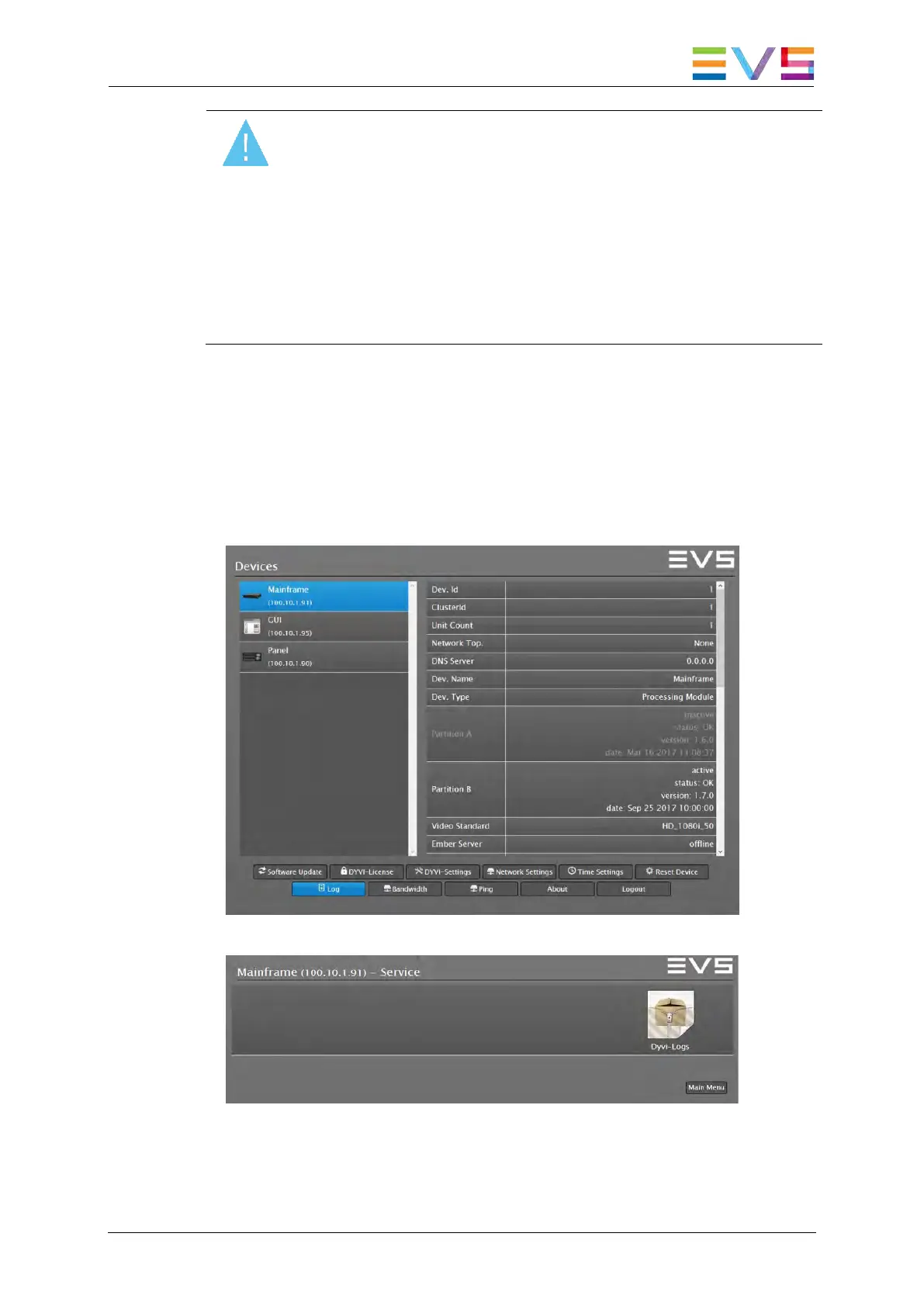
To download the log files of the appropriate device, proceed as follows:
1. In the Devices Overview window, select the appropriate device.
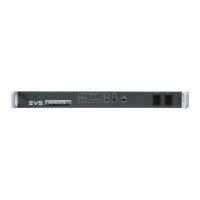
2. Press and hold down the SHIFT key and click the Log button to enter
the Log menu.
3. Click on the Dyvi-Logs symbol in order to download the zipped log file.
4. Open your file browser and locate the downloaded file in the Download
folder.
5. Send the dyviLogs.tar.gz file to the EVS support service.



 To Next Page