Room Scheduling System • Room Agent Installation and Configuration 28
When there’s no action drop-down list (see figure 21,
5
, on page 26)—
Select among the options to choose how the Check in button and room reservation
behave when no action is taken.
• Release room — The scheduling software releases the room
when the After start: time has expired.
• Hide check in — The scheduling software hides the Check
in button on the panel and releases the room when the After
start: time has expired.
• Do not hide check in — The panel continues to display the Check in button until
it is pressed.
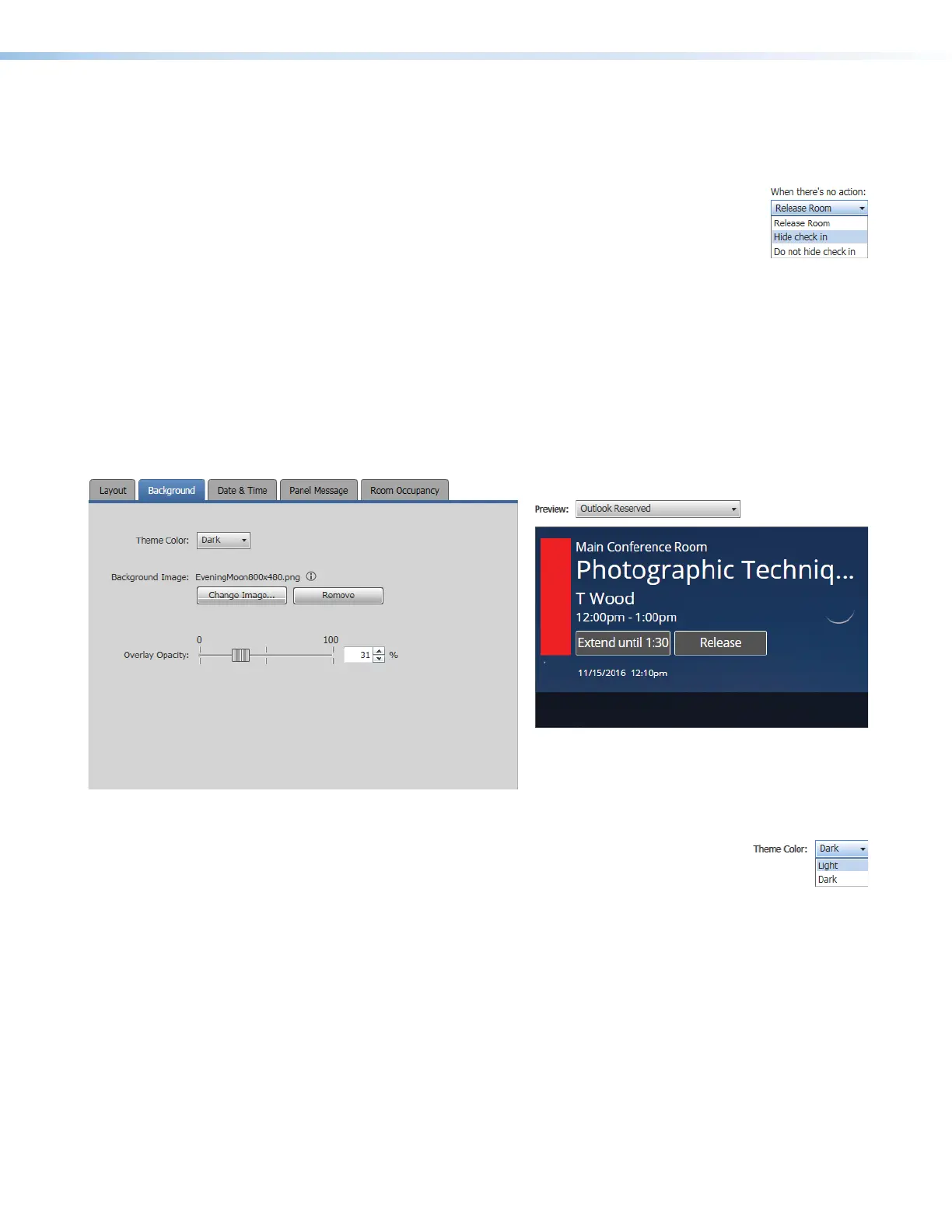
Background tab
If necessary, click the Background tab (see figure 55,
1
) to make changes to the following:
• The color theme (dark or light) of the panel display:
• Any background image
• The opacity of any background image
4444444444
4444
1111111111
1111
2222222222
2222
3333333333
3333
Figure 23. Panel Design Pane, Background Tab and Preview Pane
2
Theme color: drop-down list — Use this drop-down list to
select either Light (black text on a light background) or Dark (white
text on a dark background).
figure 23



 To Next Page