Room Scheduling System • Room Agent Installation and Configuration 30
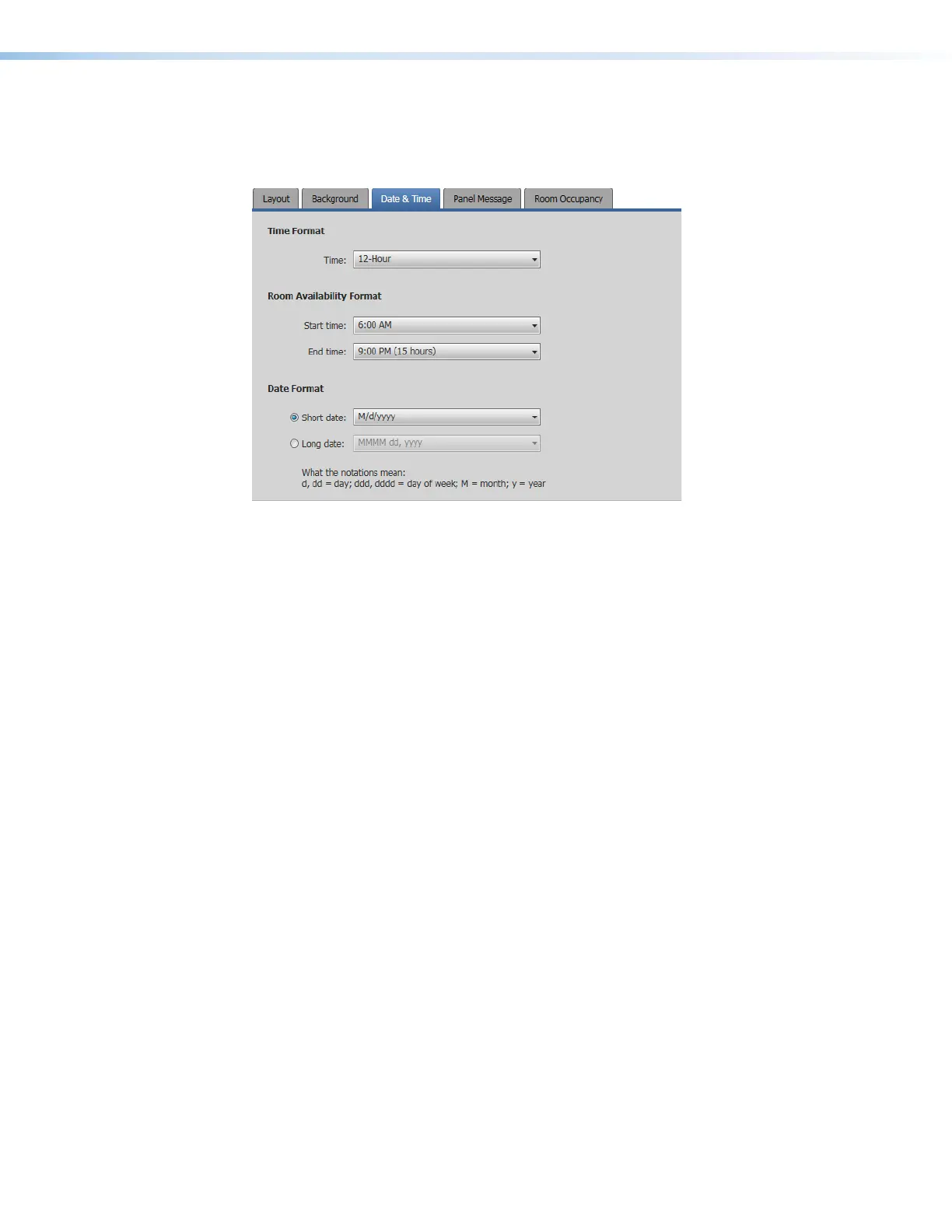
Date & Time tab
If necessary, click the Date & Time tab (see figure 25,
1
) to make changes to the date and
time format.
5555555555
5555
6666666666
6666
7777777777
7777
1111111111
1111
2222222222
2222
3333333333
3333
4444444444
4444
Figure 25. Panel Design Pane, Date & Time Tab
2
Time Format, Time: drop-down list — Use this drop-down list to select among
12-Hour (1:30 PM, for example), 24-Hour US (13:30),and 24-Hour International
(13.30).
3
Room Availability Format, Start time: drop-down list — Use this drop-down list to
select the start time of room availability display, in half-hour increments.
4
Room Availability Format, End time: drop-down list — Use this drop-down list to
select the end time of room availability display, in half-hour increments. The menu also
shows the quantity of time the room availability is displayed.
5
Date Format radio buttons — Use these radio buttons to select the format to display
on the panel. After you select either Short date or Long date, the associated drop-
down list (see
6
and
7
) becomes available for selection.
6
Short date: drop-down list — Use this drop-down list, available when the Short
date radio button is selected, to select among short date (in which the month is
represented by a numeral) display formats.
7
Long date: drop-down list — Use this drop-down list, available when the Long date
radio button is selected, to select among long date (in which the month is spelled out)
display formats, such as day month year or month day year and whether to include the
day of the week.



 To Next Page