3-25VTG 400/400D • Serial Communication
Firmware Upgrade Through the Extron Web Site
The VTG 400/400D’s firmware is upgraded by going to the Extron Web site,
downloading the latest firmware to the PC, then uploading and installing the
new firmware from the PC to the VTG 400/400D via the video test generator’s
RS-232 port.
Downloading the latest firmware to the PC
1. Go to the Extron Web site (www.extron.com) and select the product category
(VTG 400/400D).
2. Select the Support files tab and click on the Firmware link.
3. Download the firmware install package to your PC. It will have a filename
ending in .exe, such as VTG400_FW1x01.exe.
4. Save the file to your PC, and run the executable file. By default, the program
will extract the firmware file and its release notes to
C:\Program Files\Extron\Firmware\VTG400.
Uploading the firmware from the PC to the VTG 400/400D
1. Connect the PC to the VTG 400/400D via the video test generator’s RS-232
port.
2. Start the control program (see Using the control program earlier in this
chapter).
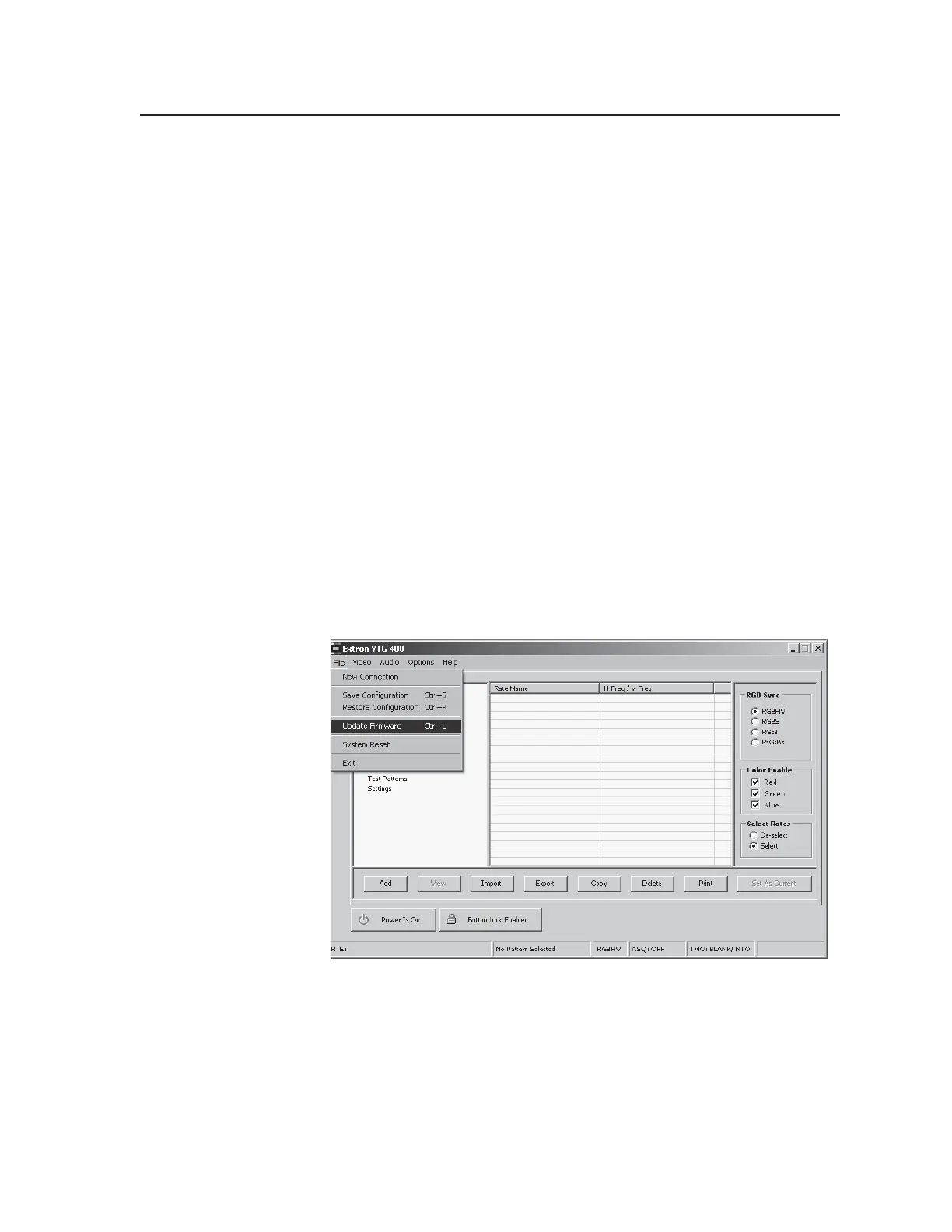
3. Select Update Firmware from the Control Program window and follow the
on-screen instructions.
Tel. 07131 911201
Fax 07131 911203



 To Next Page