SYSTEM AND USER SOFTWARE 116
Using Check Now
Check Now is available when you access System Updates directly from a FACI-equipped E-41
(see definition on page 111) or by using a Remote Desktop connection from a client
computer (see page 117).
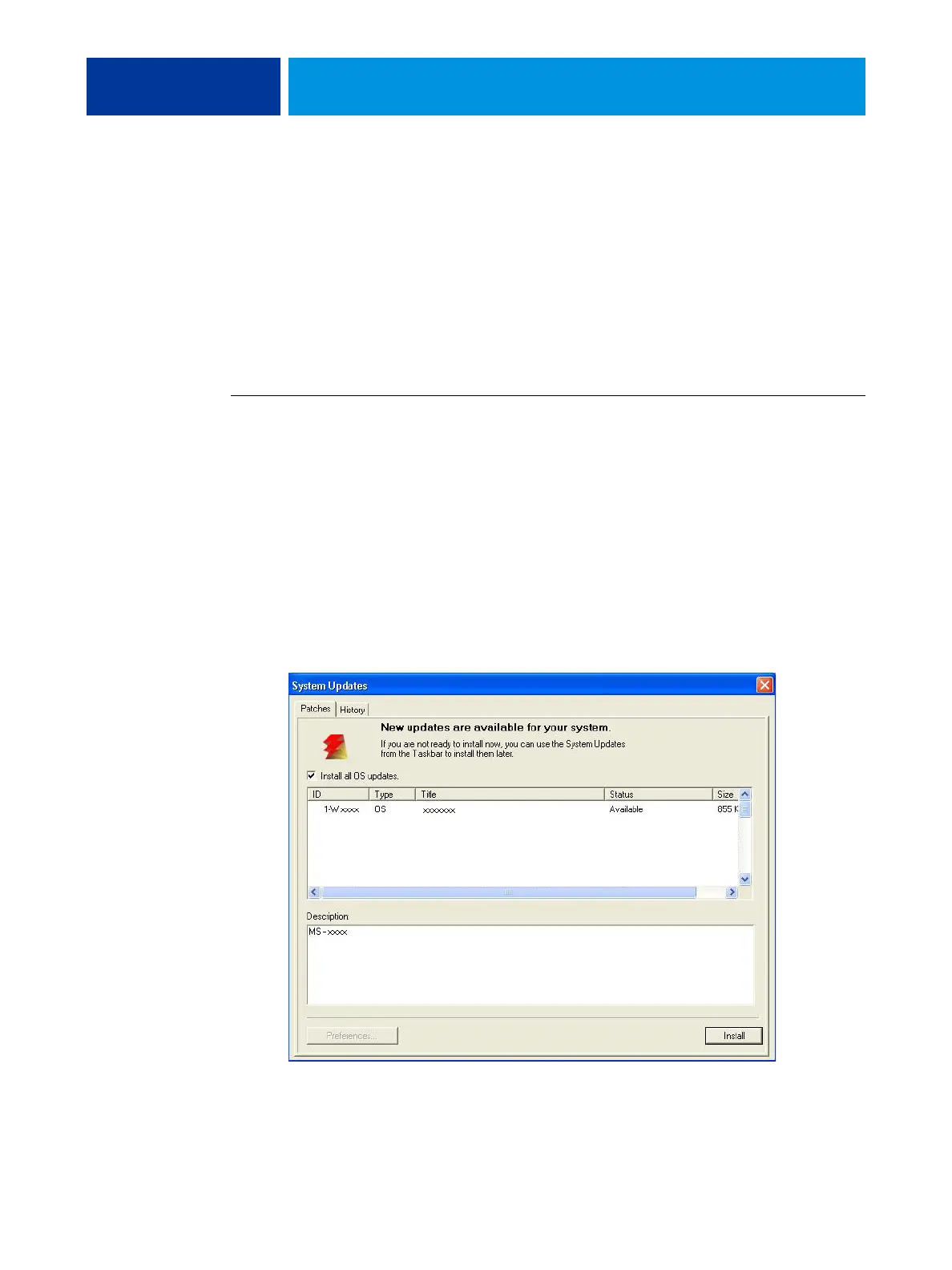
Use Check Now to view updates that are available for installation (Patches tab) and updates
that have already been installed (History tab).
NOTE: Check Now is not available when you access System Updates from Command
WorkStation or WebTools.
TO VIEW AND INSTALL UPDATES USING CHECK NOW
1. At the E-41 (or a client computer using Remote Desktop; see page 117) click Start
and choose All Programs > E-41 > System Updates.
The System Update Preferences dialog box appears.
2. Click Check Now at the bottom of the screen, and then do any of the following:
• To view a description of an update, select it in the list.
• To install the update, click Install.
• To view updates that have already been installed, click the History tab.
• To close the window without installing an update, click the X in the upper-right corner.


 To Next Page