TROUBLESHOOTING 122
Checking external connections
Before removing the side and front panels of the E-41 to check internal components,
eliminate the most obvious sources of problems. Make sure that:
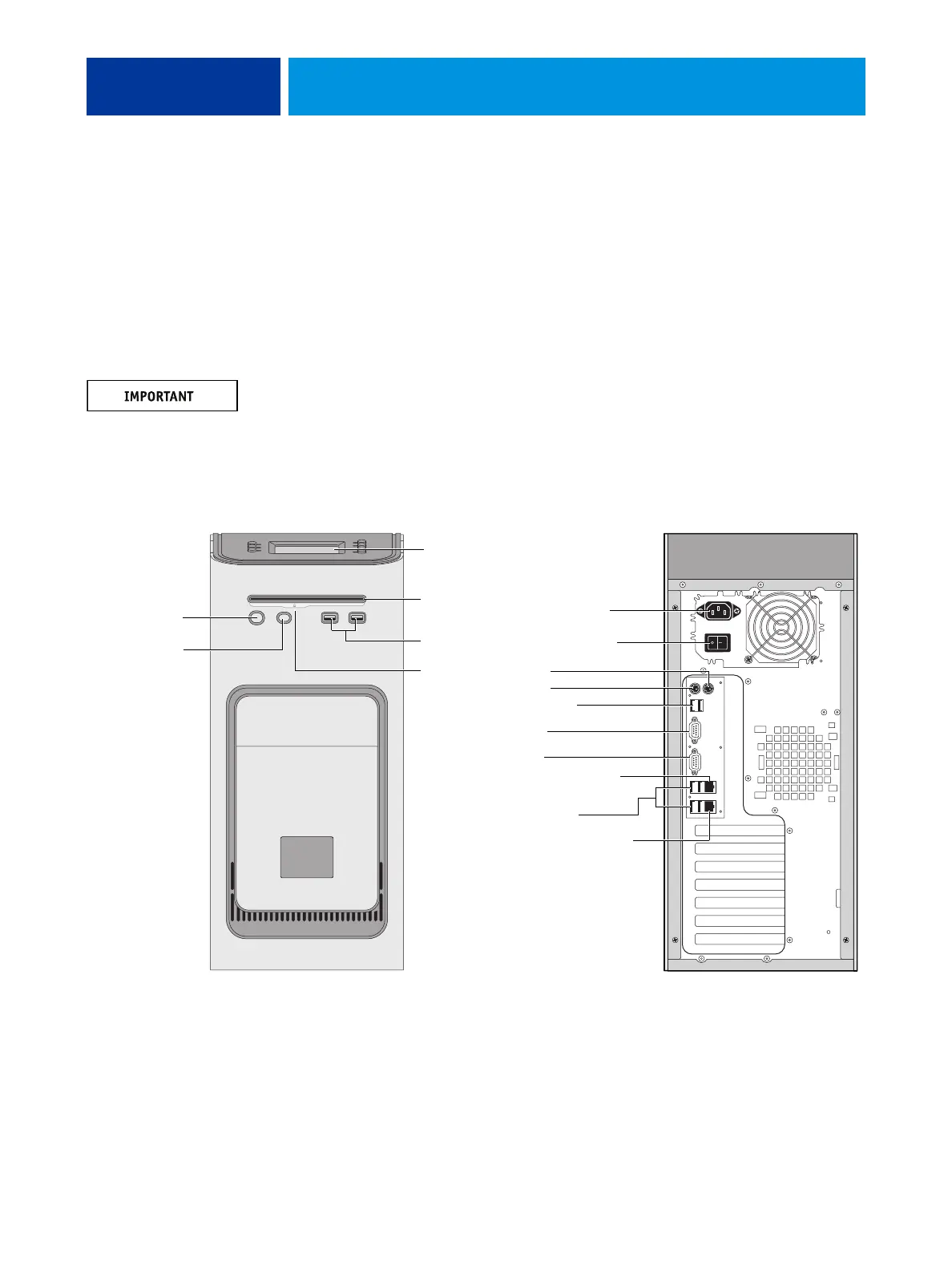
• All interface cables to the system are plugged into the proper connectors
(see Figure 40).
• The power cable is plugged into the wall power outlet.
• The LED on the network port is blinking to indicate network activity.
Make sure that the cables are connected to the correct RJ-45 port (see Figure 6 on page 28).
The network and copier/printer interface cables look similar but are not interchangeable. The
network cable at the customer site is a straight-through Ethernet cable that connects to the
upper RJ-45 port on the E-41 back panel. The copier/printer interface cable included with
the E-41 is a 39.3 ft. Ethernet crossover cable that connects to the lower RJ-45 port on the
E-41 back panel.
FIGURE 40: E-41 external cable connections
Front panel Back panel
USB ports
Power button
Control panel
DVD drive
Not used
Power cable
Monitor
Not used
Not used
Network port (RJ-45):
Straight-through cable
USB ports (x2)
USB ports (x4)
Copier/printer interface (RJ-45):
Ethernet crossover cable
Reset button
NOTE: Use the
reset button only
if the system is
unresponsive to
keyboard or
mouse actions.
Eject button
Power switch


 To Next Page