USING THE E-41 32
USING THE E-41
This chapter includes the following information:
• Using the E-41 Control Panel
• Using the copier/printer display panel
• Checking Network status LEDs
• Shutting down and restarting the E-41
Overview
Two main user interfaces are available for the E-41:
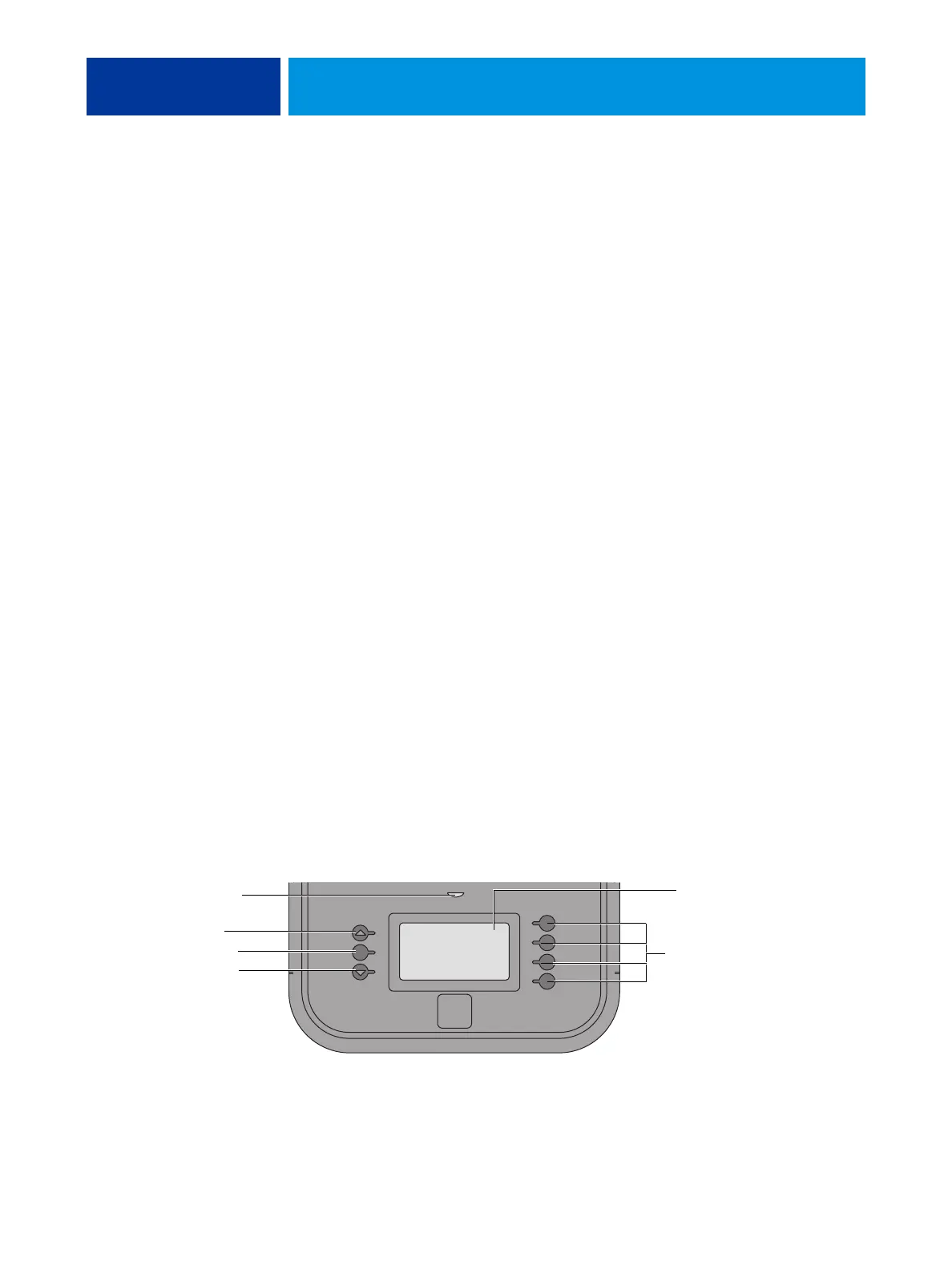
• The Control Panel on the front of the E-41 (see following figure)
• The copier/printer display panel (see page 35)
NOTE: A third user interface—the Fiery Advanced Controller Interface (FACI), which
includes a monitor, keyboard, and mouse—is sold separately as an optional kit.
Using the E-41 Control Panel
The Control Panel on the front of the E-41 allows you to do the following:
• Eject CDs and DVDs. (A hardware eject button is also provided below the disc slot.)
• View the IP address of the E-41.
• Shut down, restart, or reboot the E-41 (see page 40).
NOTE: You can also shut down and restart the E-41 through the copier/printer display panel
(see page 42).
• Interact with the E-41 during software installation (see page 105).
.
FIGURE 8: E-41 Control Panel
Display window
Line selection buttons
Up button
First
Fourth
Menu button
Down button
Activity light


 To Next Page