AirCheck Wi-Fi Tester
Users Manual
46
The options to set a series of APs saves you configuration
time and provides quick visibility into potential security or
policy issues. For example, if a specific vendor equipment is
not allowed per your network policy, use the vendor MAC
prefix to set the ACL to Unauthorized or Flagged.
When detected, those APs will be reported as such.
To set a default authorization status
1
Select Tools.
2
Select Set device authorization (ACL) default
3
Choose Set status to “Unknown” or Set Status to
“Authorized”, then press Save.
Note
If an access point does not transmit, but you know
its MAC address, you can use AirCheck Manager to
give the access point an authorization status. Save
the status in a profile on the PC, then transfer the
profile to the tester.
Discover Networks and Access Points
Note
By default, the tester hears wireless signals on the
2.4 GHz (b/g/n) and 5 GHz (a/n/ac) frequency bands.
To change this setting, select Tools, then select
Manage 802.11 settings.
To discover networks or access points
1
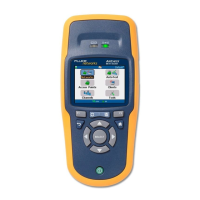
From the home screen, select Networks or Access Points.
The tester shows the Networks list or Access Points list
(Figures 13 and 14).
2
To see details about an access point (Figure 15), use
to highlight the access point, then press L.
Note
An SSID is in black text if the network (or access
point) is in range. An SSIDs text turns gray to
indicate that a network (or access point) has not
been heard recently, or is now out of range (if
Gray
inaudible access points
is enabled). An SSIDs text
turns purple to indicate that there is a note to the
right with additional information about the status
of the network (or access point).


 To Next Page