Discover Networks and Access Points
47
Searching for a Specific Device
You can search for a specific access point in the discovered
access point list.
To search for a specific access point
1
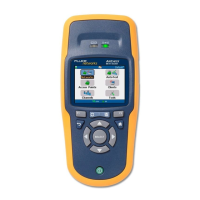
On the home screen, highlight the Access Points icon
and press
Search.
2
Highlight and select BSSID/MAC, Vendor MAC, or
Name
3
Enter the information and press Search.
If the search device is within the discovered range area, the
device will be highlighted on the Access Points screen.
To search for a specific client
1
On the home screen, highlight the Clients icon and press
Search.
2
Highlight and select BSSID/MAC or Vendor MAC.
3
Enter the information and press Search.
If the search device has been discovered, the device will be
highlighted on the Access Points screen.
Setting up SSID Filtering
You have the option of setting up an SSID filter. It will allow
you to see only specific SSIDs when viewing these home
screen selections: Networks, Access Points, and Channels
(only from the
AP List, and Clients from the
Channel Usage Details screen).
To enable SSID filtering
1
On the home screen, highlight Tools
2
Highlight and select Manage 802.11 Settings
3
Highlight and select Enable SSID filtering.
4
Select a specific SSID by using the and then
pressing
L. Repeat for each SSID that you wish to
include in the SSID filter.
You can also enable SSID filtering from within the AirCheck
Manager software. Search for “SSID Filtering” in its help
system for instructions.


 To Next Page