AirCheck Wi-Fi Tester
Users Manual
66
The connect button shows as “Connect*” if the tester
cannot connect to the highlighted network or access point.
This occurs because the network uses security credentials
that are not included in the profile that is loaded.
Entering Security Credentials Using “Connect”
The tester must have the correct security credentials to
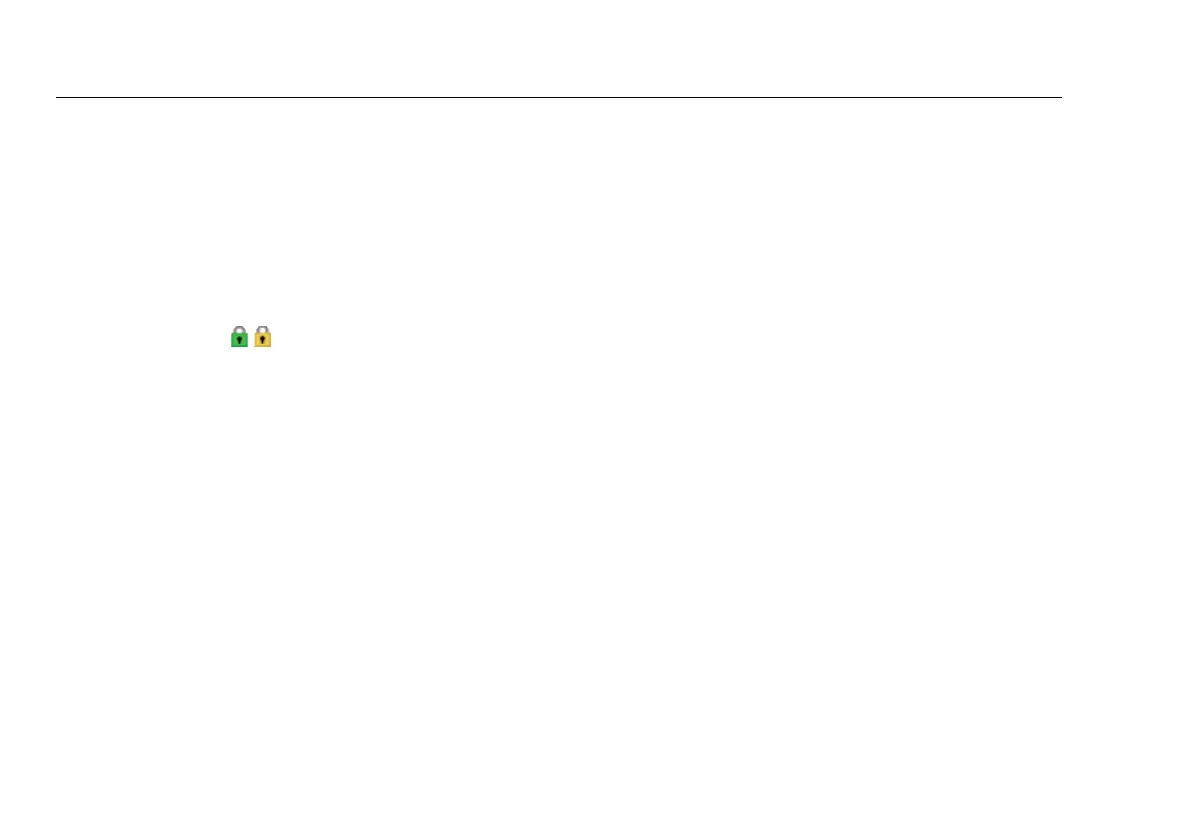
connect to a secure network. Secure networks have a green
or yellow closed lock ( ) in the security column.
To enter security credentials, use the AirCheck Connect*
button and you are guided into the security credentials
configuration screens. You can also use AirCheck Manager
to make a profile that includes the security credentials. If
using AirCheck Manager, you will need to transfer the
profile to the tester and load it. See page 29.
To enter security credentials:
Note
You can also add an SSID and set up its security
credentials by going to
Tools > Manage profiles /
network passwords > Edit networks > Add.
1
From the Networks or Access Points screen, highlight an
access point/SSID and select the Connect button. In the
Channels screen, select AP List, and then select the
Connect button.
2
Press the Connect* button. The popup “This
network is not configured - Configure Now?” is
displayed.
If Connect does not have an asterisk, it is either an
open network or the security credentials have already
been entered.
3
Press OK to continue to the next screen. The popup
“Creating new network in current profile” is displayed
followed by the Select Authentication screen.
4
Highlight the appropriate encryption type and press
Select.
5
Press Next. Depending on the authentication type
that was selected, either the WEP > WEP Key Setup,
Legacy 802.1X > EAP Type Selection, or the WPA/WPA2
> Set Encryption screen is displayed.
Note
The WPA/WPA2 encryption type was selected for
steps 6 through 11. WEP and 802.1X have slightly
different screens.
6
Highlight the encryption type, press Select, and then
press Next. The EAP Type Selection screen is displayed.


 To Next Page