4
OPERATION
- 108 -
Remote So ware Update
Remote so ware update is a function
that allows downloading new so ware
that applies to your vehicle automatically
and installing of such so ware with the
approval of the user.
CAUTION
The SIM card in your vehicle shall be
activated in order to use the remote
so ware update function.
Using the Remote So ware Update
System
You shall be informed about a so ware
update by the instrument panel when you
turn the ignition on for the fi rst time when
there is a new so ware update for your
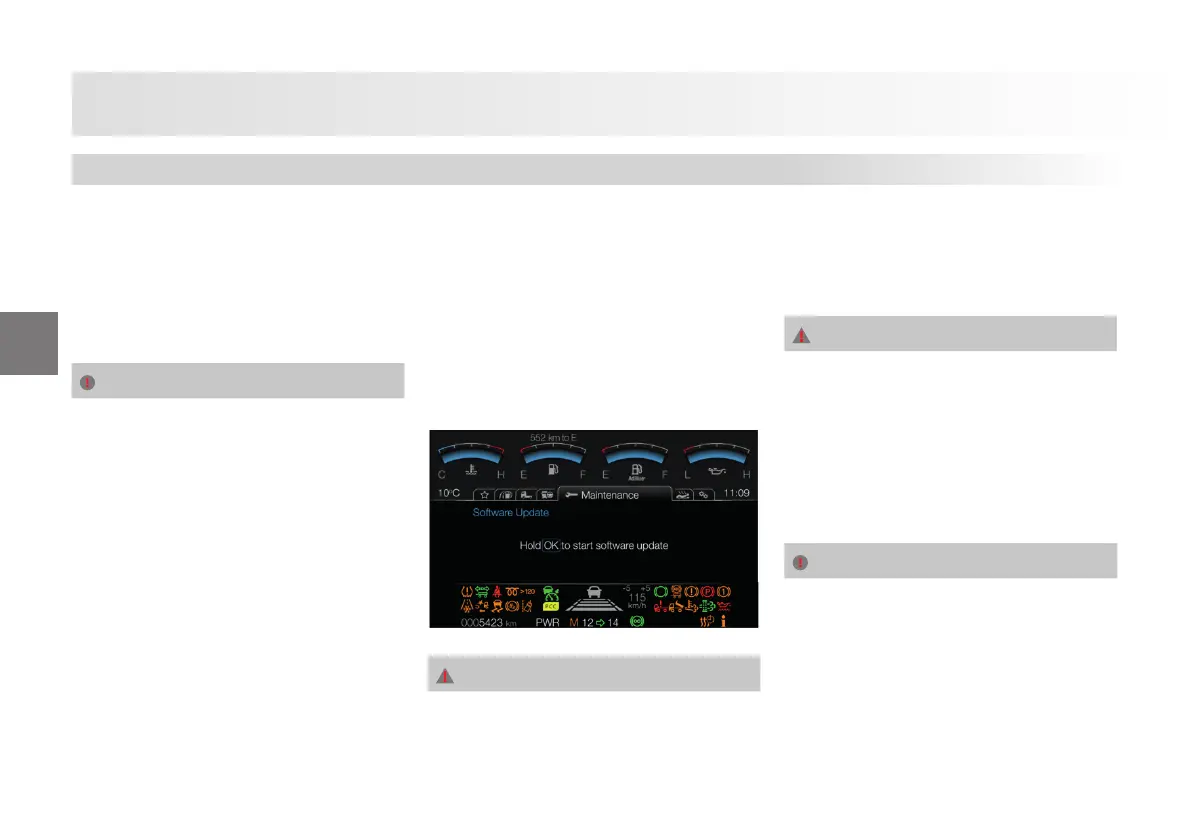
vehicle. To start the so ware update, enter
the so ware update sub-menu under the
maintenance menu, and ensure that:
• Your vehicle is at standstill,
• Park brake is applied,
• Engine is not on and press and hold the
OK key on the menu for 3 seconds.
If there are more than one so ware
available for your vehicle, so ware
update procedure shall start with the
installation of the so ware with higher
priority. Number of so ware updates
available shall be displayed on your screen
a er each successful so ware update
procedure. If the number of so ware
updates is “0”, you have no new so ware
remaining for your vehicle.
WARNING
When the so ware update is confi rmed
by the user, system shall check whether
some other requirements are also met
in addition to the requirements specifi ed
above.
If the prerequisites are not met (e.g.,
When the battery voltage is not adequate)
so ware update procedure shall not be
started.
WARNING
Do not turn the ignition o a er starting
the so ware update and do not start the
engine until the procedure is completed.
Your engine control unit may be restarted
during the so ware update procedure.
Wait until the relevant messages are
displayed on the instrument panel and do
not take any action before in such a case.
CAUTION
If you encounter any technical faults
during so ware update or if you encounter
a message indicating that the procedure
has failed, attempt to restart the
procedure fi rst. If the procedure fails still,
contact your nearest authorized service
representative.
Driving








 To Next Page