Chapter 2 Working with DaqLab 27
If auto run is not working, open My Computer and click on the CD drive folder (d: drive in most cases)
and double-click on the setup icon, then follow the on-screen instructions.
To uninstall the software: From the Start menu select Settings and click on Control Panel, then use
the Add/Remove Programs feature to remove the DaqLab application.
When updating the software, always remove the old version before starting a new installation.
To install the USB driver on WinXP:
1. Connect your data logger to a USB port on your PC and turn the data logger on. Windows
will automatically detect the new device and open the Found New Hardware Wizard.
2. Select the No, not this time to prevent Windows from searching for software on the
Internet, then click Next.
3. Insert the DaqLab installation CD into your CD drive. Windows will automatically detect
and copy the necessary files to your system.
4. Click Finish. Windows will open the Found New Hardware Wizard for the second time.
5. Click Next to complete the installation. Windows will automatically install the necessary
components on your system.
6. Click Finish.
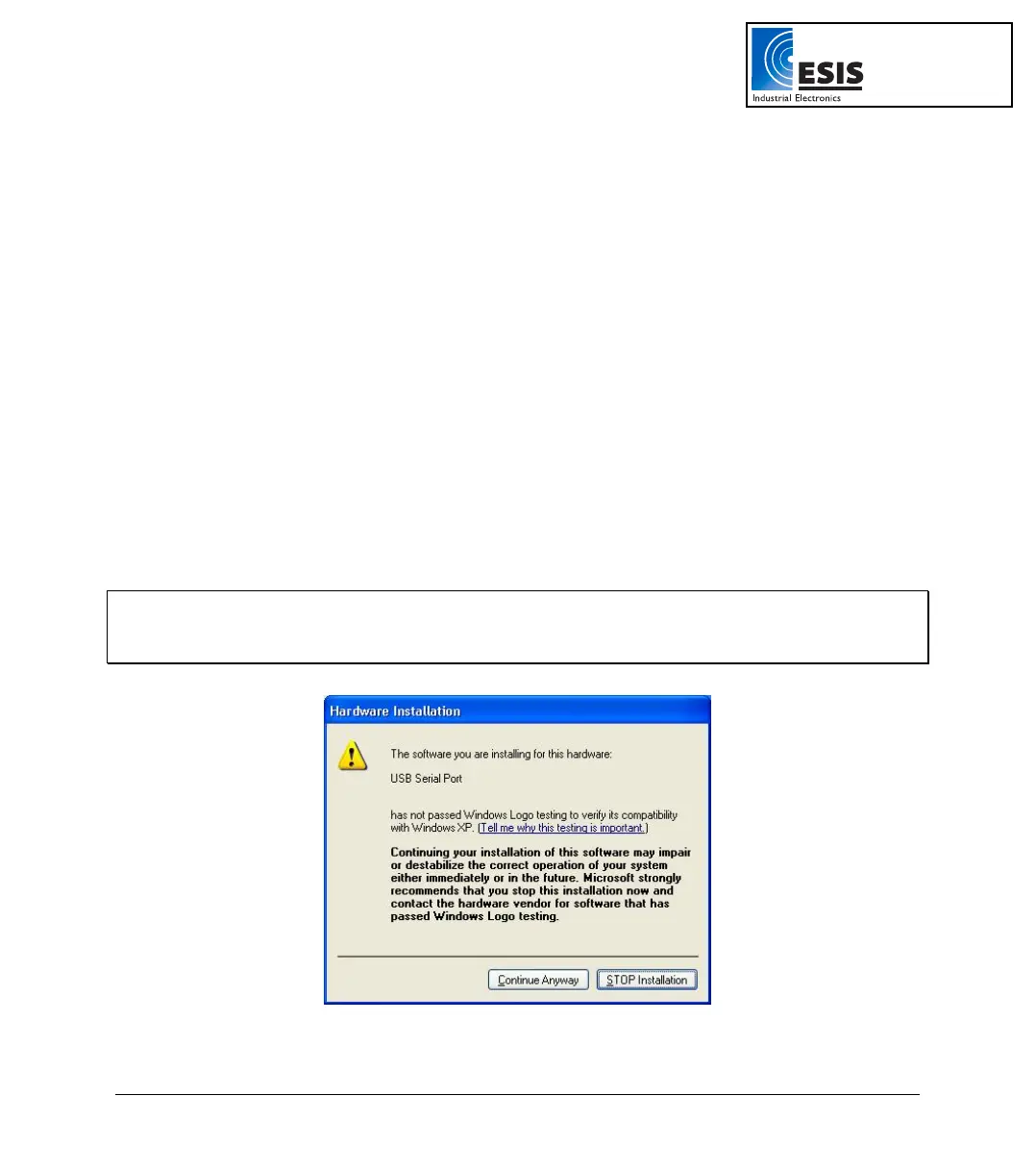
Note to the Windows XP user:
If the Found New Hardware wizard prompts you to the following Hardware Installation dialog box, click
Continue Anyway to proceed.
:
www.esis.com.au
Ph 02 9481 7420
Fax 02 9481 7267
esis.enq@esis.com.au



 To Next Page