Chapter 2 Working with DaqLab 55
2.5.7. Temperature Units
To select between Fahrenheit (°F) and Celsius (°C) temperature units:
Click Logger on the menu bar, point to Temperature units and then select the desired units.
2.5.8. Calibrating the Sensors
Note: This section reflects software updates made in DaqLab v1.30.09 and higher. If you are running an
older version of DaqLab, some of the features described here may differ from the features available in
your DaqLab version.
1. Introduction to DaqPRO Calibration
The DaqPRO ships from the factory fully calibrated. When you first connect your unit to DaqLab, the
software automatically saves these factory calibration settings to two locations:
• To a file named factorydefaults.daq, located in the DaqLab directory on your PC.
• To a .cal file, located in the Calibration Settings folder in the DaqLab directory on your PC. The .cal
file name is your DaqPRO’s S/N e.g. 123456.cal.
2. Working with the factorydefaults.daq File
DaqLab automatically stores the factory default calibration parameters of the DaqPRO the first time the
logger communicates with the software. When you connect additional DaqPRO’s to the PC for the first,
their calibration parameters are also stored in this file.
As this file must maintain the factory default settings, it is never updated, even after you recalibrate your
DaqPRO.
As mentioned above, the DaqPRO ships fully calibrated. However, replacing the firmware chip or the
internal lithium battery erases these calibration parameters on the DaqPRO and resets the logger’s S/N
to 0.
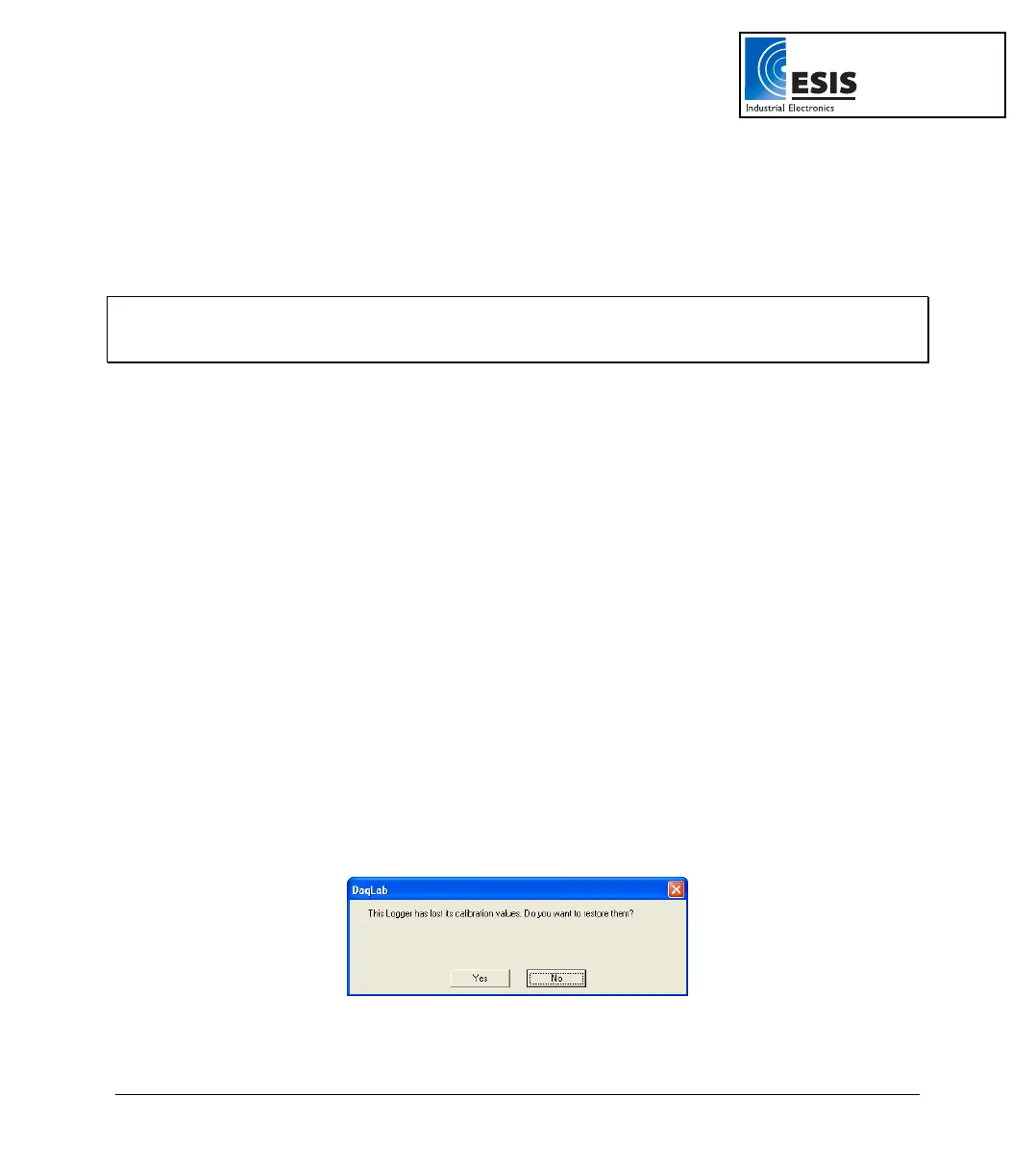
When you then connect the DaqPRO to DaqLab, the following error message will therefore appear:
Figure 17: Lost calibration error message
www.esis.com.au
Ph 02 9481 7420
Fax 02 9481 7267
esis.enq@esis.com.au



 To Next Page