Chapter 2 Working with DaqLab 71
Note: If you want the automatic curve fit equation to start at t = 0, apply the crop tool before any type of
curve fitting (refer to page 78).
3. Averaging
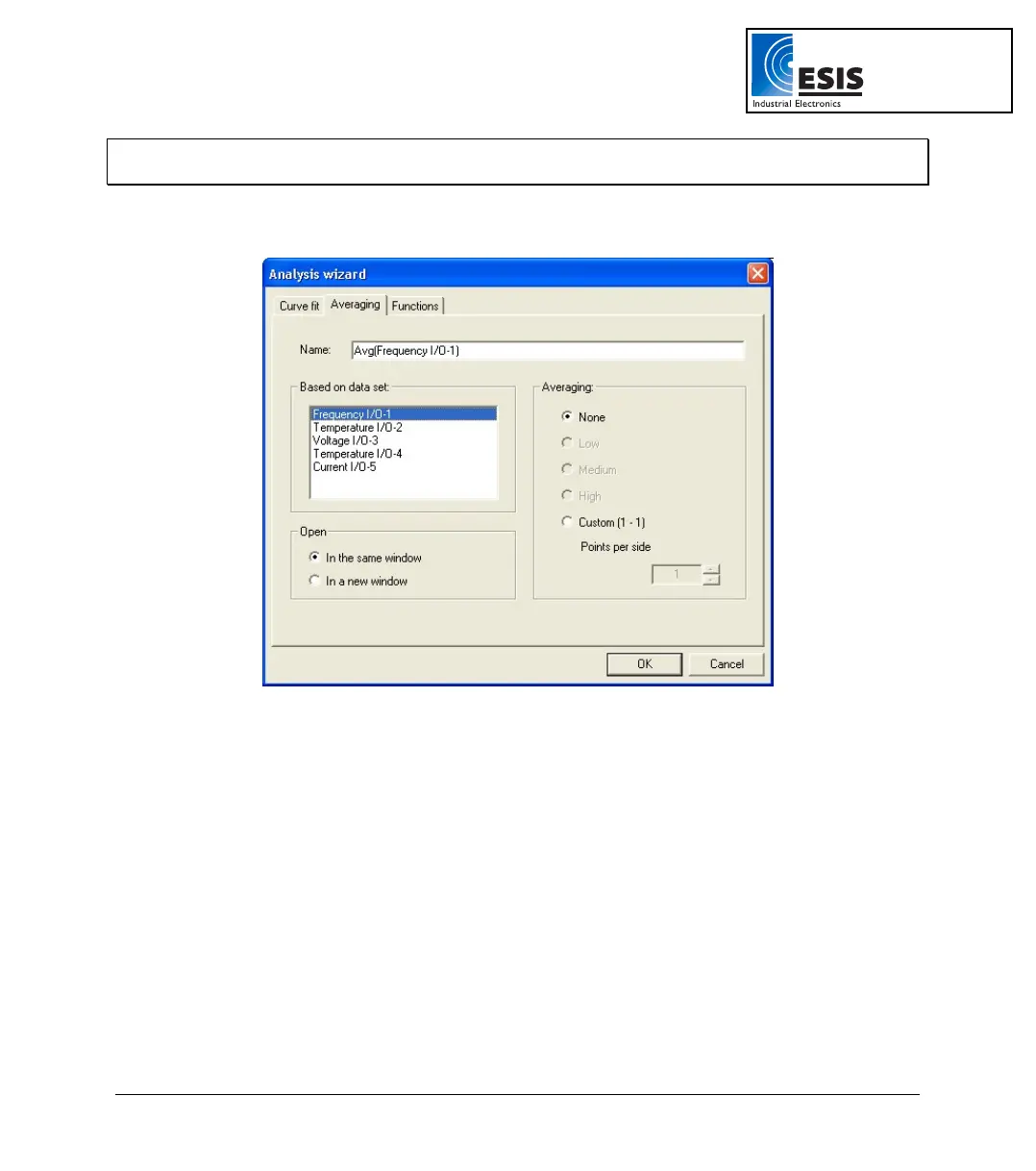
Figure 25: Analysis wizard – averaging
a. If you use the cursor to select a data set, it will be highlighted in the Based on data
set list, but you have the option of selecting a different data set.
b. Select an averaging option (if you choose custom averaging, choose the number
of averaging points in the Points box).
c. Enter a name in the Name text box (optional - the default name includes both the
function and the data set names).
d. Select an Open option.
e. Click OK.
www.esis.com.au
Ph 02 9481 7420
Fax 02 9481 7267
esis.enq@esis.com.au



 To Next Page