56 Chapter 2 Working with DaqLab
Note: This error message will also appear if for any reason the factorydefaults.daq file is not found. Do
not delete the factorydefaults.daq file!
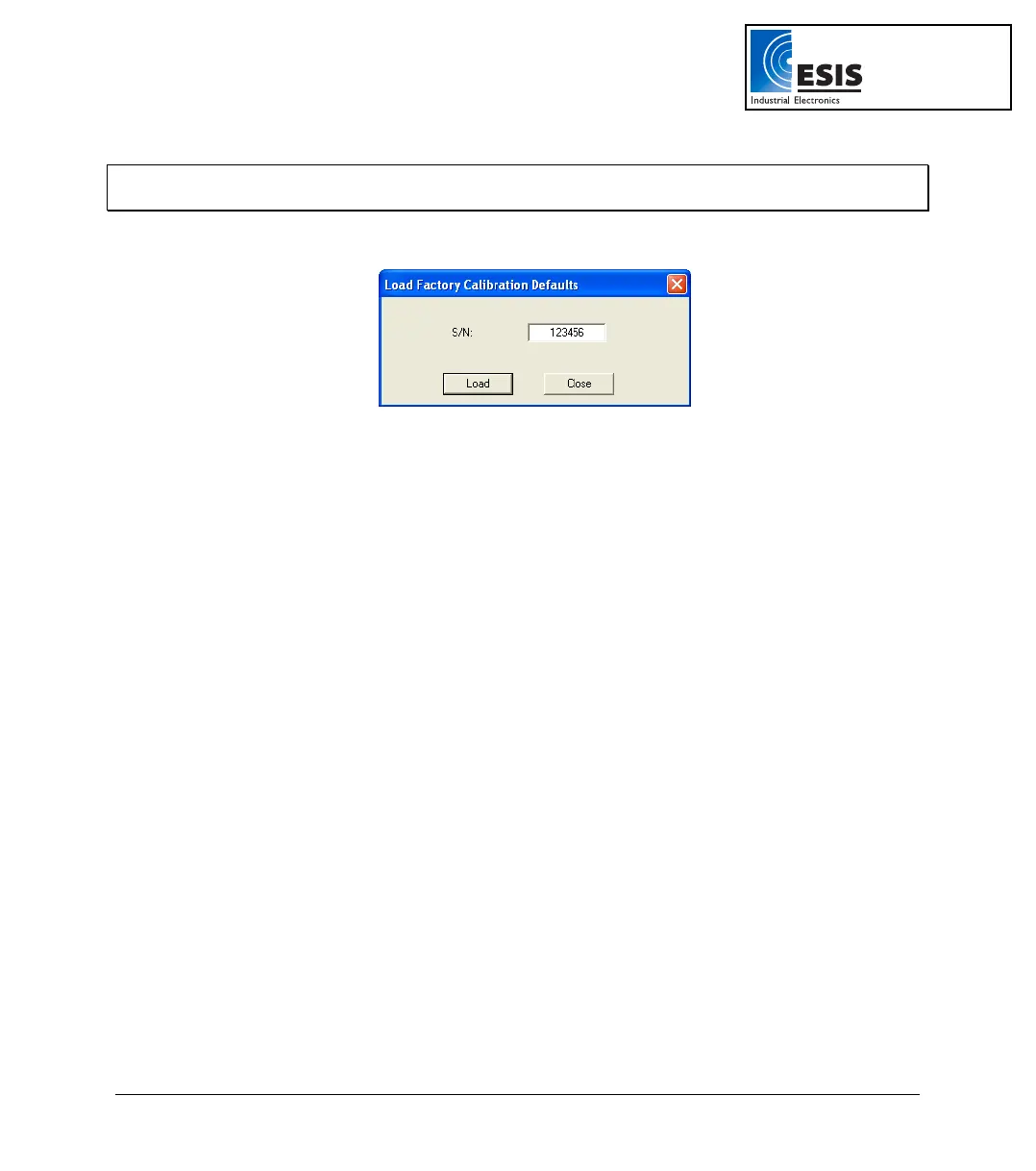
1. Click Yes to restore the calibration parameters and to display the following dialog box:
Figure 18: Loading factory calibration defaults
2. Enter your DaqPRO serial number in the S/N text box (you will find the serial number on the
manufacturer’s sticker on the back of your logger).
3. Click Load. DaqLab will then load the logger’s default calibration settings saved in the
factorydefaults.daq file. DaqLab will also reset the logger’s correct S/N.
4. If for any reason this file is not located in the DaqLab directory, this procedure will fail.
You can choose to restore the factory defaults at any time:
1. Click Logger on the menu bar, and then click Calibration > Load Factory Calibration
Defaults.
2. Enter your DaqPRO serial number in the S/N text box (you will find the serial number at the
back of your device).
3. Click Load.
If the factorydefaults.daq file has been deleted, read below for alternative instructions on retrieving your
DaqPRO’s default calibration settings.
3. Saving the Calibration Settings Manually
As a further backup to this factorydefaults.daq file, DaqLab has a feature (new to v1.30.09) enabling you
to manually save a file containing your logger’s current calibration settings.
You can therefore save a separate calibration file following each DaqPRO calibration procedure.
If you have lost your factorydefaults.daq file or simply want to restore the settings to a previous state
having this .cal file as a back-up will allow you to do so.
www.esis.com.au
Ph 02 9481 7420
Fax 02 9481 7267
esis.enq@esis.com.au



 To Next Page