QUANTUM
™
HD COMPRESSOR CONTROL PANEL
MAINTENANCE
090.040-M (NOV 2016)
Page 14
INTRODUCTION
Frick® Controls has released the latest version of the
Quantum ™ HD Control System. The micro-processor is the
brains of the system and is referred to as the Q5 Processor
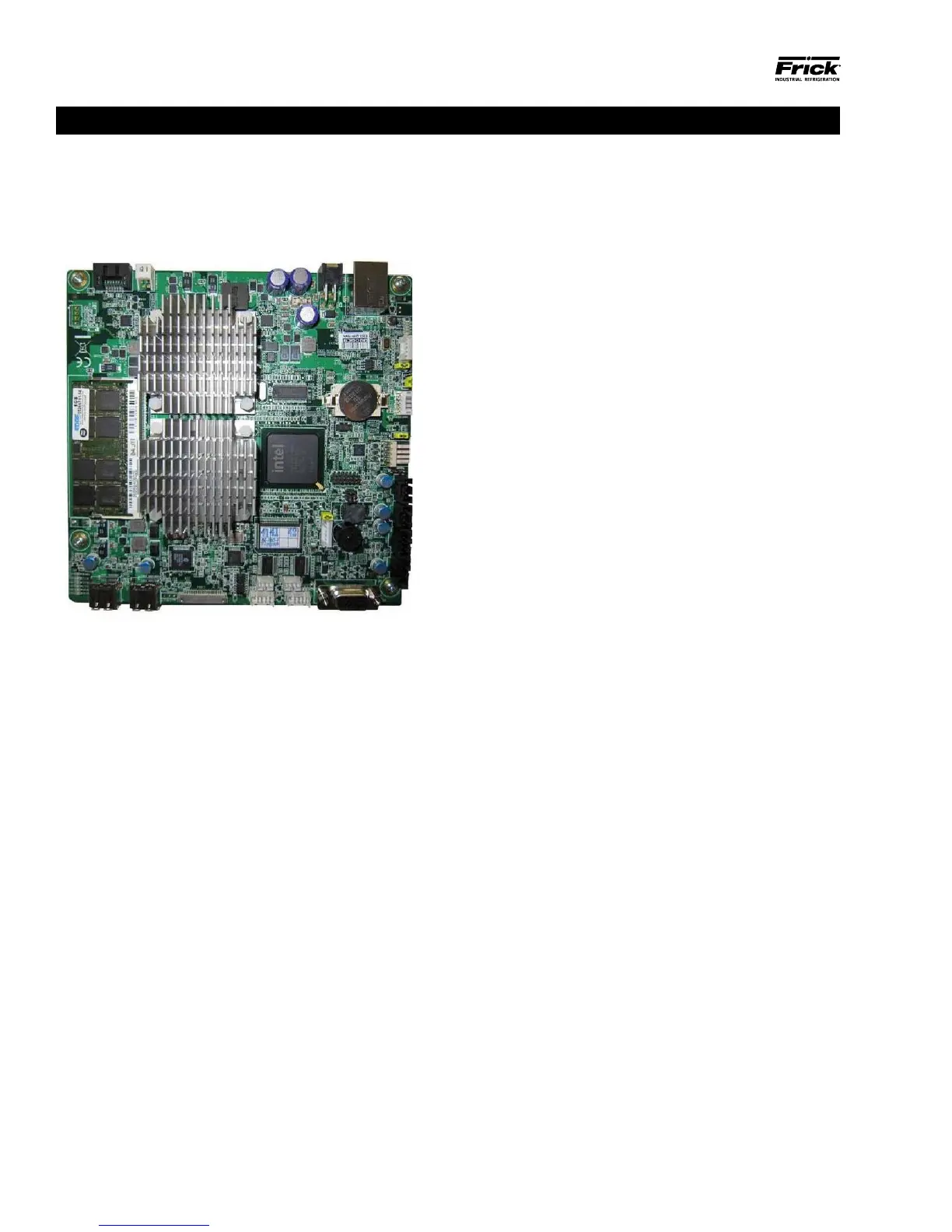
Board. A photo of this board appears here:
Figure 2. Q5 Processor Board Photo
090.040-PH0004.tif
FEATURES
The Q5 Processor Board includes the following features:
• 6 total USB ports (4 are dedicated, 2 are available)
• 10/100/1000 Mbps Ethernet Connection
• 2 RS-422 ports
• 2 RS-485 ports
• External Video monitor connection
• LED indicators to verify proper operation of various on
board areas (power, communications, Ethernet connec-
tivity, etc.)
• 2 GB RAM memory
• Battery to maintain date and time
WHAT SHOULD OCCUR WHEN
APPLYING POWER
When powering up, the following sequence of events are
indicative of a properly working main processor board:
• The six LED’s in the lower left corner should turn on solid.
• The on-board “buzzer” should “beep” once.
• The display should show several DOS (text) style screens.
A status bar will appear at the bottom of the screen and
displays Fedora 15 as the boot sequence progresses.
• A Windows style screen with the letters HD will appear.
The Operating Status (Home) screen will appear.
• A Loading bar will appear at the bottom of the screen,
showing the percent of load that has completed, this is
followed by additional DOS style text.
After the Q5 Processor Board has properly powered up, the
following sequence of events is indicative of proper com-
munication to the analog and digital boards:
• The Analog and Digital I/O boards TX/RX lights should be
blinking.
• Each I/O board should have the power LED lighted and
the Active LED should be blinking.
• The rst thing that should be checked when troubleshoot-
ing the Q5 Processor Board is its powering up sequence.
WHAT IF THE OPERATING
STATUS SCREEN IS NOT SHOWN
If the Operating Status screen is not shown, check the
following items:
1. If no LED’s are lit, then check AC and DC power. Refer to
the Power Supply section.
2. Check if the lighting of the LED’s is occurring as
described in the What Should Occur When Applying
Powering section.
• If the powering up sequence continues to repeat with-
out displaying the Operating Status screen, then there
is a booting problem.
3. Check all plugged connectors for proper seating.
4. Check if an error message is displayed when booting.
• Be sure to write down any error messages exactly as
they appear, as well as the top line on the screen where
the message appears.
5. Check that the software is OK:
• Is the correct software installed?
• Did you just install new software?
6. Check the display. If the Q5 Processor Board is booting
but you have no display, check the following:
• Check the LED backlight sticks. Look very closely at
the display to see if anything is visible on the screen.
If only a portion looks darkened, it may be that one of
the backlights has failed. If the entire screen is dark
(and it is not is sleep mode), use a beam type source
of good lighting, such as a ashlight, look for any ghost
type image. If it appears that there is something on the
screen but very dark, the problem may be with either
the backlight harness, the display or the Q5 Processor
Board. Check to ensure that both ends of the backlight
harness is plugged in securely. There is a sticker on the
display mounting plate, that will have a part number
that describes the type of display.
• Verify that both the display cable and the backlight
cable are rmly seated. It may be necessary to remove
Q5 PROCESSOR BOARD


 To Next Page