Technical Support is available from 8am to 5pm (PST) M - F at support@fslaser.com.
71
Passes
This allows the operator to assign how many times the laser will complete a full cycle. Adding passes
creates deeper cuts. Note that if you delete a vector line (by clicking “-“), set passes to “0” rst.
Show All Parameters
This toggle switch displays or hides all possible vector tag as a series of color options. Often
when performing both vector cuts and raster engraving, it is a good idea to change the color of the
vector cut to something other than black. This will avoid the laser detecting the vector cut as part
of the raster.
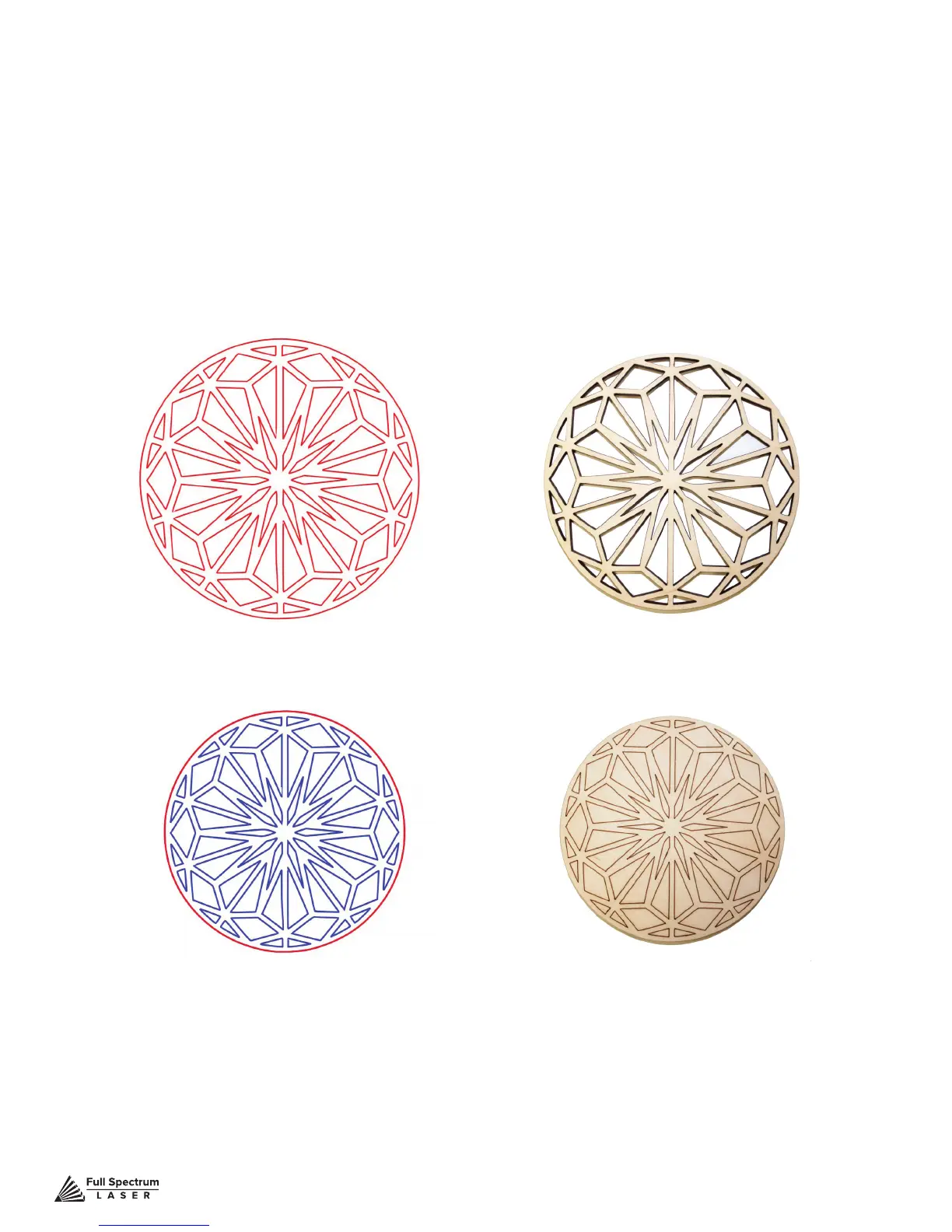
Basic Vector Cutting Example
Vector Marking Example
We can outline (as opposed to ll) parts of the pattern for a second design option. Again, we will
instruct the laser using our vector properties In this design, the blue lines will not be cut through on
our material, but instead will be marked, as the red outline still cuts.


 To Next Page