Technical Support is available from 8am to 5pm (PST) M - F at support@fslaser.com.
84
Mouse Controls
A. Drag ‘n Drop
Click and hold a design le and then drag it into the workspace. You will be invited to “Drop
anywhere!”. Once uploaded, click and hold the left mouse button and drag the mouse to move the
object in the workspace.
B. Resize / Rotate
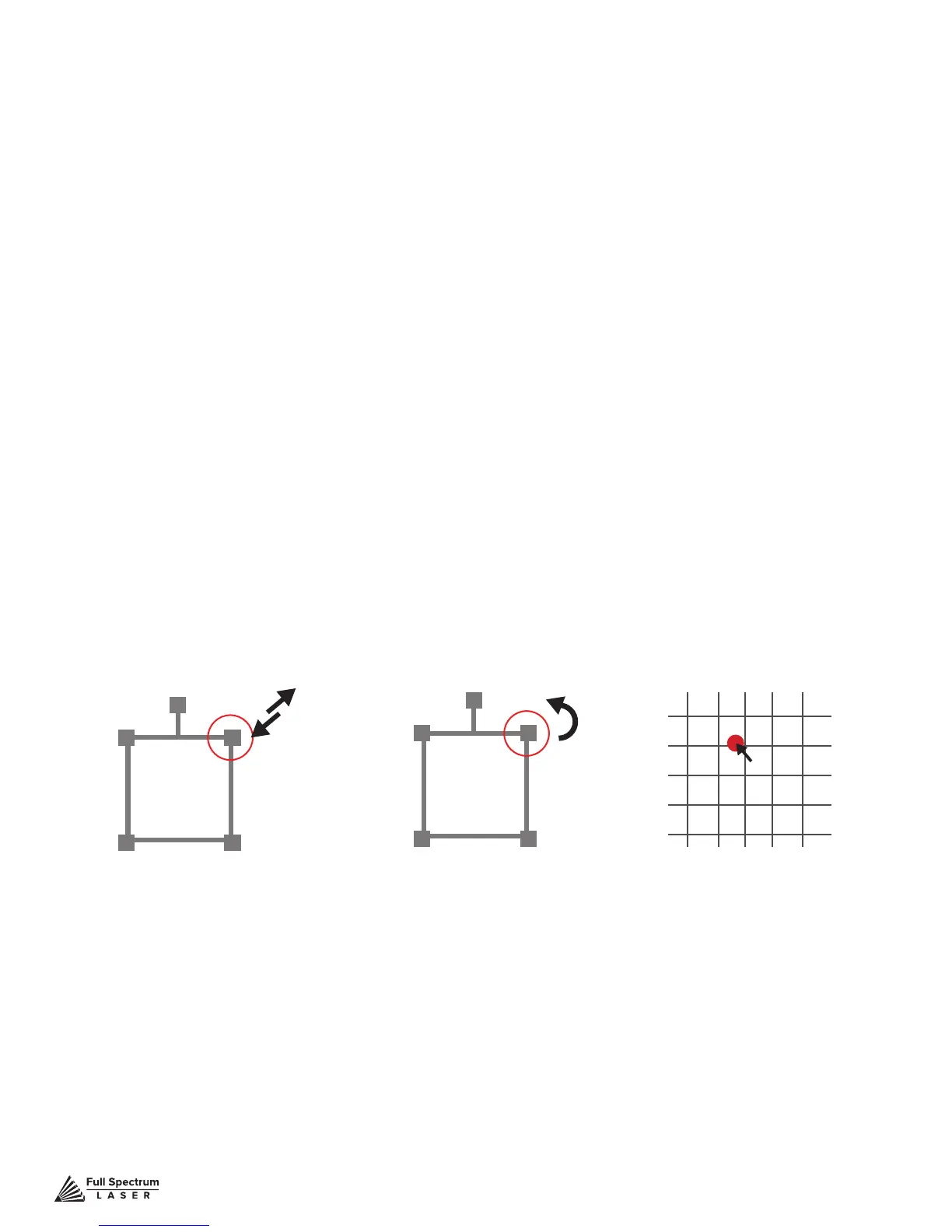
Clicking on the object with your mouse will highlight the square adjusters for size and orientation. Use
the mouse to manipulate the object’s size by expanding or constricting the square adjusters or turning
the rotation node to rotate object.
C. Alt + Left Click to Rotate
Hold the Alt button on your keyboard, then left click and hold your mouse over the rotation node. By
moving the mouse, you can resize the object from center rather than the corner.
D. Alt + Left Click to Resize
Hold the Alt button on your keyboard, then left click and hold your mouse over one of the four corner
“resizing” nodes. By moving the mouse, you can to rotate the object from the opposing node.
E. Home to Location
Instantly home the laser to any location in the work bed by simultaneously holding the Ctrl key and
left-clicking the mouse. This allows you to choose where the laser starts the job.
Mouse Controls
Resize Rotate Home to Location


 To Next Page