Technical Support is available from 8am to 5pm (PST) M - F at support@fslaser.com.
70
Setting Vector Properties
When a PDF le is imported into RetinaEngrave 3.0, the program automatically detects it as both a
vector le and a raster le.
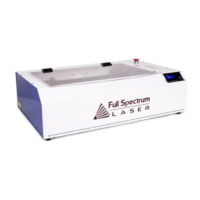
Vector Color
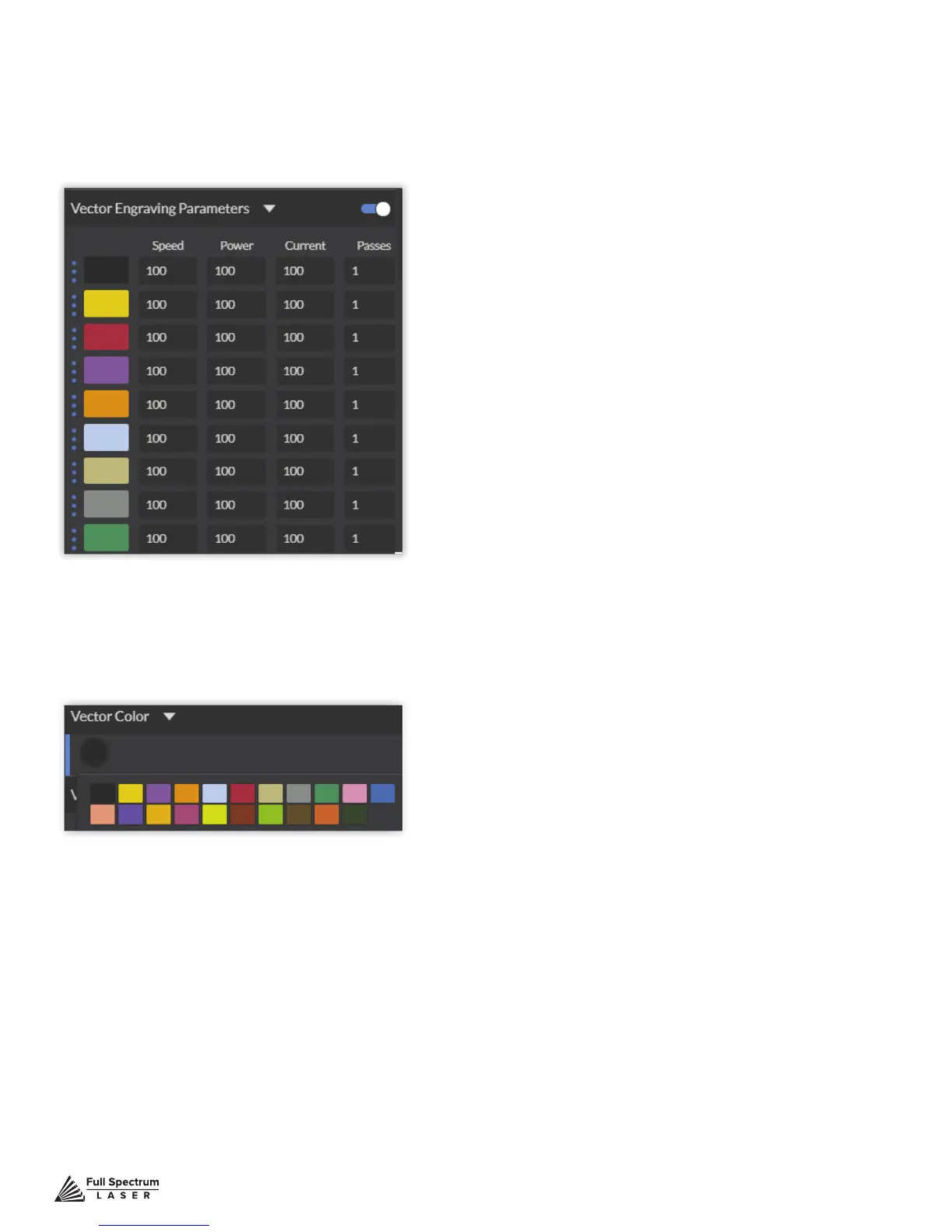
Tags allow you to create separate vector layers and keep track of them with a unique color. Each
color will match an object in the workscreen. You can set the order of operations by clicking on the
“three dots” and then dragging the layer up or down. Objects are then processed from top to bottom.
Setting Vector Power
Power will determine how much power the laser tube delivers. As with speed, power will vary
depending on the wattage of the laser tube and the material itself. You will need to experiment with
material testing to nd the right speed for your vector cuts.
Setting Vector Current
Vector current is a control unique to vector les. Vector current controls the pulse of the laser. 100%
will create constant power for smooth cutting, while lower percentages will add increasingly more off
time between pulses. As always, settings will vary with your tube wattage and type of material. It’s
best to test on an inconspicuous part of your material before creating your nal piece. Once optimal
results are discovered for speed, power and current, through material testing, record the settings for
each in a materials log.
Vector Cutting


 To Next Page