Technical Support is available from 8am to 5pm (PST) M - F at support@fslaser.com.
74
Text Positioning
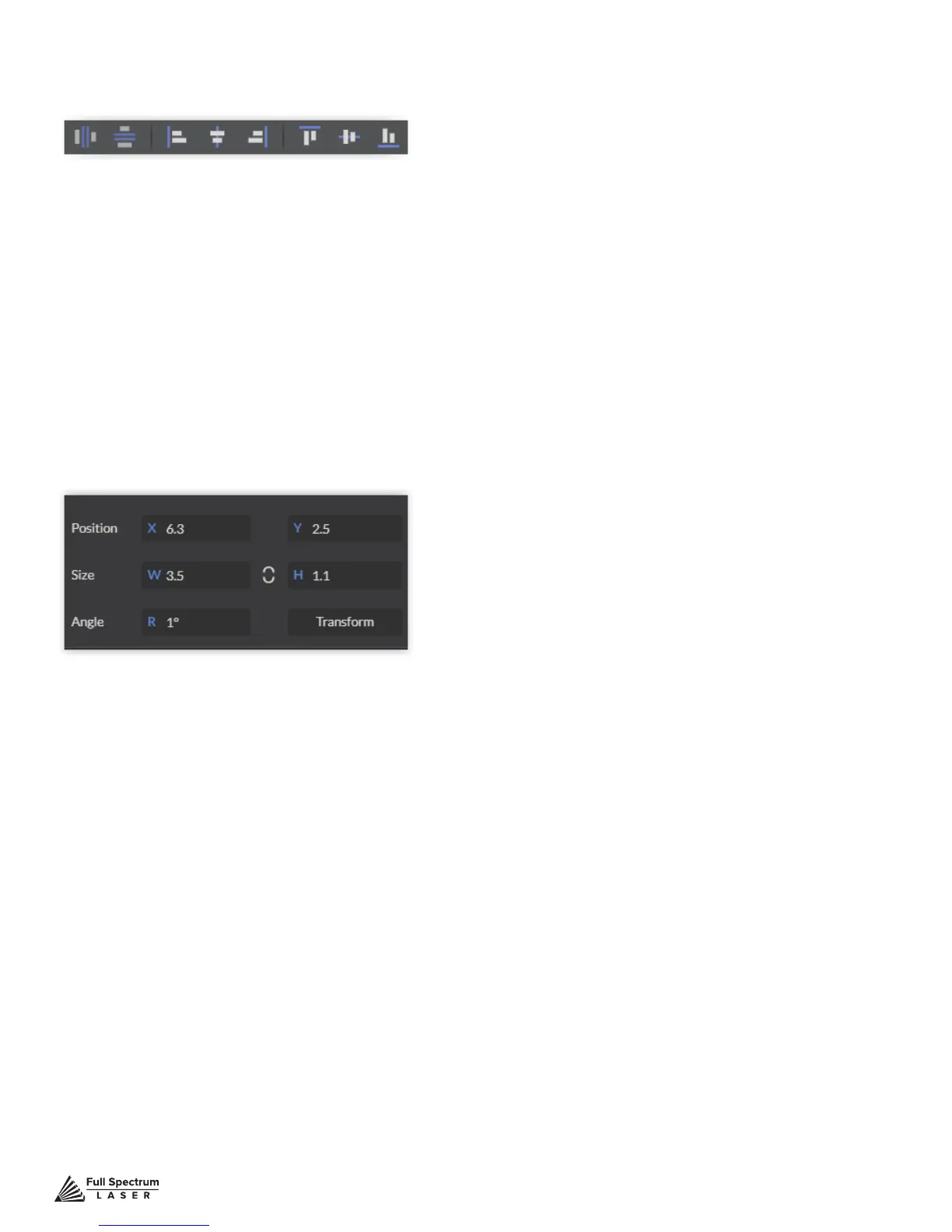
Text position can be quickly adjusted by clicking on one of the following options.
Distribute Horizontally: Evenly arrange selected Text horizontally.
Distribute Vertically: Evenly arrange selected text vertically.
Align Left: Align text to the left.
Align Center: Align text to center.
Align Right: Align text to right.
Align Top: Align text to top.
Align Middle: Align text to middle.
Align Bottom: Align text to bottom.
Text Positioning Coordinates
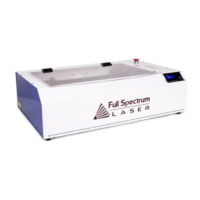
This window displays the coordinates and other specs of the selected text. Coordinates can be
changed manually by entering the desired specics directly into the software.
Position: Displays position of text in X/Y coordinates in the workspace. Click box to directly input X/Y
coordinates.
Size: Displays size of text according to width and height. Click box to directly input desired width and
height of text.
Angle: Displays angle of text as a degree. Click box to directly input angle degree of text.
Transform: Clicking the transform button brings up the Transform Window options.


 To Next Page