AP4.9 Function settings
AP4-15
AP4.9.2 SMTP Enable IP Address
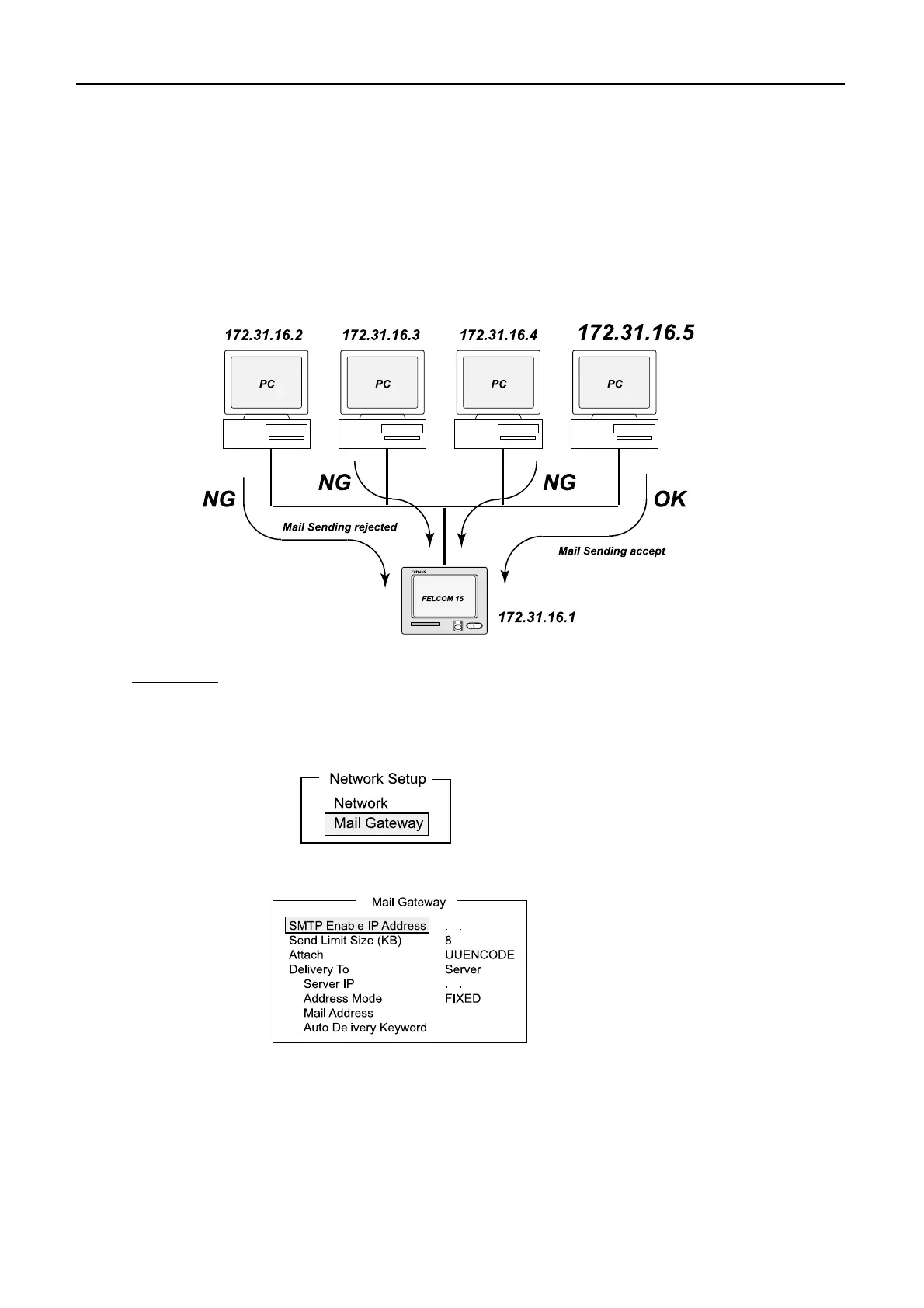
Specify IP address of the PC from which e-mail is sent. If IP address is not specified,
all PCs connected to the LAN can send e-mail.
For example, when IP address of “172.31.16.5” is entered, only the PC of which IP
address is “172.31.16.5” in the LAN can send a mail.
Procedure
1. Press [F8][2] to open “System Setup” menu.
2. Select “Network Setup”, followed by [Enter].
3. Select “Mail Gateway”, followed by [Enter].
4. Select “SMTP Enable IP Address”, followed by [Enter].
5. Set “IP address” for mail service, followed by [Enter].
6. Press [Esc] to show [Update].
7. Select “Yes”, followed by [Enter] to update the setting.
8. Press [Esc].


 To Next Page