55
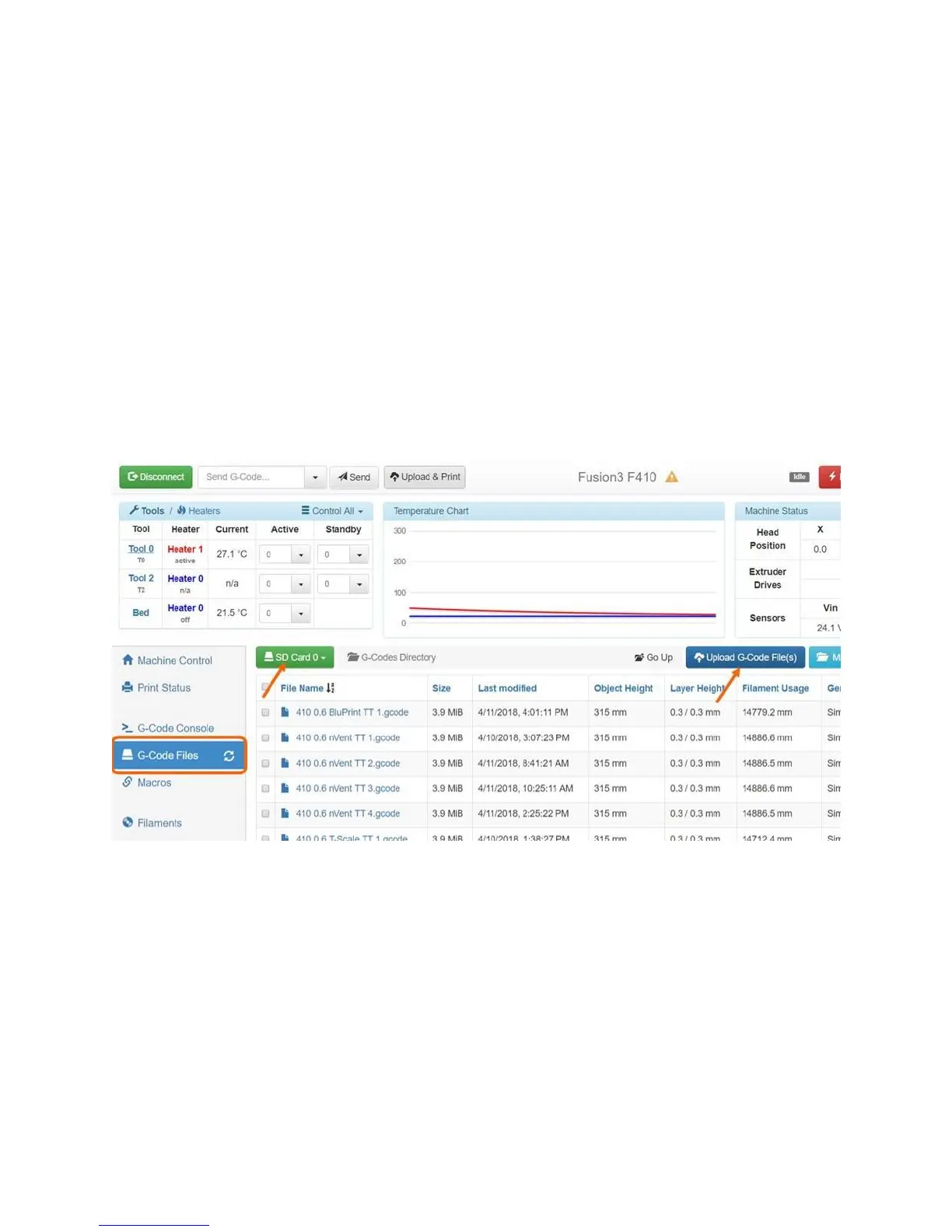
If your F410 is on your local network, you can upload this file through the web interface.
Transfer via “Sneakernet”
Make sure your F410 is not currently running a print. Remove the external SD card from the LCD panel
and carry it back to your computer.
Insert the SD card and copy the file anywhere on the card.
NOTE: We DO NOT recommend saving files directly to the SD card from inside Simplify3D. We have
seen this cause file errors that result in failed prints. We always recommend saving the file to your hard
drive and then copying it to the SD card.
Transfer Via the Web Interface
Log into the web interface and go to the “G-Code Files” tab. Click the “Upload G-Code Files” button.
A dialog box will open. Navigate to where you saved your .GCODE file on your hard drive and select it.
Note: You can upload multiple .GCODE files at once if you want.
The upload progress box will appear.


 To Next Page