Home
GCC Technologies
Cutter
AFR-24S
Page 7
GCC Technologies AFR-24S - Page 7
235 pages
Manual
Save Page as PDF
To Next Page
To Next Page
To Previous Page
To Previous Page
Loading...
AFR-24S User Manu
al
7
War
ning
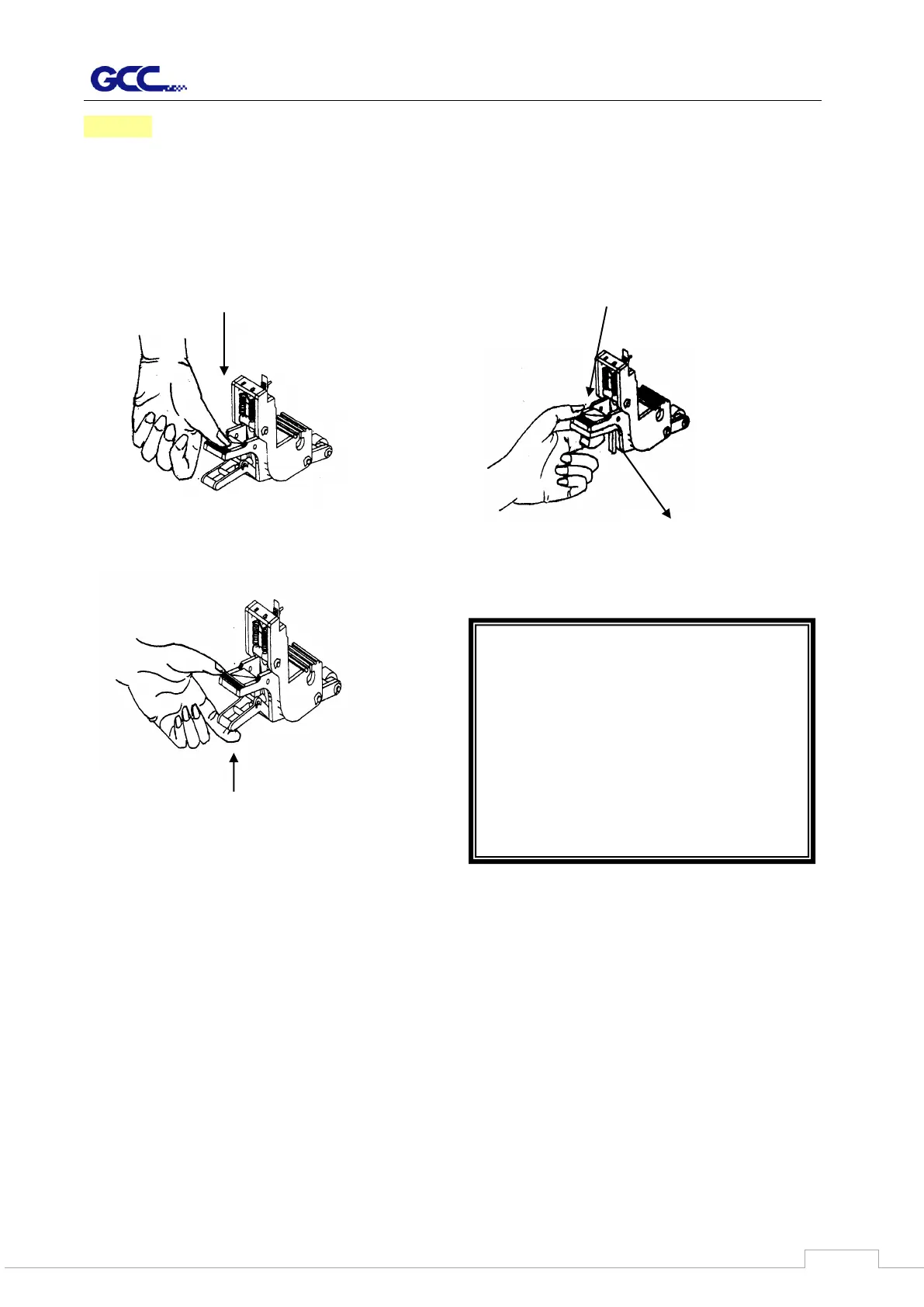
Never
press the
top rel
ea
se grip
and pull t
he
bottom release
grip at
the same
tim
e as
the
pictures shown below:
O
(CORRECT)
X (
IN
C
ORRECT)
P
ress down
S
t
o
p
b
a
r
Note:
In case the grips clipped toget
her
due to the wrong operation, please
use a
pai
r of
tweezers to
pull out
t
he
stop bar when pressing down the top
release grip. K
ee
p the stop bar
outside then release the grips as the
right figure.
P
ress down
DISABLE
EN
ABLE
Pull up bottom
to release
grip
6
8
Table of Contents
Main Page
Default Chapter
3
Table of Contents
3
Safety Measures
5
Necessary Work Space
8
1 General Information
9
Introduction
9
Package Items
9
Machine Overview
11
AFR-24S Overview
11
Cutter Overview
13
Appearance of RX
14
Pinch Roller
15
2 Installation
16
Connecting Your GCC Cutter
16
USB Connection
16
Driver Installation
16
Driver Un-Installation
20
Connection
23
Ethernet Connection
23
Data Transmitting
27
Printer Sever Shared Setting
28
Auto Feeder Installation
30
Install the Magnetic Media Separator
33
Blade and Blade Holder Installation
33
Blade Installation
33
Blade Holder Installation
35
Automatic Blade Length Detection
36
Creasing Tool Installation
38
Software Installation
41
Greatcut Installation
41
Auto Installation
46
Sure Cuts a Lot Installation
46
Manual Activate Software
51
Re-Install Sure Cuts a Lot Software
52
Desktop Flexible Media Support System
53
Instruction of Damper Roller
54
Replacing Cutoff Blade
55
3 The Control Panel
62
The Touch Key Panel
62
Menu in On-Line Mode
64
Menu in Off-Line Mode
65
Menu Items
67
4 Operation
74
How to Load the Sheet Media into the Auto Feeder
74
Automatic Working Procedure
78
Back Creasing
80
How to Load the Sheet Media into Machine Without Auto Feeder
81
Cutting Force and Offset Adjustment
84
How to Cut 3Mm Letter
86
When Completing the Cutting Job
86
RX II-Creasing Print Driver Setting
87
RXII-Creasing Print Driver Setting > Option Page
87
RXII-Creasing Print Driver Setting > Creasing Page
91
RXII-Creasing Print Driver Setting > Paper Page
98
RXII-Creasing Print Driver Setting > Paper Feeder Page
99
Reference Parameter Setting for Different Materials
100
5 Automatic-Aligning System
101
Introduction
101
AAS Contour Cutting System
102
Notice for Registration Marks
102
AAS II on RX
103
Automatic Distinction of the Plot Direction
105
Printer Test
106
Contour Cutting
108
Registration Mark Offset Range
108
Tips for AAS
110
6 Maintenance
111
Cleaning the Cutting Plotter
111
Cleaning the Grid Drum
112
Cleaning the Pinch Rollers
112
7 Trouble Shooting
113
Non-Operational Problems
113
Operational Problems
114
Cutting Plotter/Computer Communication Problems
115
Software Problems
116
Cutting Quality Problem
117
Appendix
119
Blade Specification
119
Coreldraw
124
Coreldraw Plug-In
125
Illustrator Plug-In
137
Greatcut Plug-In
155
Signpal
195
Sure Cuts a Lot
219
Related product manuals
GCC Technologies PII-132S
54 pages
GCC Technologies i-Craft
90 pages
GCC Technologies LaserPro X252RX
115 pages
GCC Technologies Jaguar J5-61
196 pages
GCC Technologies PII-60
54 pages
GCC Technologies Jaguar J5-183LX
196 pages
GCC Technologies Jaguar J5-132LX
196 pages


 To Next Page