1.
2.
3.
4.
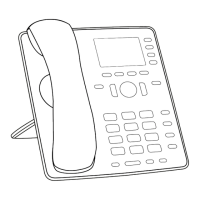
Settings on the phone (P710)
Display mode settings
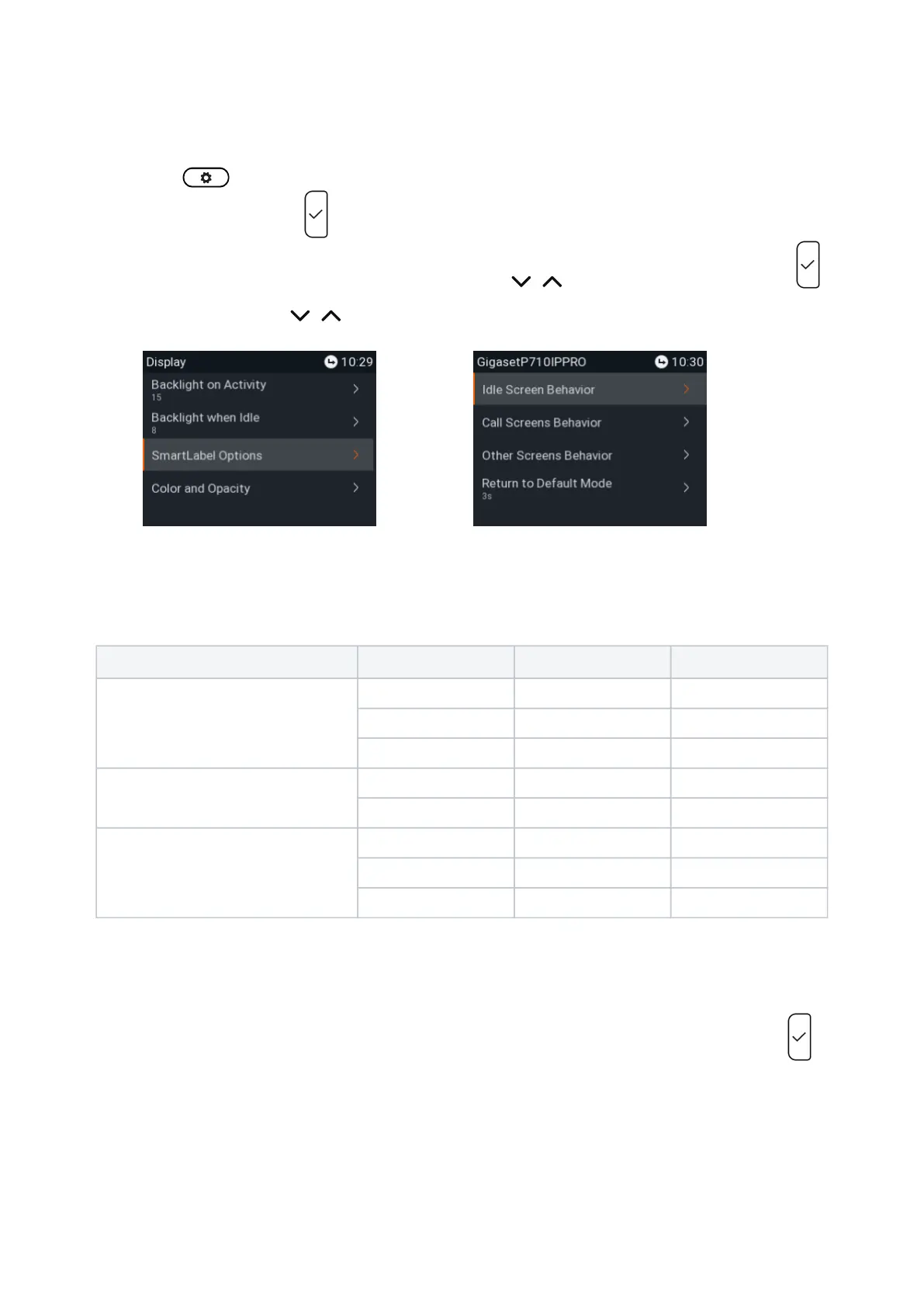
Press and select .Preferences
Select and press .Display
If any expansion modules are connected to the phone, use / to select and press .Primary display
Use the navigation key / to select and press .SmartLabel options
Fig. 1 Fig. 2
5. Select Idle Screen Behavior, Call Screen Behavior, or Other Screen Behavior and press . The default
settings are indicated in bold italic in the table. The available options for the three different screens are:
Idle screen Call screens Other screens
Default display mode Off Off -
Short Short -
Full - -
Alternative display mode Short Short -
Full Full -
Alternative mode trigger Off Off Off
Short-press P4 Short-press P4 Short-press P4
Long-press P4 Long-press P4 Long-press P4
6. The configuration of the settings for all screens and other screens is done the same way.
Default and alternative display mode.
a. Select the display mode you want to change, for example the default mode (Fig. 3), and press .
In the following example, the default mode is set to (Fig. 3 and 4), and we want to change it to Full Sho
.rt




 To Next Page