1.
2.
3.
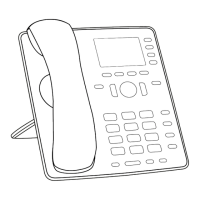
Conference (P710)
The maximum number of participants is three.
Note: This section refers to phone-based conferences. For the number of participants in server-based conferences
and how to set them up and participate, please check with your network administrator or your VoIP provider.
Initiating a conference
Call the first intended participant and put him or her on hold.
Call the second intended participant.
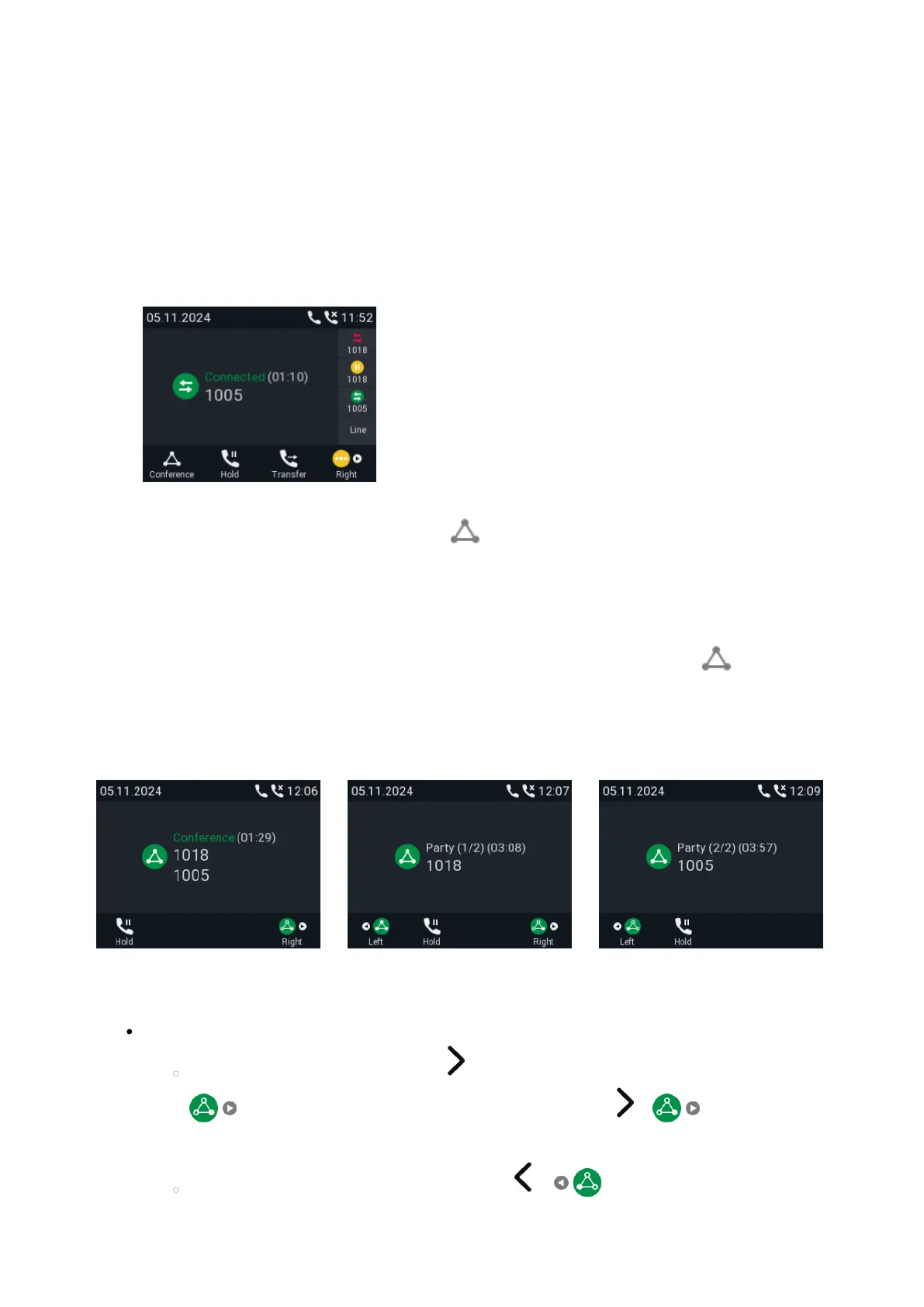
Fig.1
When you are connected to the participant, press to start the conference.
Conference screen navigation
Your input on the phone's keys will affect the caller/callee(s) or the entire conference shown in the contact area of the
display. Example: A conference with three participants, including yourself. After you have pressed (Fig. 1) to
start the conference, the names, if available, and/or phone numbers
of the other participants are shown on-screen (Fig. 2–4). Fig. 2 shows the conference screen, i.e., all of your
conference partners while Fig. 3 and 4 show the screens for the individual participants.
Fig. 2 Fig. 3 Fig. 4
Selecting individual participants.
On the conference screen (Fig. 2), press on the navigation key or the function key underneath
to select the first of the participants of the conference; press or again to select the
next one of the participants (Fig. 3).
When viewing the second participant (Fig. 4), press or to view the first participant.




 To Next Page