Call waiting (P710)
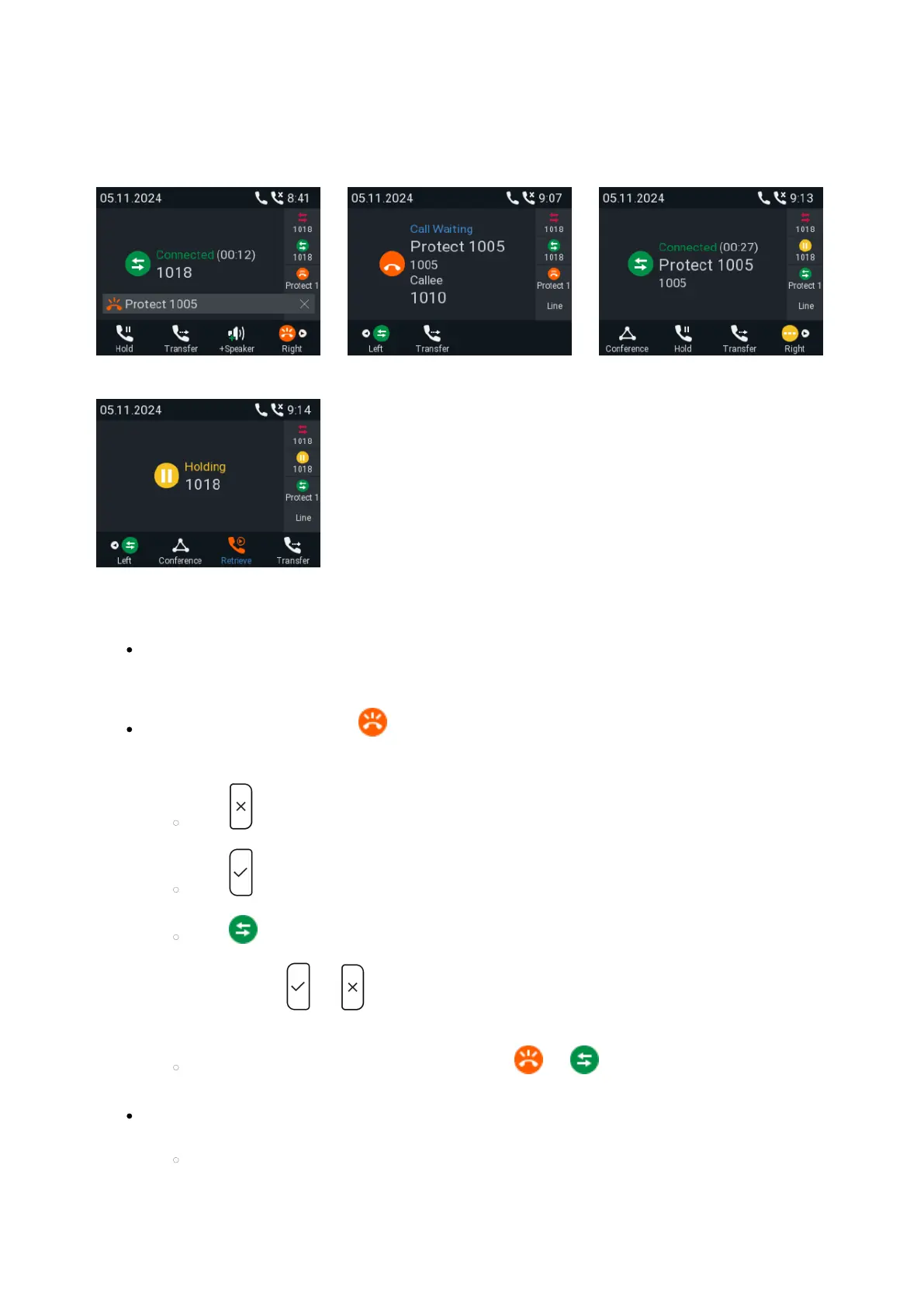
When you are in a call, another call coming in will be announced visually by the flashing call LED and by the symbol
appearing in the function key line (Fig. 1); it will also be announced acoustically by a double beep. If you want to
switch to visual or acoustic announcement only or turn call waiting off completely.
Fig. 1 Fig. 2 Fig. 3
Fig. 4
When a call is waiting, you have the following options:
Press the blinking line key of the call waiting to put your current call on hold and to accept the second call
without knowing who is calling. This option is available only when there is a free line key available at the time
the call comes in.
Press the function key underneath (Fig. 1) to put the screen on the display (Fig. 2); you will Call waiting
see the caller ID on-screen if it is being transmitted.
Press to reject the call waiting. The caller will hear the busy signal.
Press to accept the second call and put your current call on hold (Fig. 3).
Press to return to the Connected screen with your current connection.
: Pressing and will affect the call shown on the display, i.e., your current connection, the Note
call(s) waiting, or the call(s) on hold.
If there is more than one call waiting, press the keys or , respectively, to bring them on-
screen and to return to the connected call.
If you do not wish to accept the waiting call, you can:
ignore the announcement. If you have set call forwarding when busy, the call will be transferred to that
phone.





 To Next Page