Transferring calls (P710)
You can transfer connected calls as well as calls ringing on your phone.
When you have a call on the line, there are two ways to transfer it to a third party:
Announcing the call to the third party first, to make sure the call is welcome and will be accepted: Atten
;ded transfer
Transferring the call unannounced: There will be no feedback on whether the third Blind transfer.
party is available and/or picking up the call.
When a call is ringing on your phone, you can transfer it to a third party without answering it first (blind transfer
only).
Attended transfer
With a single call on the phone.
1. Put the call on hold. In our example, the caller on hold is 7788.
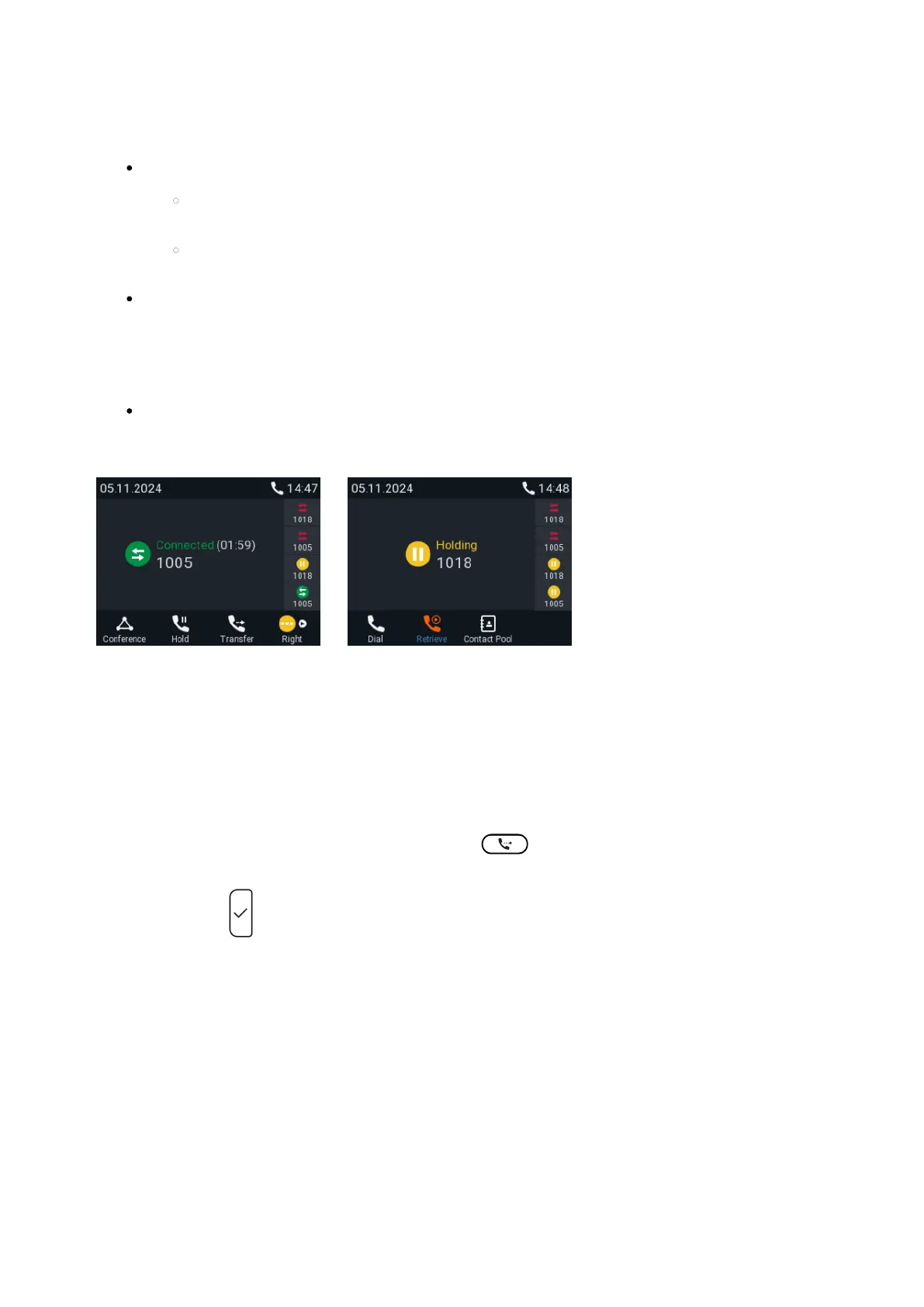
Fig. 1 Fig. 2
2. Dial the number you want to transfer the call to and announce the call (Fig. 1). You can also select a
number from the internal or one of the available external phone directories
3. If the third party wants to accept the call, hang-up the call OR
If the third party wants to accept the call, press . If the screen of the call you do not want to
transfer appears on-screen, press to bring the right one on-screen.
Press to complete the transfer.
With more than one call. All calls must be on hold.
1. Dial the number you want to transfer the call to and announce the call.






 To Next Page