2. If the third party wants to accept the call, press . If the screen of the call you do not want to transfer
appears on-screen, press to bring the right one on-screen.
3. Press . You may briefly see the "Ended" messages, indicating that the transfer was completed. The
remaining call on hold or the first of the remaining calls on hold will then appear on-screen.
Blind transfer
Blind transfer of active call
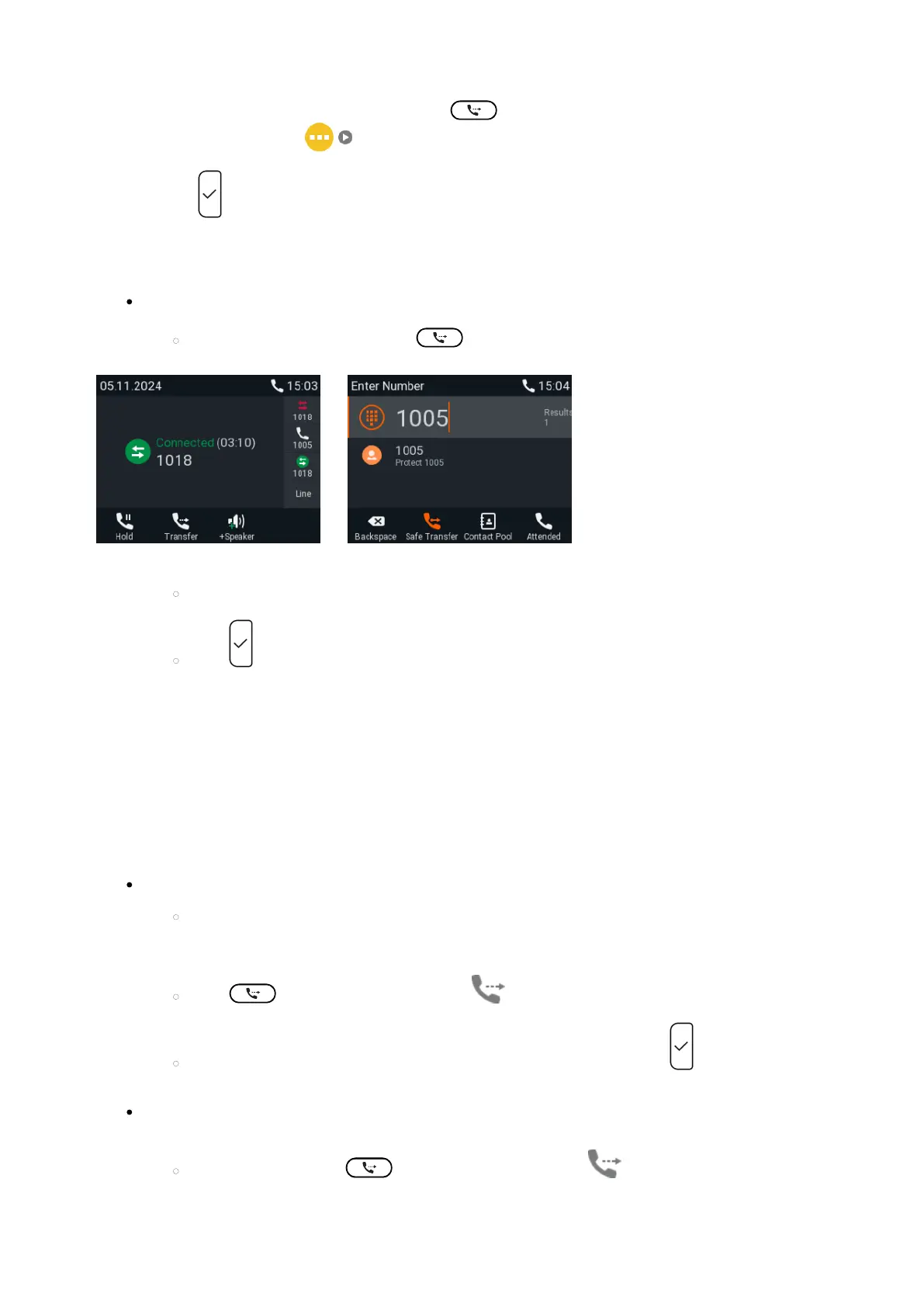
With a call on the line (Fig. 4), press . The dial screen will appear.
Fig. 3 Fig. 4
Dial the number (Fig. 4), or press to select a number from the internal or one of the available external
phone directories
Press . You may briefly see two "Ended" messages followed by the callee and caller's name
/number, indicating that the transfer was completed.
Note: If a call is waiting, as indicated by the symbol in the lower right corner, you must reject it before
you can transfer your active call blindly.
Press the function key underneath . The "Call Waiting" screen appears.
Press to reject the call waiting. The caller hears the busy signal.
Blind transfer of call waiting
If you are in a call and want to transfer a call waiting, press the function key underneath .
Note: Your active call will remain active while you are transferring the ringing call.
Press or the function key underneath . The dial screen appears.
Enter the number of the third party you intend to transfer the call to and press . The "Connected"
screen with your active call appears.
Blind transfer of ringing call
With a call ringing, press or the function key underneath ..




 To Next Page