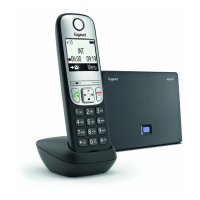
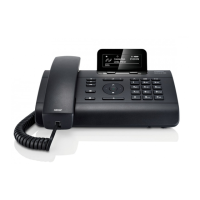
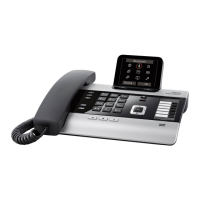
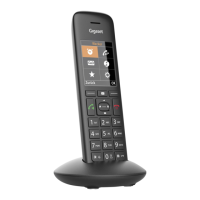
Function keys on Gigaset phones
Every phone has a limited number of hard keys. Phone users, however, have a myriad of different priorities and
preferences when asked which functions they use most often and which functionalities they would like to access
quickly. Gigaset has therefore designed the function keys to be programmable, even the preprogrammed "hard keys"
whose default function is printed on them.
There are four types of programmable function keys
Context-sensitive,
programmable function keys.
For the default settings , see " ". You can select a different key event to At a glance
be available on each respective key when the phone is in idle mode.
You cannot change the functions that are available when the phone is active, for
example when you are in a call, when the phone is ringing, etc. Depending on the
activity, different functions will be available.
See "Appendix 1 - Display Symbols and Icons" for the lists of symbols and their
description.
Navigation, confirmation,
and cancel keys.
For the default settings, see " ". You can select a different key event to At a glance
be available on each respective key when the phone is in idle mode.
You cannot change the functions that are available when the phone is active, for
example when you are in a call, when the phone is ringing, etc.
Dedicated, customizable
function keys.
The default setting is the respective key event printed onto the key. Other key
events and a selected number of other functionalities can be programmed onto
them.
SmartLabel keys (freely
programmable function
keys).
All available functionalities, including key events, can be programmed onto them.
Context
This setting specifies which configured identity will be used when executing the
functionality of the key. You may want to use this feature when you have accounts
with different providers or when you wish to present different identities to certain
destinations.
For example: If you have programmed key P2 to speed dial a specific number and
you want to use configured identity 2 to call that number, select configured identity
2 from the drop-down menu of P2's "Context". When you speed dial the number
by pressing key P2, identity 2 will be used as the outgoing identity.
The default setting is "Active", which means that the identity selected as the
phone's outgoing identity at any given time will be used.
Type
Select the type of functionality from the drop-down list. See "FAQ Desktop - Freely
" for more information. If you select "Key Event", a drop-programmable functions
down list with the available key events will replace the text field under "Number".
The default setting is "line".
Number
Enter one phone number or value for the function or, if the function is key event,
select an event from the drop-down list. Enter phone numbers exactly the way
they need to be dialed, i.e, type the number without spaces or punctuation marks
between the digits. For example, a number with an area code that might
conventionally be notated as (916) 555-1234 should be entered as 9165551234.
Short/Full Label Mode
Select a mode from the drop-down list. The default settings for both are icon and
text.
Icon. The label will display the icon of the functionality mapped onto the
key.
Text. The label will display the text you have entered in step 10 of
"Function key settings on the phone" on page 73 or the number if no text
was entered.




 To Next Page