Selenia User Guide
Chapter 6—The User Interface
56 MAN-03270 Revision 003
Note
You can use the asterisk (*) as a wildcard character to
increase your search. For example, when you enter R*ph,
Patients with the names Randolph and Rudolph will
display. If you use a wildcard character, make sure that you
include a minimum of one other character.
• You can use one or more of the search fields.
• You can limit the query to a date range.
• Most worklist providers require information in the Patient ID and Accession
Number fields to match. Data in these fields is case sensitive.
• You must include the caret (^) character between the name parts (for example,
DOE^J).
6.2.3 How to Add a New Patient
The Patient area of the screen allows you to Add a New Patient.
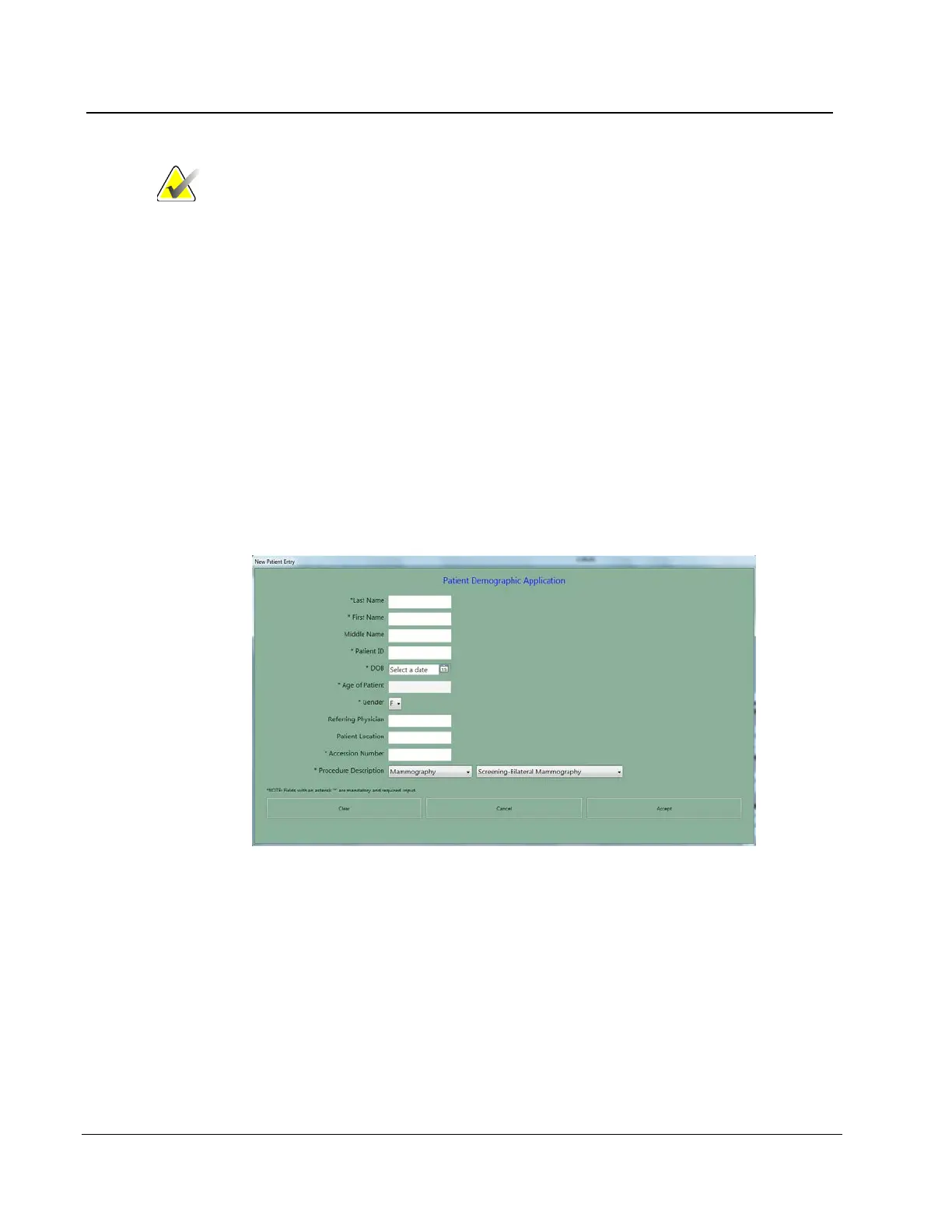
1. Select New in the Patient pane to display the New Patient Entry dialog box.
Figure 38: New Patient Entry Form
2. Enter the Patient demographic information. Use the Tab key or the trackball to move
through the fields. You must enter information in the Fields that have an asterisk.
• The Patient Name fields must contain only letters or numbers.
• The Clear button clears the information you entered.
• The Cancel button closes the form without your changes.
3. Select the Accept button to enter the Patient in the Acquisition Workstation Local
Database. The Patient Views screen displays.












 To Next Page