116 | HRG Performance Series DVR User Guide
www.honeywellvideo.com
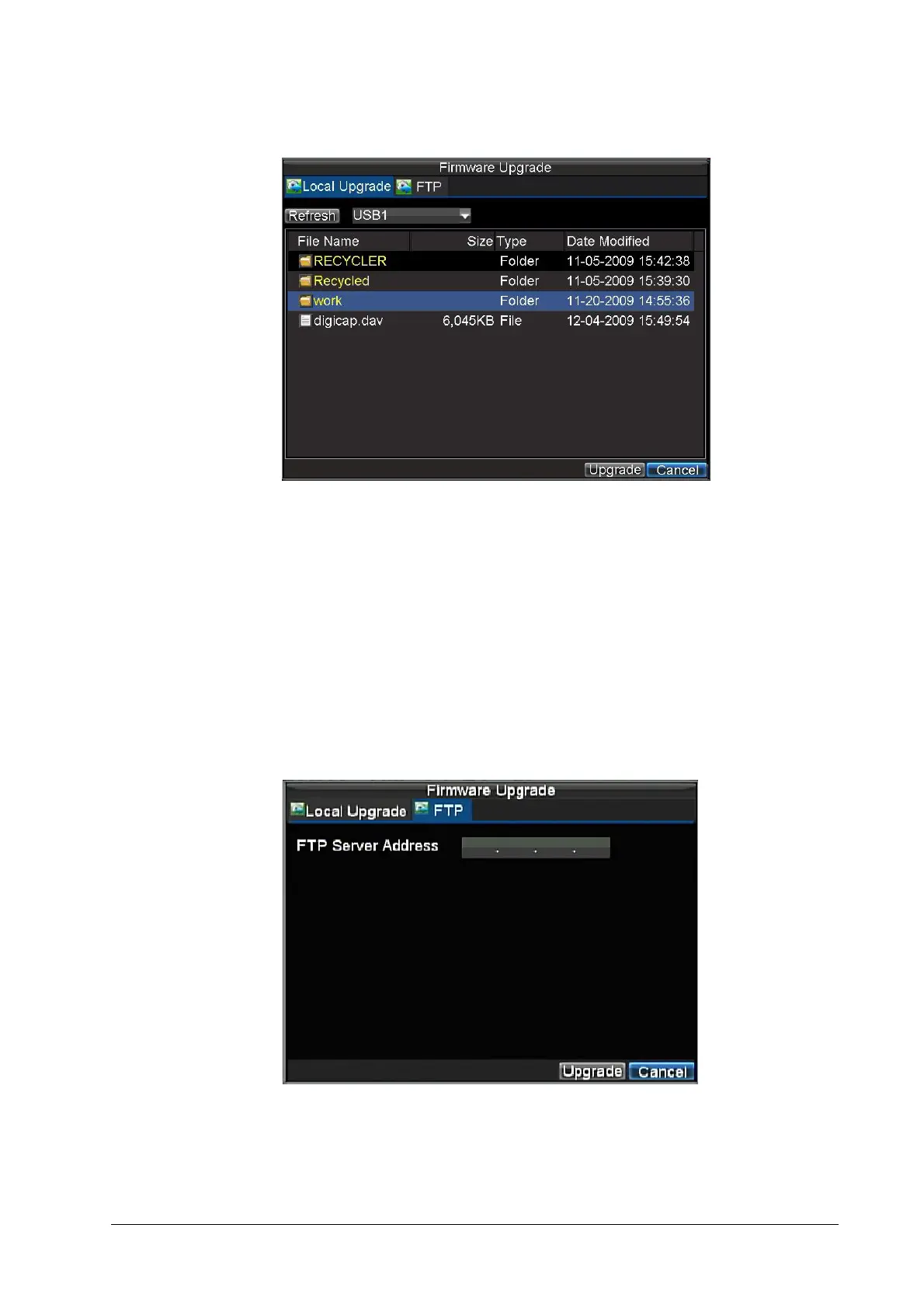
Figure 12-11 Firmware Update Menu
3. Select the Local Upgrade tab.
4. Select the firmware on the USB device.
5. Click Upgrade to begin the update process.
6. After the system firmware has been updated, reboot the DVR to complete the upgrade
process.
To update via an FTP server:
1. Configure the PC (running the FTP server) and the HRG DVR to be in the same Local Area
Network (LAN). Run the third-party TFTP software on the PC and then copy the firmware to
the root directory of TFTP.
2. Click Menu
Maintenance Upgrade to enter the Firmware Update menu.
3. Select the FTP tab (see Figure 12-12).
Figure 12-12 FTP Firmware Update
4. Input the FTP server address.
5. Click Upgrade to begin the update process.
6. After the system firmware has been updated, reboot the HRG DVR to complete the update
process.



 To Next Page
 Loading...