Part 1 - Getting Started
15
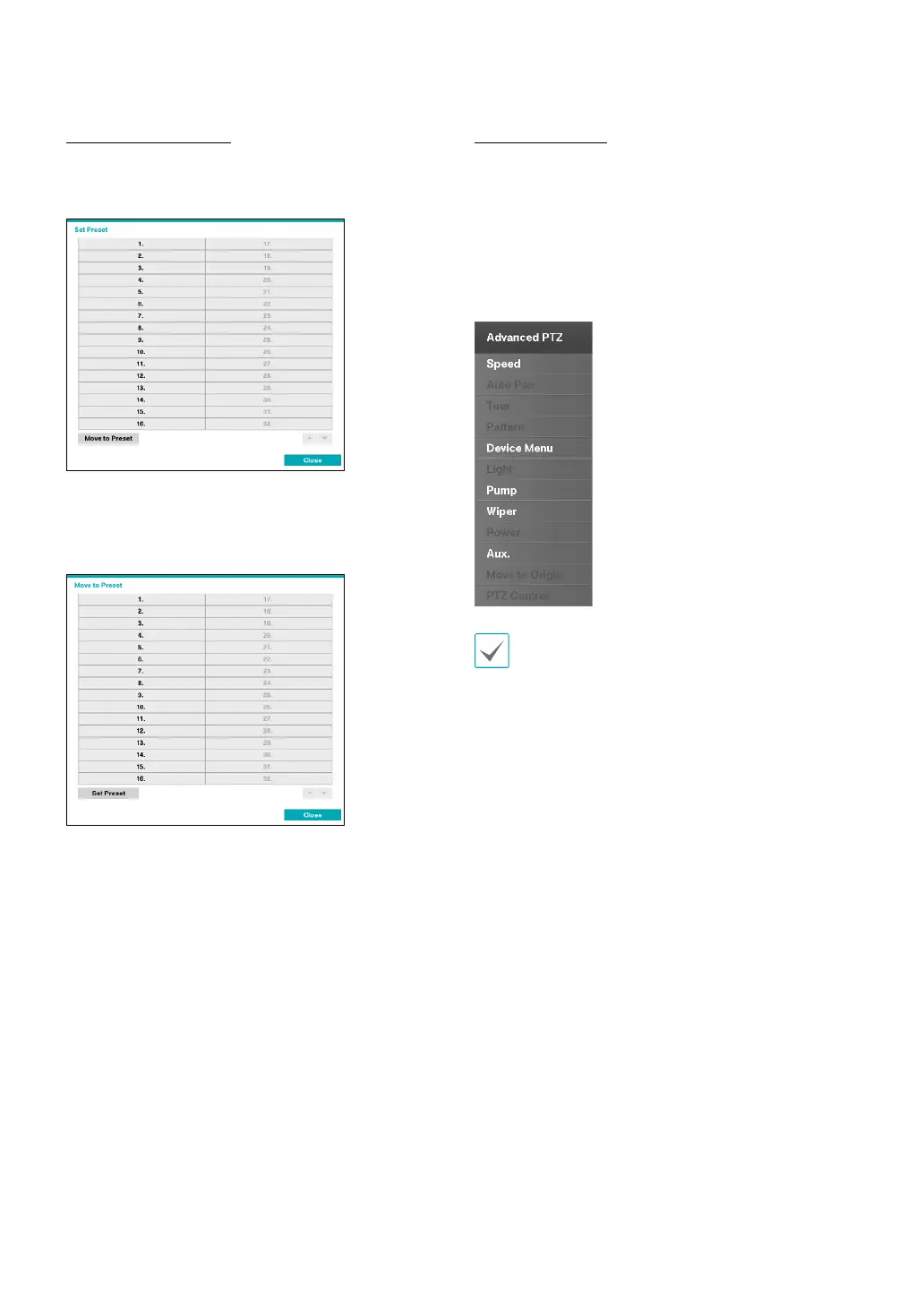
Setting Up a PTZ Preset
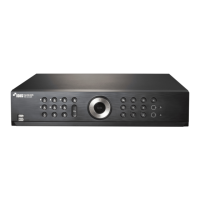
While in PTZ mode, select the PRESET SET button on the
remote control to display the Set Preset window and
assign the current position as a preset.
While in PTZ mode, select the PRESET SELECT button
on the remote control to display the Move to Preset
window. Select a preset to move the current PTZ camera
to the selected preset’s position.
Advanced Settings
In PTZ mode, select a camera. Clicking Menu button and
selecting Advanced PTZ loads the Advanced PTZ screen
as shown below. You can load the Advanced PTZ screen
also by pressing the MENU button and then Play/Pause
button on the front panel. This menu lists Speed, Auto
Pan, and other advanced PTZ camera control options
available for the camera. Options that are not available
for the selected PTZ camera remain inactive.
You can use the mouse to control PTZ cameras. Left-
click on the mouse and drag to move the camera in
the desired direction and use the mouse wheel to
zoom in/out.


 To Next Page