Part 1 - Getting Started
17
Status
Refer to the Menu Use on page 21 for basic
information on using the Setup menus.
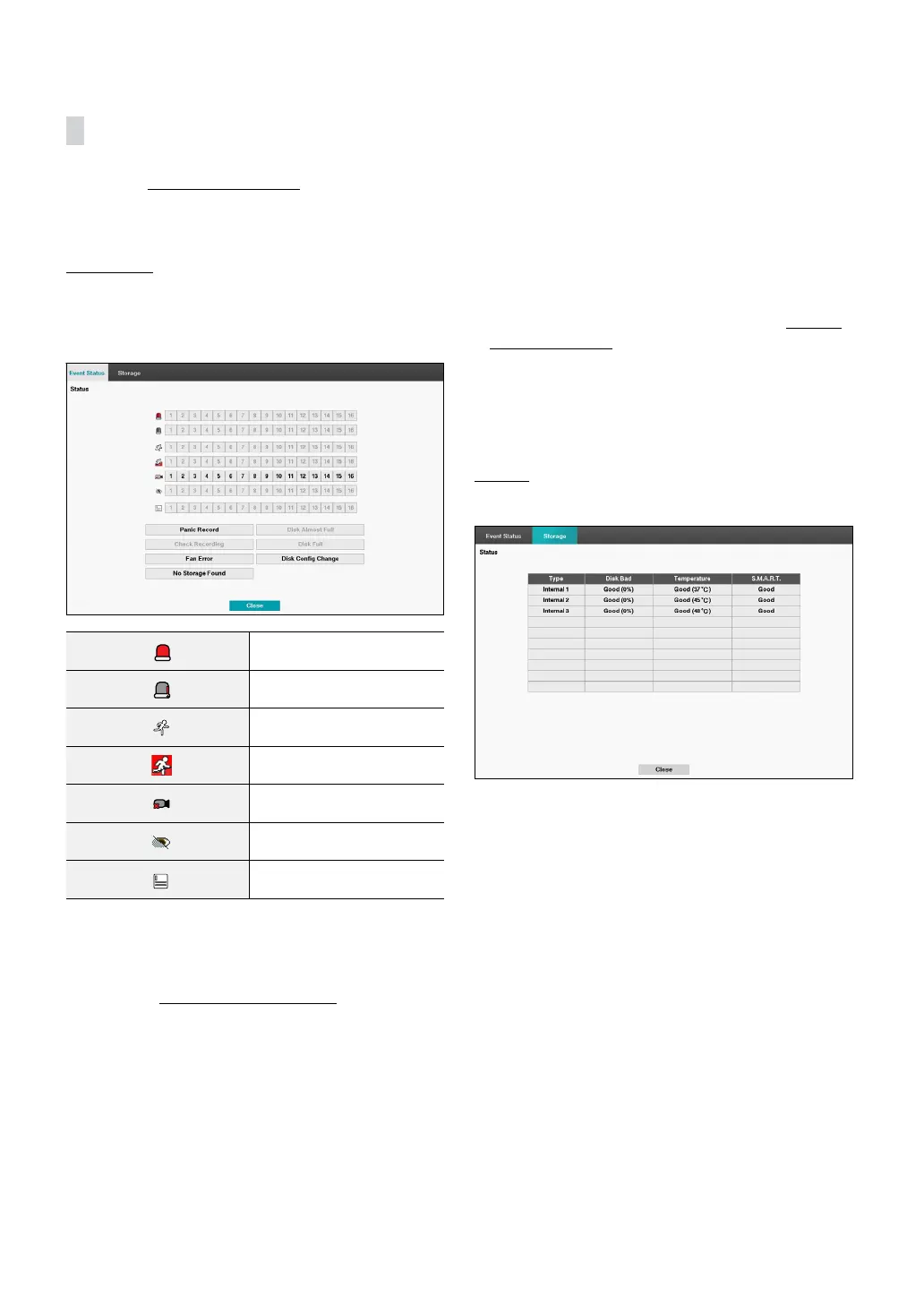
Event Status
This screen displays an overview of all events.
When an event occurs, the corresponding channel
ashes for 5 seconds.
Alarm-In
Check Alarm-In
Motion
Tripzone
Video Loss
Video Blind
Text-In
• Panic Record: Displays event status based on current
Panic Record status.
• Check Recording: Displays event status based on
System Monitoring settings. For more information,
refer to the System Event on page 32.
• Fan Error: Event is indicated when the cooling fan
cannot reach a certain RPM or fails for longer than 50
seconds.
• No Storage Found: It will be highlighted when no
recordable storage device has been found.
• Disk Almost Full/Disk Full: If the storage device is
not in Recycle status, event status is displayed when
the amount of disk space specied under System
Monitoring is reached and when the disk becomes
100% full. For more information, refer to the System
Event on page 32.
• Disk Cong Change: It will be highlighted when
the DVR reboots after the hard disk drive has been
replaced.
Storage
Indicates each disk’s status.
Congure Disk Bad and Disk Temperature settings under
Setup > System > System Event.


 To Next Page