Part 2 - Conguration
57
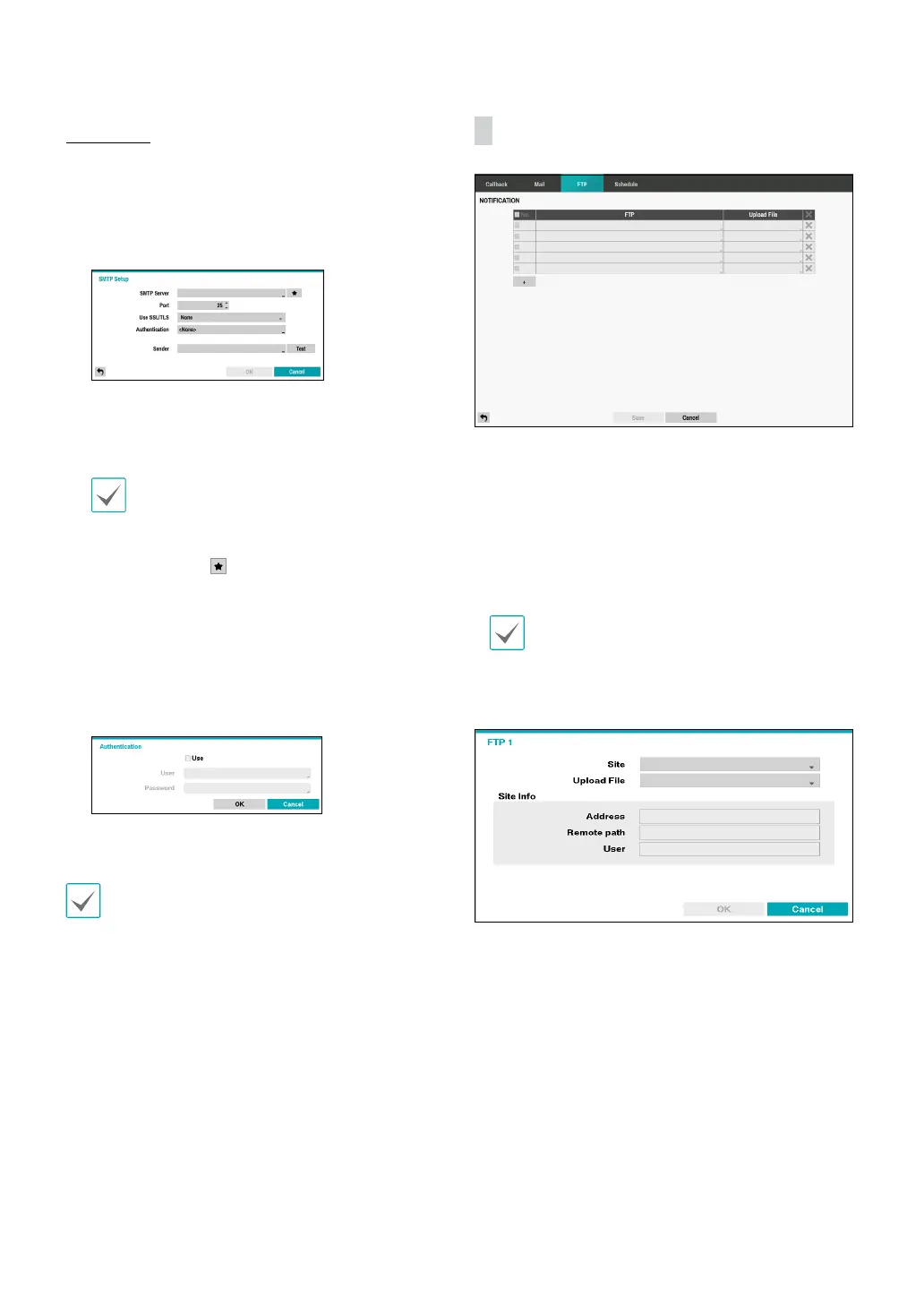
SMTP Setup
Select SMTP Setup at the bottom right corner of the
screen to congure an SMTP server.
1
Enter the SMTP Server’s IP address or domain name
and then congure the Port and Sender settings.
Default SMTP server port number is 25. Select Test to
send out a test mail using the current settings. Select
SSL/TLS or STARTTLS depending on the security
connection which the server supports.
• If you have congured the DNS Server setting
under Network - IP Address, you can enter the
STMP server's domain name instead of its IP
address in the SMTP Server eld.
• Select the
icon to select the mail server
provider from a list of registered SMTP mail
server providers.
• Address entered under Sender must be in the
correct email format and include the @ symbol.
If user authentication is required by the SMTP server,
select Use and then enter the User and Password
information.
2
Select OK to apply and exit.
This product contains content developed by OpenSSL
Project for use in Open SSL Toolkit (http://www.
openssl.org/).
FTP
The FTP feature uploads event detected image or video
clip on the FTP site when an event occurs. Select the +
icon at the bottom of the list to add a FTP site.
• FTP: Enter the FTP site information using the virtual
keyboard.
• Uploade File: Select the le format to be uploaded on
the FTP site. the time frame to schedule.
The FTP site can be registered up to 5.
Select the + icon at the bottom of the list to add a FTP
site.
• Site: Display a list of the registered FTP sites. Select an
FTP site from the list. If the Use setting of the NetFS
site is set to other than ALL or Clip-Copy, you cannot
select the FTP site. You can change the Use setting or
register other FTP sites in the NetFS setup screen on
the Network menu.


 To Next Page