Part 1 - Getting Started
16
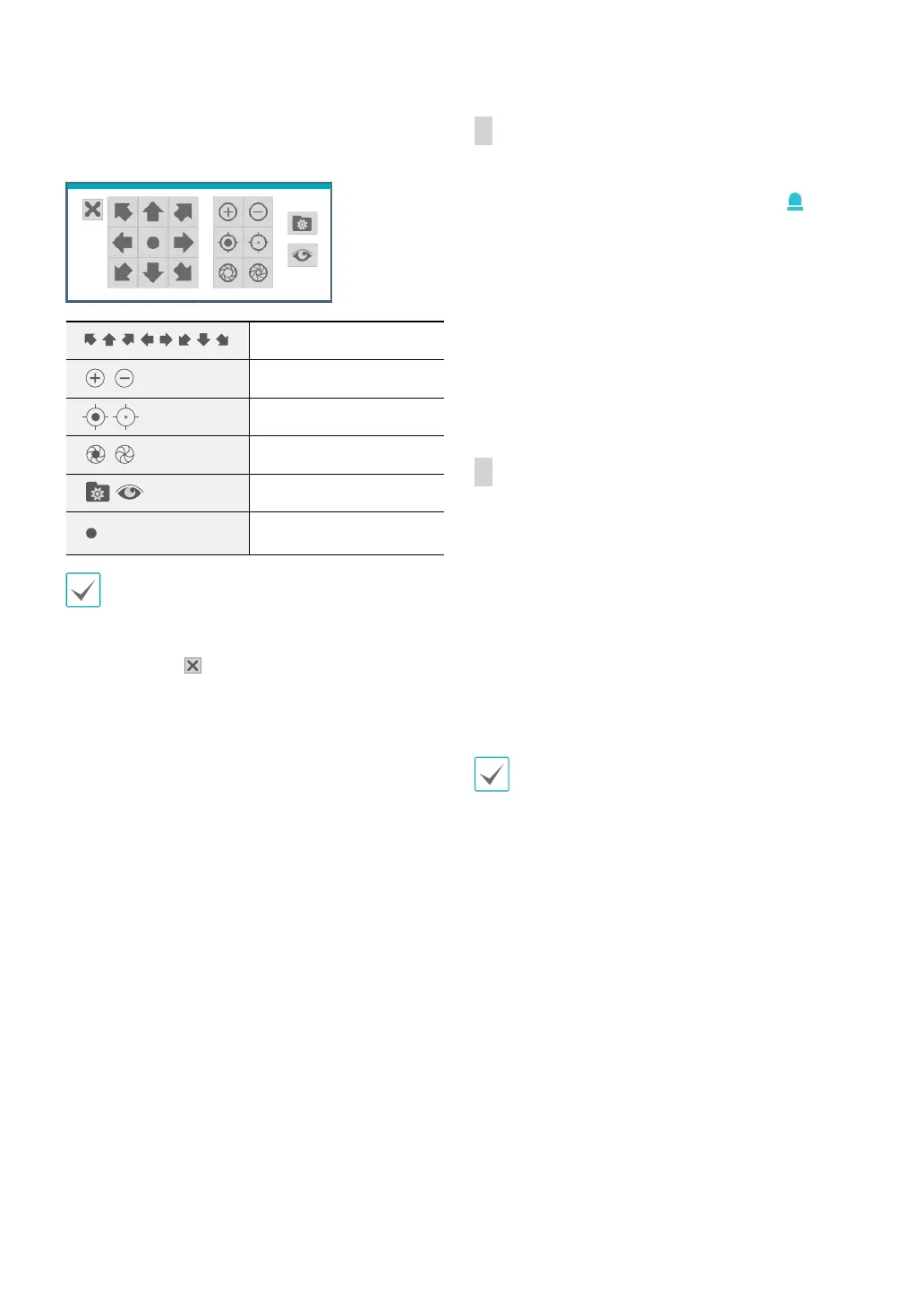
While in PTZ mode, place the mouse pointer close to
the bottom edge of the screen to display the PTZ Tools
window.
PTZ Camera Pan and Tilt
Zoom In/Out
Focus Near / Far
IRIS Open / Close
Set / Move to Preset
Device Menu supported
by the camera
• The exact PTZ protocol supported by the camera
must be specied in order to use the DVR's PTZ
controls.
• Drag and drop to reposition the PTZ Tools window.
• Select the
icon to hide the PTZ Tools window.
Event Monitoring
When an event occurs, the DVR automatically displays
the channel linked to the event and shows the
icon
on the system status area on the bottom of the screen.
To use the Event Monitoring feature, navigate to Menu >
Display > Main Monitor and enable Event Monitoring.
Event Monitoring remains in eect throughout the entire
Linked Recording Time. After that, the DVR will return
to the previous screen if a new event does not take place.
Pressing the Layout or a Camera button before the end
of the Linked Recording Time reverts the system to Live
mode.
Covert Camera
Use this feature to assign Covert Camera View
permissions.
Navigate to Menu > Camera and designate cameras as
Covert 1 or Covert 2.
• Covert 1: Hides images from the camera in Live mode
but does indicate the camera’s title and status via
icons.
• Covert 2: The camera is indicated as being inactive.
Images from the camera are not shown. Camera title
and status icons are not shown.
Users that have a cover Covert Camera View are
able to view both images from and status icons
for all Covert 1 and Covert 2 cameras.


 To Next Page