Part 2 - Conguration
34
Record Setup
Refer to the Menu Use on page 21 for basic
information on using the Setup menus.
General
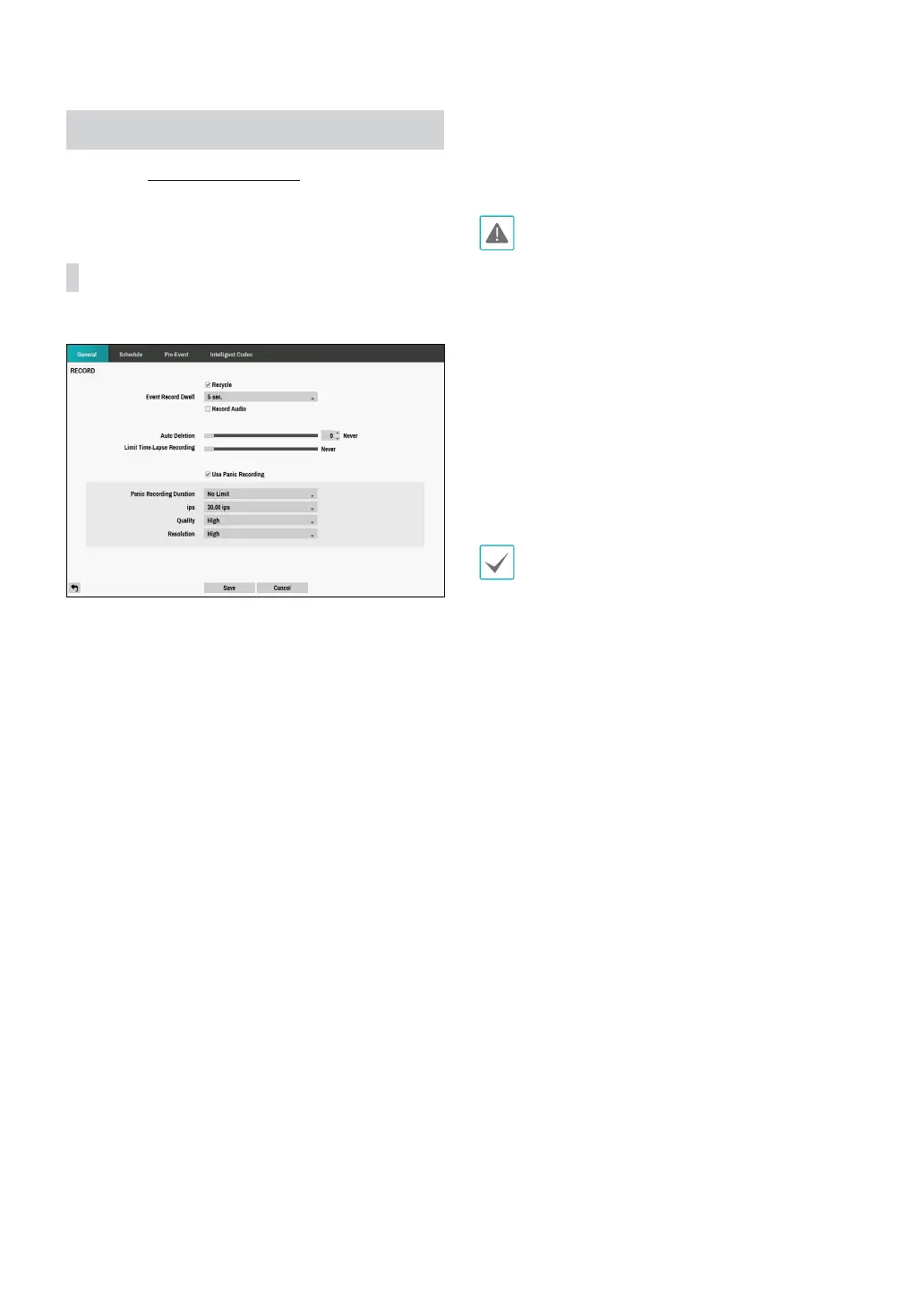
Congure general recording settings.
• Recycle: When the recording disks become full,
the system overwrites existing data with new data,
starting with the oldest rst. If Recycle is disabled,
recording will simply stop when the recording disks
reach their maximum capacity.
• Event Record Dwell: If linked recording is designated
as an event-triggered action, recording takes place for
the duration specied under this setting.
• Record Audio: The camera will record audio along
with video.
• Auto Deletion: Congure this option to delete
recording data automatically after the specied
number of days has elapsed. Select between 1 day
and 999 days.
To disable Auto Deletion, select Never. If enabled,
recording data will be stored on the DVR for
the specied number of days and then deleted
automatically. Expired recording data are deleted
automatically at midnight and will be deleted even if
the system reboots or the Auto Deletion setting has
been changed.
• Limit Time-Lapse Recording: You can store event
recording data for longer. If you do not wish to use
Limit Time-Lapse Recording, select Never. This
function is activated when data has been stored for
longer than as congured because the recording
disk has sucient capacity and saves new data by
overwriting Time Lapse Recording data that are
older than as specied under Recycle mode.
• If the recording stored on the disk is shorter than
the duration specied under Limit Time-Lapse
Recording, the older of Event Recording or Time
Recording data is deleted rst.
• The system's recording time may change depending
on recording quality, resolution, motion, and other
congurations made by the user. The duration
specied under Limit Time-Lapse Recording may
not be guaranteed in certain situations.
• Use Panic Recording: Enable/disable Panic
Recording.
• Panic Recording Duration: Disable Panic Recording
automatically. Select between 5 mins and 1 hr. If you
do not wish to disable the feature automatically,
select No Limit.
• ips: Allow you to set the images per second for Panic
recording.
• Quality: Allow you to set the recorded image quality
for Panic recording. You can select from: Very High,
High, Standard and Basic.
• Resolution: Allow you to set the recorded image
resolution for Panic recording. You can select from:
Very High, High, and Standard.


 To Next Page