D-0112389-I – 2022/04
Sera™ - Instructions for Use - EN Page 28
4.5.4 Home screen
Usually, the Sera
TM
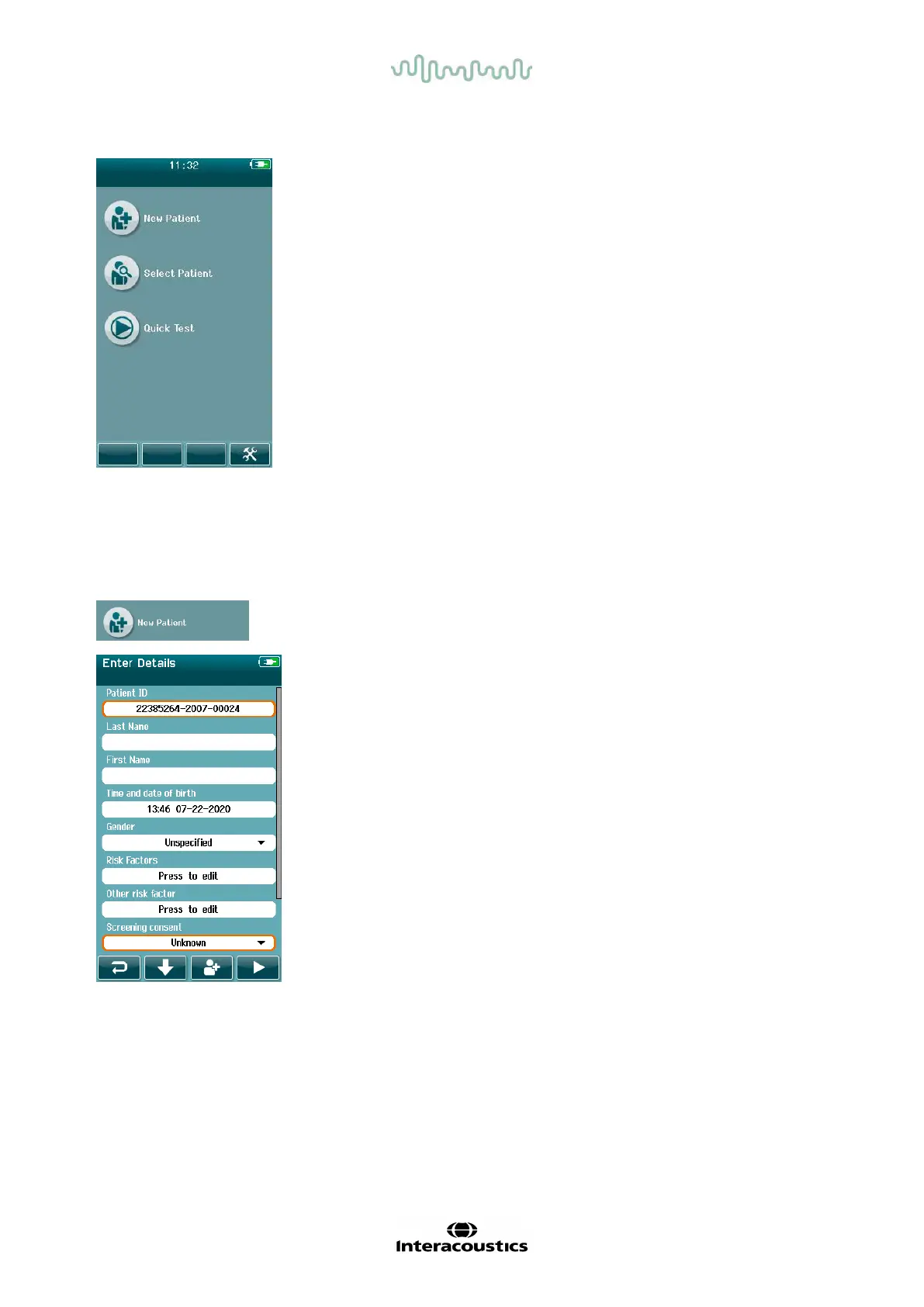
starts on the Home screen. The Home Screen
displays the buttons controlling entry into the major f unctions of the
Sera
TM
.
The following inf ormation can be viewed on the screen:
• Select New Patient to enter demographics for a new patient. After
entry of the patient’s inf ormation, you can save the name to the
database for testing later or immediately proceed with the testing.
• Select Patient to review the list of patients saved on the device.
Select a patient to review detailed demographic and test
information f or this patient or to begin a test.
• Select Quick Test to proceed immediately to perform a test
without entry of patient inf ormation. Quick tests are saved
temporarily under the patient name of Quick Test. If you want to
save a Quick Test session to a specif ic patient after testing, you
can save it by editing the Patient Information.
• The Change User control will be unavailable f or selection if user
login is disabled. Select Change User to log out of the current
user and display the User list for selection of a new user.
• Select Setup to access a list of the device settings that can be
changed directly on Sera
TM
. Some settings can only be changed
using HearSIM
TM
.
4.5.5 Adding a new patient
Patient inf ormation can be entered manually into the Sera
TM
via the New
Patient screen. Select the New Patient button on the Home screen.
In the New Patient screen, select a field f or data entry by touching the
desired f ield. The appropriate data entry control such as the keyboard,
calendar or drop-down list will open. Enter the patient’s data for the
desired fields:
• Patient ID (mandatory f ield)
• Last name
• First name
• Time and Date of birth
• Gender
• Risk factors
• Other risk f actor
Additional patient data fields can be added through the HearSIM
TM
software:
• Screening consent
• Tracking consent
• Ethnicity
Select and enter data until all desired f ields are completed.
The Patient ID field must be completed to save the data or proceed to a
test.













 To Next Page