90 °C
60 °C
40 °C
Page 13 / 96
7.3. Touchscreen - Basic operation and display symbols
Example
Symbol: Display/function:
The control panel must be switched on at the main switch.
D See page 22.
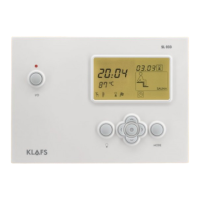
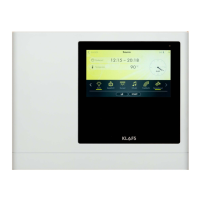
Operate the control panel by pressing on the touchscreen with your finger.
The touchscreen is divided into display sections and function symbols.
Functions are activated by pressing the symbols displayed.
Entering and changing settings will be quicker if a short pause of around 0.5
seconds is left between presses.
If you do not press any symbol or confirm the new value by touching an area
outside the setting within three seconds, the controller will automatically exit input
mode and apply the new setting.
After five minutes of non-use, the backlighting will gradually start to dim and then
the screen will switch off fully within a minute.
If you touch the display while it is dimmed or switched off, the backlighting will
switch on first. You will then be able to operate the controller via the display.
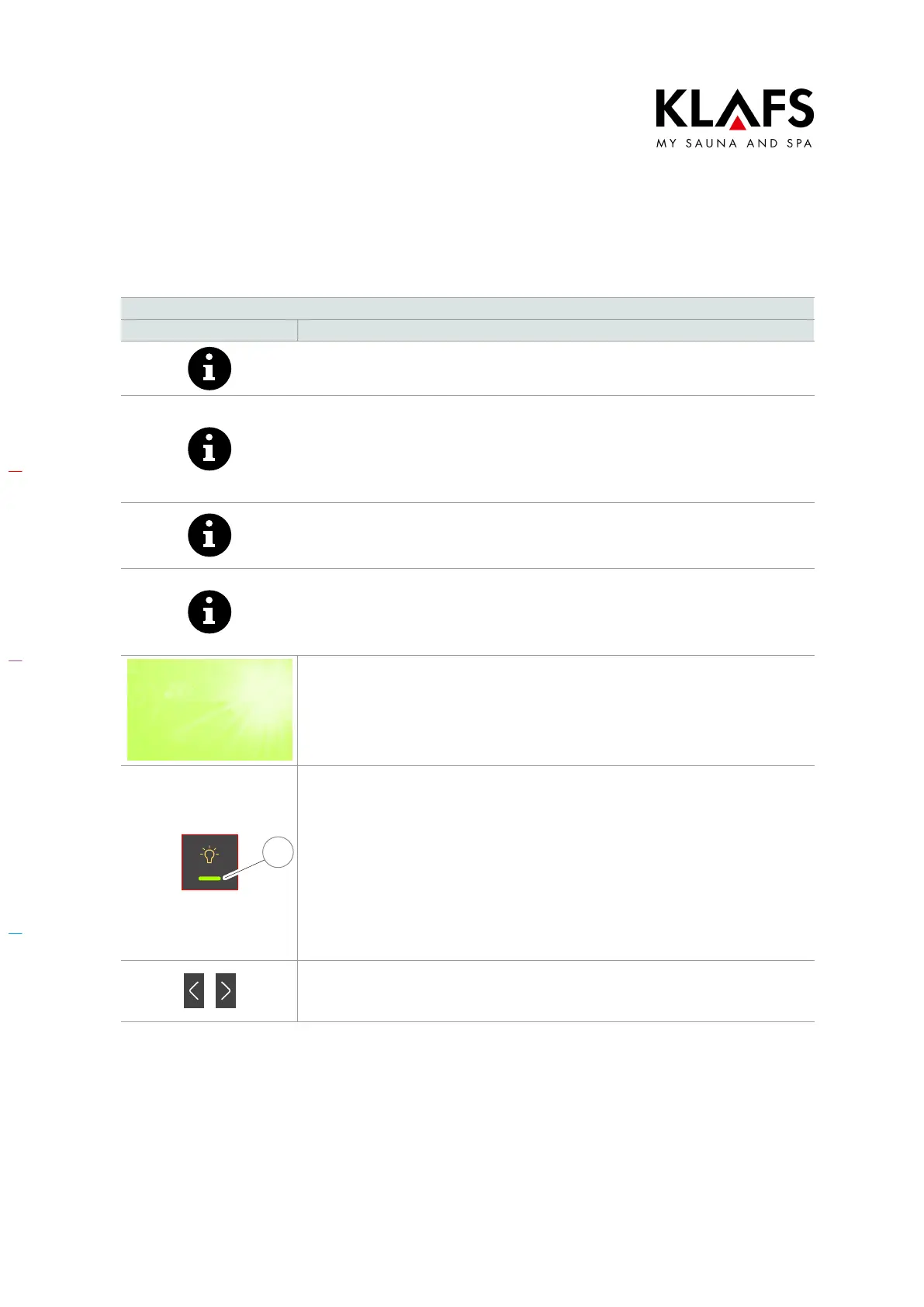
Screen background.
Green: Standby, settings.
Blue: Heating up.
Orange: In operation.
Light
1
Symbol.
E.g. light.
Pressing a symbol opens a dialog with the available settings and for switching
the selected function on/off.
Light bar (1).
Indicates that a function has been activated or started.
The function can be deactivated or stopped by pressing the symbol for that
function again.
Left/right arrows.
Pressing the respective direction takes you to the previous/next step or enables
you to scroll through the available options.



 To Next Page