Operation–Play mode
20
The backlight color of the display will change depending on the controller
you operate. With the default settings, this will be green when you operate a
slider, and red when you operate an encoder.
When a certain length of time elapses after you stop operating the controller,
the controller you operated last will be displayed.
You can change the backlight color of the sub-displays. (
☞
p.39 “Setting
mode–[11] LCD BACKLIG (LCD Backlight setting)”)
Encoder and slider-related settings
•You can assign a MIDI message to an encoder. For details, see “Setting
mode - [1] ENCODER (Encoder assignment)” (
☞
p.25).
•You can assign a MIDI message to a slider. For details, see “Setting mode -
[2] SLIDER (Slider assignment)” (
☞
p.27).
•You can specify the USB-MIDI port from which the assigned MIDI
message is transmitted. For details, see “Setting mode - [8] PORT (USB-
MIDI Port setting)” (
☞
p.36).
2. Trigger pads
When you press a pad, it will transmit the assigned note data or control
change.
Pads to which note data is assigned will also transmit velocity. (
☞
p.39
“Setting mode–[10] PAD VELOCITY (PAD Velocity setting)”)
Pads to which a control change is assigned will transmit a value of either 0
or 127.
Display
If note data is assigned
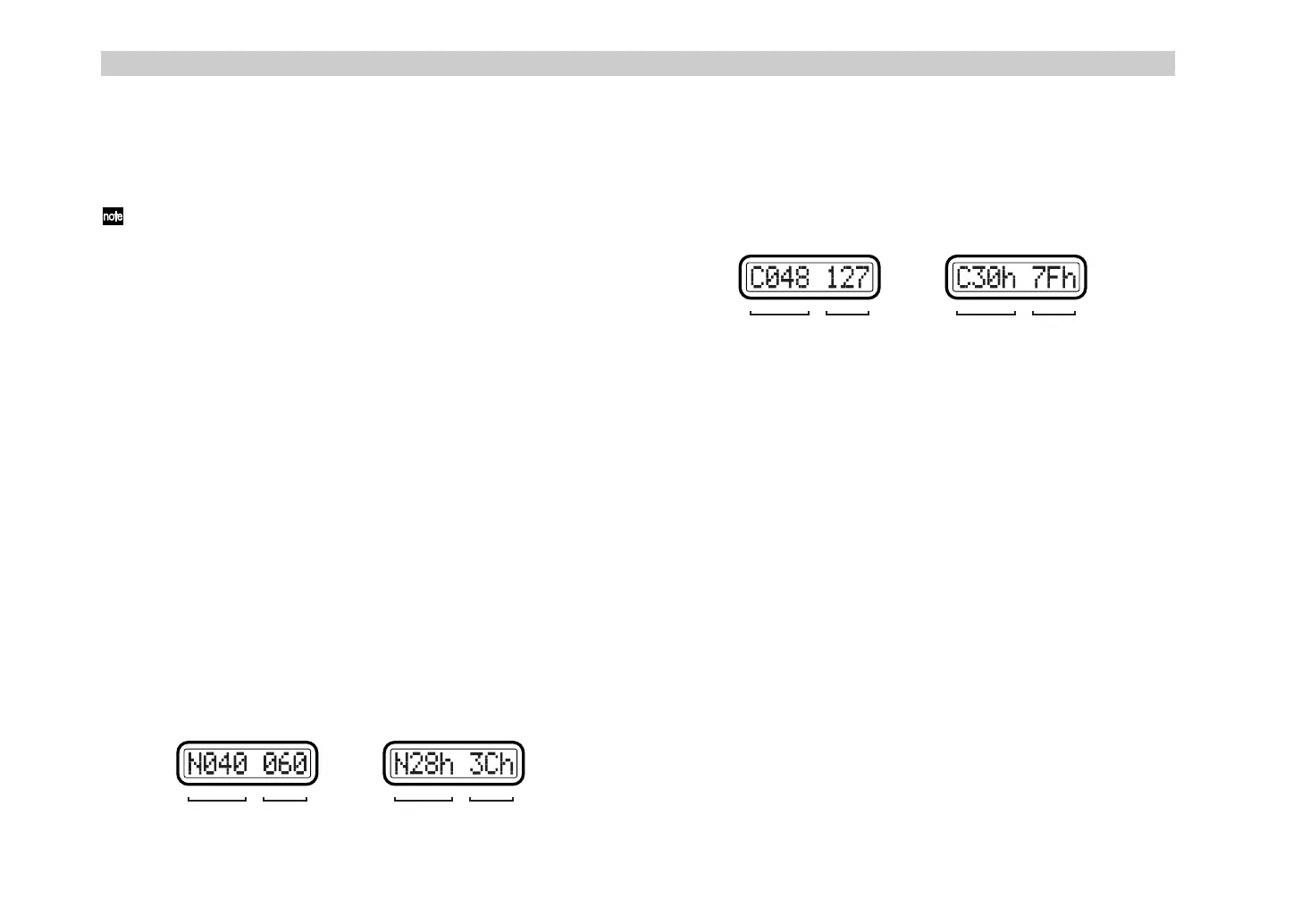
When you press a pad, the main display will show the transmitted note
number and velocity value.
If a note message is assigned, the pad will light once when the message is
transmitted.
If a control change is assigned
When you press a pad, the main display will show the contents of the
transmitted control change message.
If a control change is assigned, the pad will light. If you specified
Momentary as the pad operation, the pad will go dark when you press it to
transmit a value of 127 (and will light when a value of 0 is transmitted). If
you specified Toggle as the pad operation, it will alternately go dark and
light each time you press it.
Trigger pad-related settings
•You can assign a MIDI message to a trigger pad. For details, see “Setting
mode - [3] PAD (PAD assignment)” (
☞
p.28).
• If a note message is assigned, you can specify the velocity. For details, see
“Setting mode - [10] PAD VELOCITY (PAD Velocity setting)” (
☞
p.39).
•You can specify the USB-MIDI port from which the assigned MIDI
message is transmitted. For details, see “Setting mode - [8] PORT (USB-
MIDI Port setting)” (
☞
p.36).
•You can specify the pad illumination for when a MIDI message is
transmitted. For details, see “Setting mode - [12] PAD ILLUMI (PAD
Illumination setting)” (
☞
p.40).
Note number
Velocity
HEX LOCK key On
(hexadecimal display)
HEX LOCK key Off
(decimal display)
Note number
Velocity
MIDI message Value MIDI message Value
HEX LOCK key On
(hexadecimal display)
HEX LOCK key Off
(decimal display)
%- !"


 To Next Page