Operation–Scene mode
54
[16] WRITE
Here you can save the current controller assignments as a scene.
You can save twelve different scenes in the microKONTROL’s internal
memory.
1
Hold down the [SCENE] key and press pad [16].
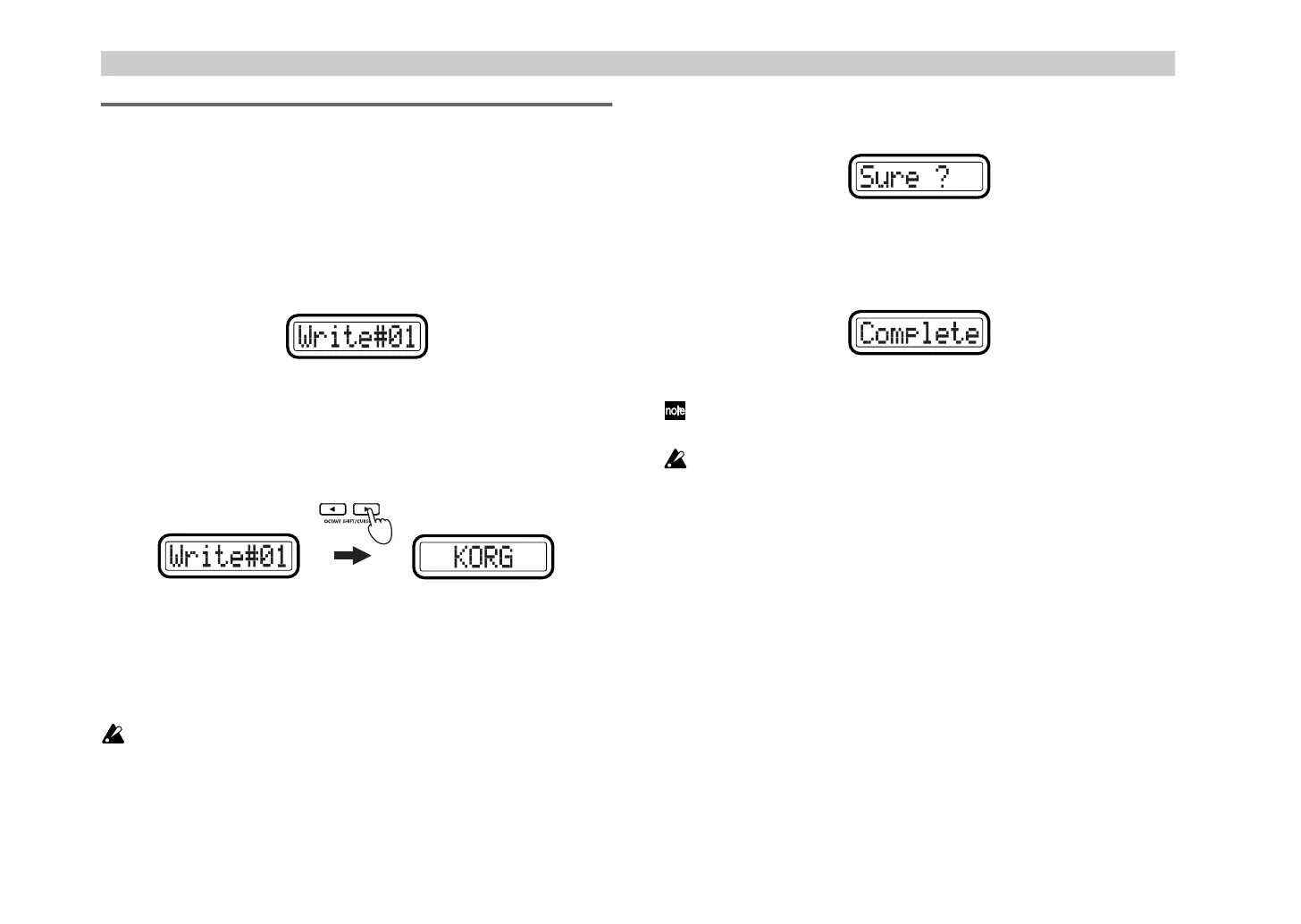
The [SCENE] key will light, and you will enter the WRITE page. The
main display will show the current scene number, and the
corresponding pad will blink.
2
Use the [VALUE] dial or the pads to select the writing-destination.
3
Press the OCTAVE SHIFT/CURSOR [
®
] key to proceed to “Name”
(select a name for the scene).
4
Use the [VALUE] dial to select a name.
The name you select here will be shown in the main display in Play
mode.
For a list of the available names, refer to “Scene Name” on the separate
leaflet.
You cannot specify the name as individual characters.
5
Press the OCTAVE SHIFT/CURSOR [
®
] key.
The main display will ask “Sure ?” (“Are you sure you want to write?”)
6
Press the [ENTER] key to execute the Write operation.
When writing is completed, the main display will indicate “Complete”
and you will return to Play mode. The scene you wrote will be selected.
If you press the [EXIT] key, the scene name will be displayed.
If you decide to cancel mid-way through this procedure, press the
[EXIT] key to return to Play mode.
Never turn off the power while writing; doing so may cause the internal
data to be damaged.
(Green)(Red)
(' !"


 To Next Page