Appendices–Using the Librarian software
59
The scene data will be loaded from the Librarian software into the
microKONTROL.
3
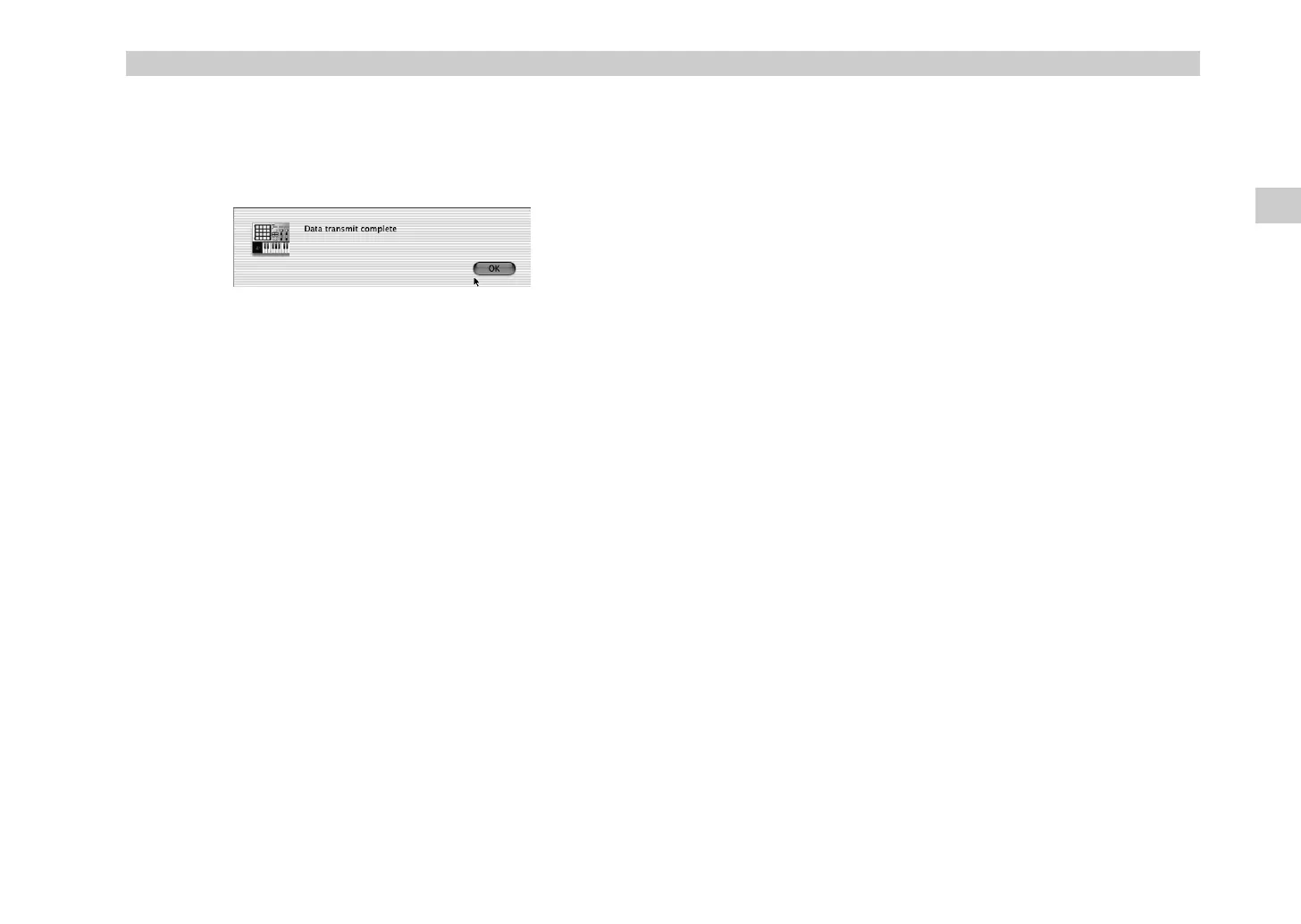
When transmission is completed, the Librarian software will display a
dialog box. Click the “OK” button.
When the microKONTROL finishes receiving the scene data, its main
display will indicate “Complete”
Menu commands
File
New
Creates a new scene set.
Open Scene Set...
Reads a scene set from a scene set file.
Open Recent
Displays a list of the scene set files you opened recently.
Save Scene Set
Overwrites the currently-edited scene set into the existing scene set file.
Save Scene Set As...
Saves the currently-edited scene set as a new file with the name you
specify.
Load Scene Data...
Loads a scene data file into the currently selected scene.
Save Scene Data...
Saves the currently selected scene to a scene data file.
Output Parameter... [Mac]
Saves the assignments of the currently selected scene in PDF format.
Edit
Undo
Cancels the result of the previous scene data load or scene exchange.
Redo
Re-executes the operation you cancelled by Undo.
Cut
Deletes the assignment settings of the selected scene.
Copy
Copies the assignment settings of the currently selected scene.
Paste
Pastes the copied settings into the selected scene.
Clear
Erases the assignment settings of the selected scene.
Exchange
Exchanges the selected scene with the scene you specify.
Rename
Edits the name of the selected scene.
View
Tool Bar [Win]
Switches the toolbar between visible and hidden states.
When visible, a check mark is displayed at the left of this command.
Status Bar [Win]
Switches the status bar between visible and hidden states.
When visible, a check mark is displayed at the left of this command.
Parameter Viewer
Switches the parameter viewer between visible and hidden states.
When visible, a check mark is displayed at the left of this command.
Refresh Folder Tree
Updates the folder tree display to show the current state of the folders.
Using the Librarian software
(, !"


 To Next Page