Getting Started
User Interface Basics
13
Cursor Buttons
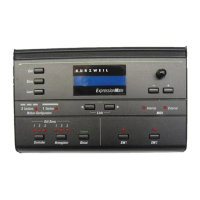
The cursor buttons (< and >) just below the display let you
choose Setups from Setup Lists. While editing Setups, you can
press these buttons simultaneously to jump to the next group of
parameters.
The cursor buttons also function as ÒsoftÓ buttons. Options like
Yes, No, OK, and Reload will appear above the buttons at certain
times, like when loading and saving Setups. When this happens,
press the cursor button thatÕs under the option you want.
Exit Button
When youÕre editing the ExpressionMate parameters, you can
press the Exit button to leave the editor and return to Play mode.
Store Button
When youÕre editing Setups, you can press Store at any time to
name and save the Setup youÕre working on. If youÕre in Play
mode, pressing Store lets you rename or move the current Setup.
See page 57 for more information on naming and saving Setups.
See page 89 for more information on SysEx dumps.
Learn Button
The Learn button lets you perform ÒIntuitive Entry,Ó which
speeds up certain editing tasks. See page 23 for details on using
Intuitive Entry and the Learn button.
Controller Button
Pressing this button takes you into the Controllers Editor, where
you change how the Ribbon, pedals, buttons, and breath
controller behave in the current Setup.
Arpeggiator Button
Pressing this button takes you into the Arpeggiator Editor, where
you deÞne how the Arpeggiator will play in the current Setup.




 To Next Page