Editing and Creating Setups
Setting a Zone’s MIDI Channel
24
Changing the Current Zone
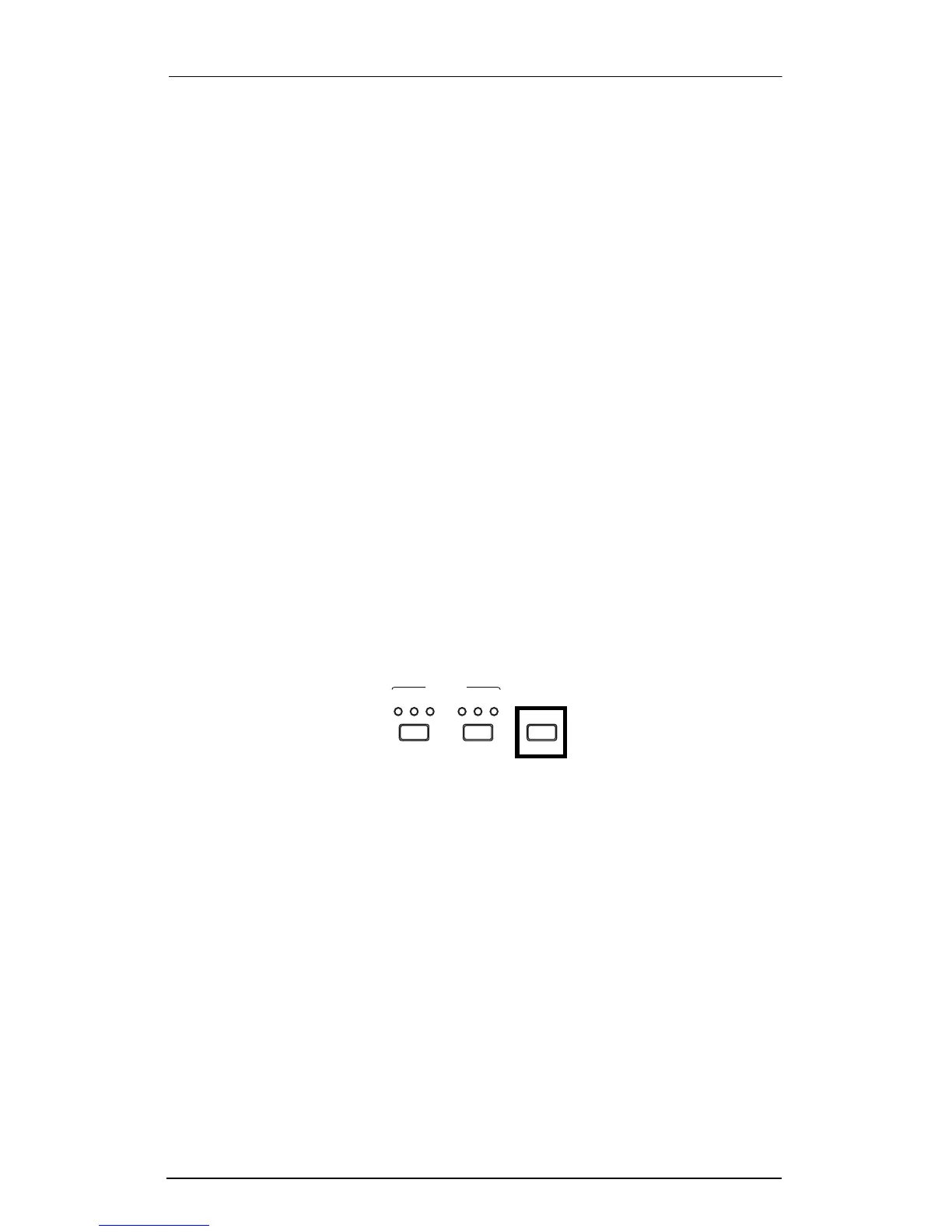
While in the Controller Editor, press the Controller button (at the
lower left of the front panel) to move among the three Zones,
each having its own Controller Editor parameters. The LEDs
above the Controller button will light to show which Zone youÕre
on. (Some parameters, such as RBN Split, affect all three Zones at
once, in which case all three LEDs will light up.)
You can easily set a parameterÕs value the same in all 3 zones
without having to visit each separately. Simply set the value
desired in one of the zones (doesnÕt matter which one) then hold
Learn then press Store to copy the last changed value to the other
2 zones. Be sure to press and hold Learn Þrst.
Compare
While youÕre in the Controller Editor, the Global button acts as a
Compare button. Press it at any time to temporarily revert to the
unedited Setup. The Zone LEDs will ßash to show that the
original parameters are in effect. Parameters can still be selected
for review while comparing but they cannot be changed. Push
Global again to return to the edited Setup, and the ßashing will
stop.
Setting a Zone’s MIDI Channel
The MIDI Chan parameter (#1 located just before RBN Split)
deÞnes the MIDI transmit channel for the currently selected
Zone. You can set it to any of the 16 MIDI channels on either the
Main Out or Aux Out port. You can also set it to None, which is a
handy way to keep a Zone from sending anything. All of the
ZoneÕs other parameters will stay intact, so you can switch the
Zone on and off using the MIDI Chan parameter.
Normally, you will want each Zone on a separate MIDI channel.
This is necessary if you want to control different programs on the
same MIDI instrument. For instance, if you use multiple Zones to
send program changes, and all the Zones have the same MIDI
channel (and Destination), there will be conßicts: no MIDI device,
including the ExpressionMate, can respond correctly to two or
ontroller
C
12
Z
ones
E
dit
A
rpeggiator
13 23
G
lobal
Compare













 To Next Page